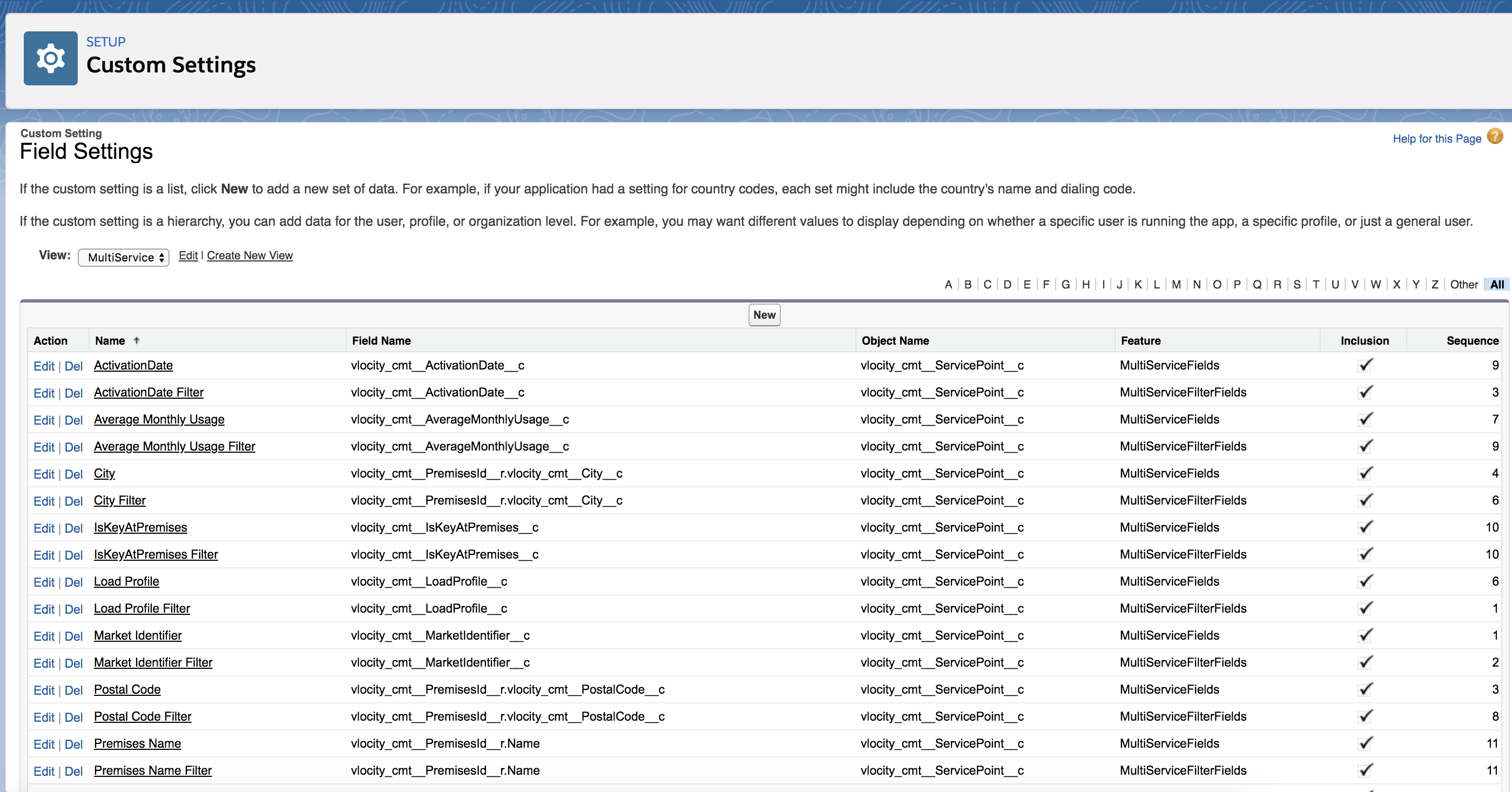
For any grouping object, you can configure existing Multi-Site field settings for table columns that are displayed on the group page by default, or you can add new fields to the table. To configure grouping objects, see the previous section.

When you create a custom field setting, only fields you have defined in the field setting are displayed. Other fields are not displayed in the column headers.
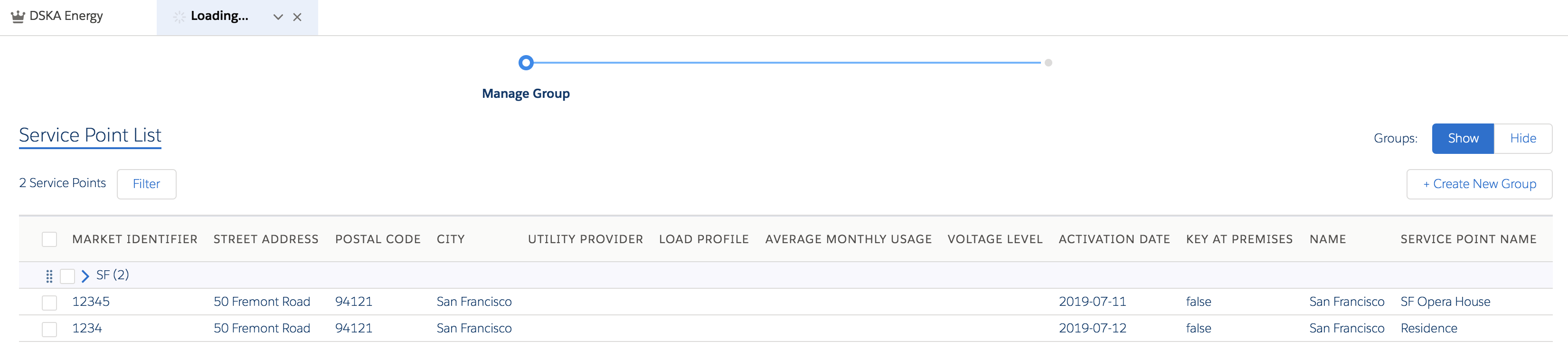
For example, the default set of fields that appear in the display columns for the Service Points table include:
-
ServicePoint.MarketIdentifier
-
Premises.StreetAddress
-
Premises.PostalCode
-
Premises.City
-
Service Point.UtilityProvider
-
Service Point.LoadProfile
-
Service Point.AverageMonthlyUsage
-
Service Point.VoltageLevel
Other grouping objects, such as Premises or Service Account, have different default fields.
To configure display columns using field settings:
- Log in to Salesforce.
- Go to Setup.
-
Search for Custom Settings In the Quick Find box and launch it.
The Custom Settings page is displayed.
- Go to Field Settings and click Manage to view the field settings.
-
Click New to add a new field or
Edit to modify a field that is displayed by
default.
The Field Settings Edit page is displayed.
-
Enter the following information.
Field
Description
Name
Enter the name of the grouping object field you want to add or modify an existing field.
Feature
Enter
MultiServiceFieldsfor the feature name.Field Name
Enter the API name for the field. For example, the API field name for VoltageLevel field of the Service Point object is
vlocity_cmt__VoltageLevel__c.You can reference fields of related objects using relationship notation. For example, to reference the City__c field from the Premises object on the Service Point tab, specify
vlocity_cmt__PremisesId__r.vlocity_cmt__City__c. For details about relationship notation, seeInclusion
When you check this option, the field is included as a column in the table. When you don't check this option, this field does not appear in the table.
Is Editable
This field is not used.
Object Name
Enter the object API name. For example, the name of the Service Point object is
vlocity_cmt__ServicePoint__c.Sequence
Enter the sequence in which you would like the field value to display.
-
Click Save.
The new field is added to the Field Settings list.