This section shows product prices. In the Price table:
-
Search for price list entries.
-
Display all prices or only the active prices. Active prices are the default setting.
-
Sort the rows by clicking the arrows beside the column headings.
To add a price:
- From the Vlocity Product Designer app, open a product specification or offering, and click the Pricing tab.
- In the Prices section, click New Price.
-
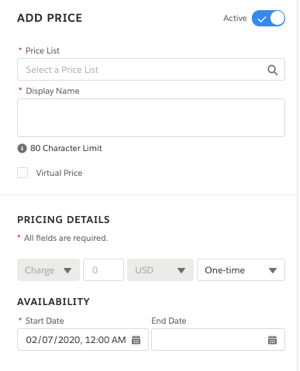
In the Add Price panel, enter the following information.
Field
Description
Price List
Select the price list to use.
Display Name
Enter a name to show for the price.
Virtual Price
Select this option if a parent product does not have a price of its own but is the total price of all the child products.
Pricing Details
Select the charge type, quantity, and currency.
Active
Indicate that the price is currently in use.
Availability
Specify the start and end dates for the price.
- Click Done.