---
schema_version: "1"
id: 5b4ca7358449885e8ada47f6cf9a5154218b06eb8aca723ce309952121b04f21
title: Add Custom Fields to the CPQ Cart FlexTable
collection: admin
version: current
locale: en-us
portal_url: https://docs.salesforce.com/admin/current/en-us/ind/264-0-0/comms_add_custom_fields_to_the_cpq_cart_flextable.md
canonical_url: https://help.salesforce.com/s/articleView?id=ind.comms_add_custom_fields_to_the_cpq_cart_flextable.htm&release=264.0.0&type=5
source_site: help.salesforce.com
content_type: documentation
content_hash: 085297e076d48305c5f79019e75353de32fe57e0a69af8132f32533e78d334c8
description: Extend the CPQ cart to display custom fields by updating the cpqCartFlexTable FlexCard and configuring event listeners on the global header FlexCards for Opportunity, Quote, and Order.
products:
- Communications
- Media
- Energy and Utilities
release: "264"
---
# Add Custom Fields to the CPQ Cart FlexTable
Extend the CPQ cart to display custom fields by updating the cpqCartFlexTable FlexCard and configuring event listeners on the global header FlexCards for Opportunity, Quote, and Order.
### Required Editions
Available in: Classic and Lightning Experience
Available in: Enterprise, Unlimited, and Developer Editions for CME Managed Package
User Permissions Needed
To enable CPQ Cart FlexCard
CME Managed Package license
Agentforce for CME Managed Package

Note Creating a new version of a managed FlexCard does not affect the active version until you explicitly activate it. Test your changes in a sandbox before activating in production.
Before you begin ensure you have access to OmniStudio FlexCards in your org and the necessary permissions to create new versions of managed FlexCards.
1. Log in to your Salesforce org with your credentials.
2. Navigate to OmniStudio and open FlexCards.
3. Search for and open the cpqCartFlexTable FlexCard.
4. Click Create New Version to create a working copy.
5. Add your custom fields to the FlexCard canvas and configure their data source bindings.
6. Add Custom Attributes for each custom field you added, mapping the attribute name and value as required.
7. Activate the new version of the FlexCard.
8. Search for and open the cpqGlobalHeaderOpportunity FlexCard. Repeat this step for the Quote header FlexCard and the Order header FlexCard.
9. Click Create New Version for each header FlexCard.
10. Click the gear icon on the right side of the FlexCard editor to open the FlexCard properties.
11. Under Event Listeners, click Add and enter the required event listener values.
12. Under the event listener, click Add Input Parameters and configure the input parameter name-value pairs as required. Refer to the input parameters shared here.
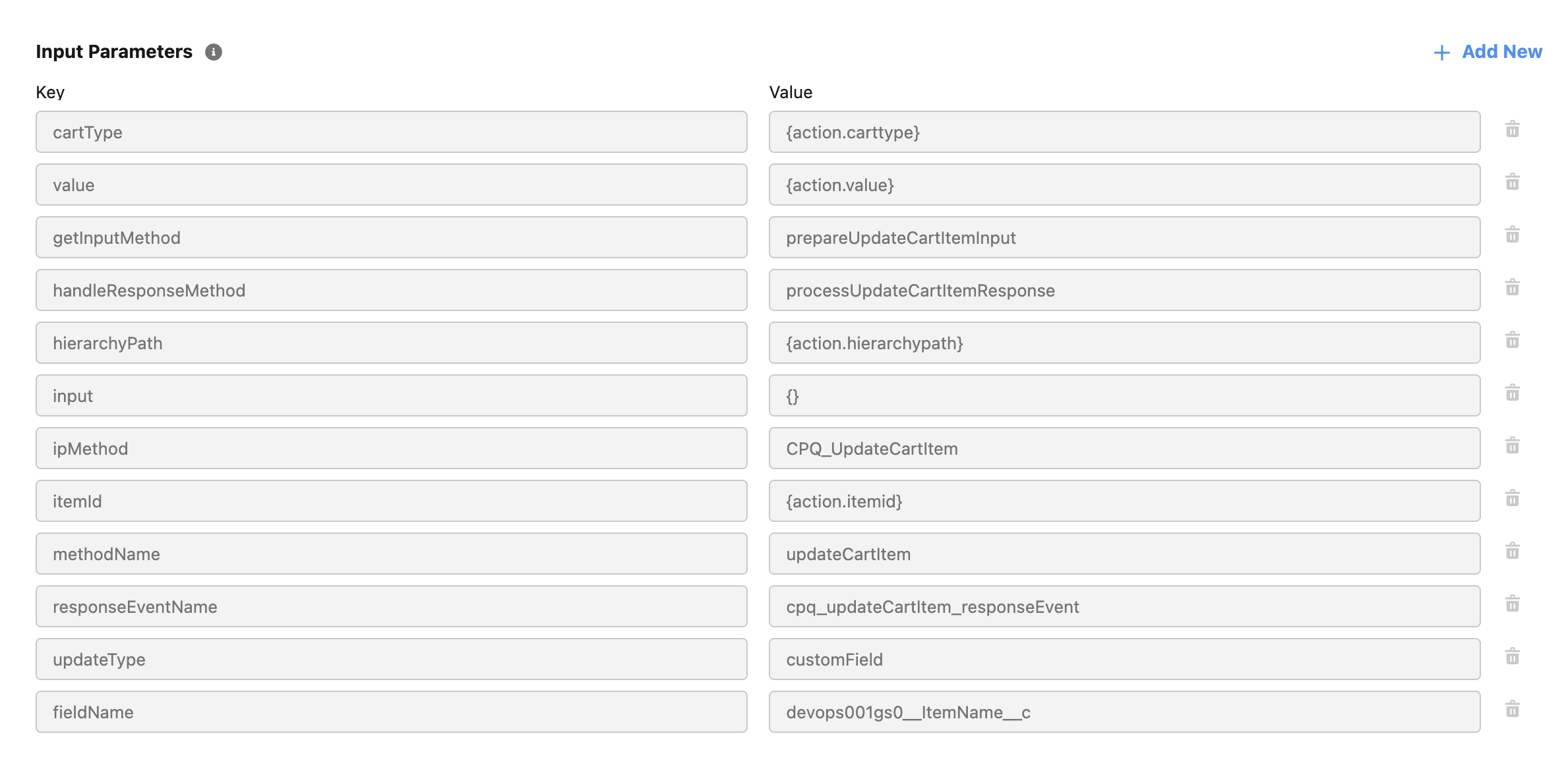
13. Save and activate each updated header FlexCard version.
Your custom fields appear in the CPQ cart, and the Opportunity, Quote, and Order header FlexCards are configured to listen for and pass the required events and parameters to the cart.