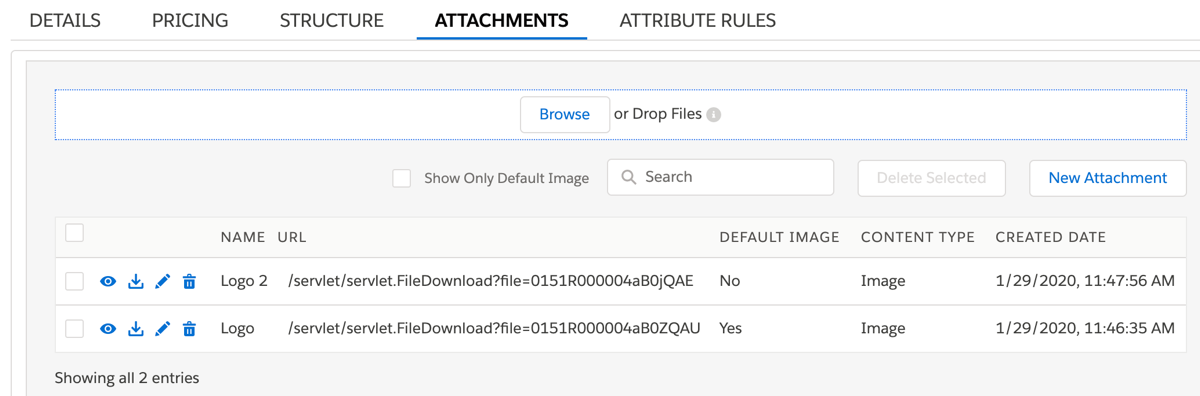
You can upload files for an offering or specification, including images and documents. On the Attachments tab, you can indicate the product image to show across different channels. Previews of images and videos are shown in the Details tab for a product.
In the Attachments tab, you can also use the icons to preview, download, edit, or delete attachments. When previewing attachments such as images, you can use the arrows to scroll through the list of attachments.
- From the Vlocity Product Designer, click the down arrow button, and select Products.
- Click on a product specification or offering to edit it.
- Click the Attachments tab.
- Click New Attachment.
-
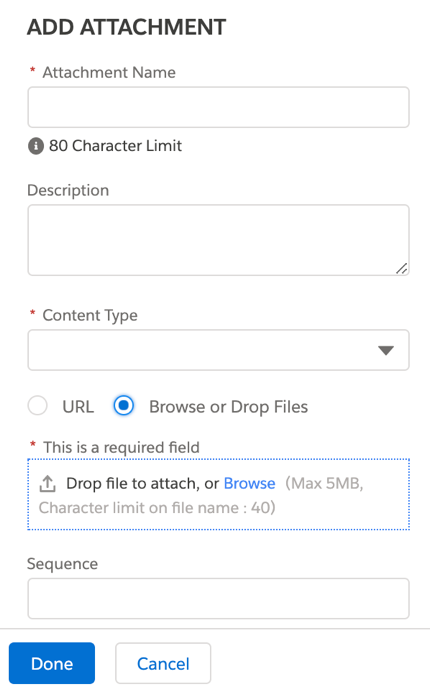
In the Add Attachment panel, enter the following information.
Field
Description
Attachment Name
Enter a name to show in the list of attachments.
Description
Enter a description of the attachment.
Content Type
Set the type of attachment: Video, image, or file.
Default Image
Set the image as the default to display for the product. If another image is the default, it is reset as not the default. This setting is not available for files or videos.
URL
Browse or Drop Files
Add an image for the product as a URL or add the image
Browse to the file you want to attach, or drag and drop the file to the drop zone.
Sequence
Enter a unique number to indicate the sequence in which the file, video, or image is displayed in the list of attachments
Use a sequence of 10, 20, 30 so that you can add to the sequence at a later time.
- Click Done.