
To add a promotion to the cart, go to the Promotions tab in the cart and click Add to Cart. For any price changed due to the promotion, the cart displays the beginning price with a line through it and the changed price appears below it.
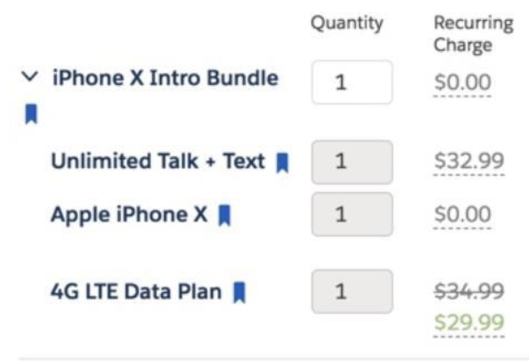
If the products contained in the promotion aren’t already in the cart, all the products in the promotion are added to the cart according to the reference dates.
When versioning is used, a promotion adds the valid product version if it's released and if its versioning dates include the reference date for the cart. For orders, the reference date is the Order Requested Date, if available, or the Order Start Date. For quotes and opportunities, the creation date is the reference date. See Versioning Reference Dates. If multiple versions of a product are in the cart, the promotion applies to all of these versions.
If the products contained in the promotion are already in the cart, the prices of products in the cart are updated with the promotional pricing. If the promotion contains a product bundle, the promotional changes to products appear in either of the following ways:
-
Only the price of the product bundle shows a promotional price. This occurs when the promotional setting of Update Scope is Update Item Only.
-
The price of the product bundle and its children show the promotional prices. This occurs when the promotional setting of Update Scope is Update Item and Child Items.
Avoid Colons in Custom Validation Messages - In the CPQ validation message framework, the colon character (:) is a reserved delimiter used to separate the product hierarchy path from the display message.The framework parses messages in this format:{ProductHierarchyPath}:{DisplayMessage}
This structure applies to both cardinality and soft-error messages. The parser relies on the colon to distinguish internal metadata (the product hierarchy path) from the message shown to the user. If your custom error message contains a colon, the parser may misidentify where the message begins, causing the displayed message to appear truncated or incorrect. Do not use colons in custom error messages. Use alternative punctuation such as hyphens (-), semicolons (;), and periods (.).
Also avoid the usage of pipe (|) character as this is used internally to separate multiple messages.
For more information on the Update Scope field, see Completing Basic Promotion Settings.