
Visualize customers on a map and plan visits for them by applying predefined filters and Key Performance Indicators (KPIs) that measure their store's performance. You can even use map-based visits to view and create visits for stores within a certain distance of your location.
Required Editions
|
Available in: Lightning Experience Available in: Enterprise and Unlimited Editions where Consumer Goods Cloud is enabled |
| User Permissions Needed | |
|---|---|
| To create map-based visits: |
CGCloud Sales User OR CGCloud Retail Sales User AND CGCloud Retail User |

Note Check out this feature in Salesforce Go! Explore more content and discover related
features. See Discover and Set Up Features With Salesforce
Go.
Considerations for planning and creating map-based visits:
- Distribution Rate and Out of Stock are the default performance indicators. After a visit is completed, customers with distribution and out-of-stock issues are flagged in the Account Extension object. Customers whose distribution rate is less than or equal to 92% or whose out-of-stock rate is greater than 12% are flagged.
- You can use theVisual Studio Code Based Modeler for Consumer Goods Cloud to add or remove filters and KPIs and adjust the default thresholds of the KPIs.
To create map-based visits:
- From the Advanced User Cockpit on the Guidance card, tap Show Tour.
-
Tap
 , and then tap Daily View.
You can see the locations of all the scheduled visits for the day on the map.
, and then tap Daily View.
You can see the locations of all the scheduled visits for the day on the map. -
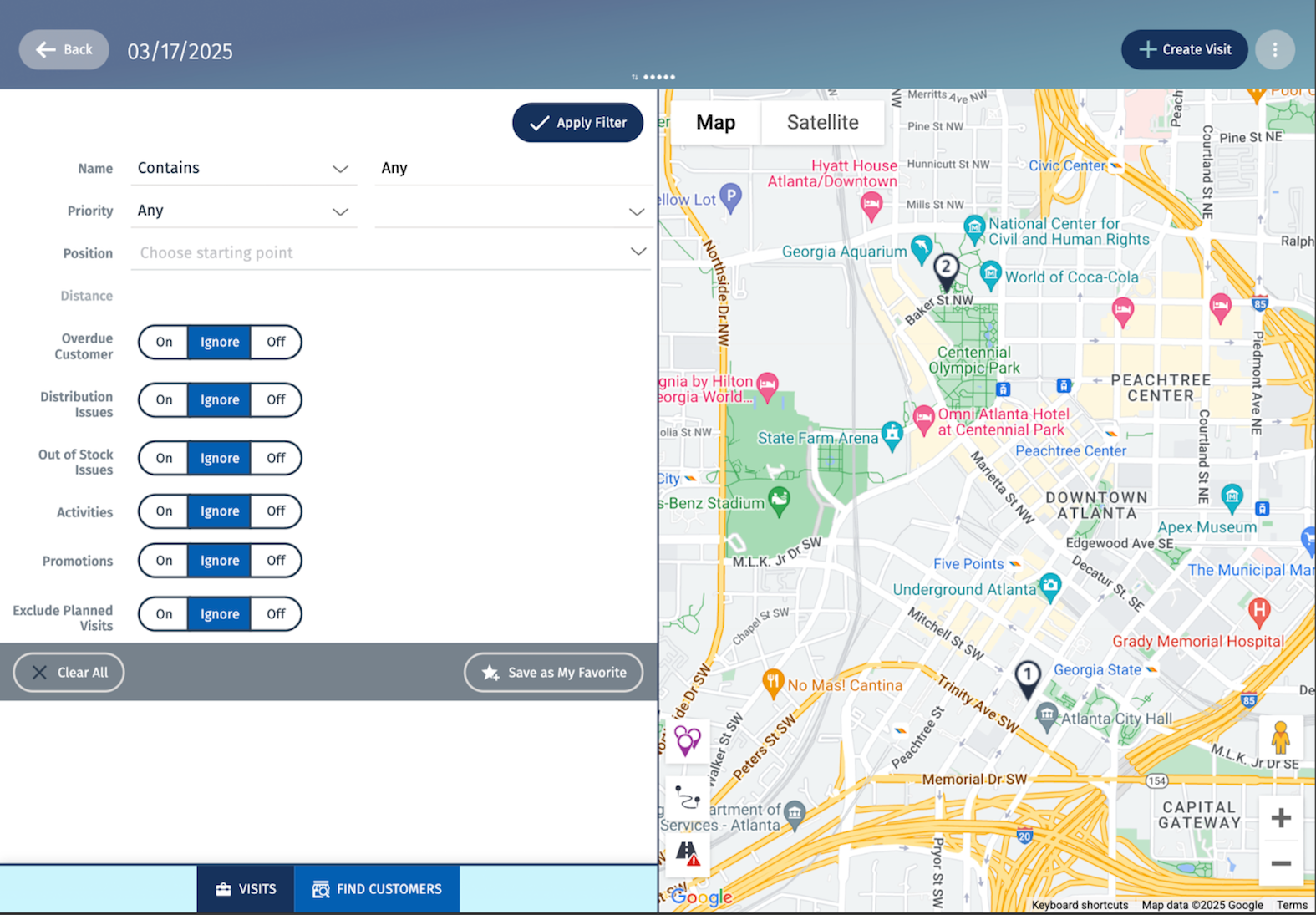
Tap Find Customers.
-
Choose one or more combinations of these filters and KPIs to find stores.
- Name: To find stores for a customer, provide a customer’s name.
- Priority: To find stores based on visit priority, select a Priority filter and field.
- Position: To find stores based on the location, choose the starting point on the map, then enter the distance within which you want to view stores.
- To include customers with an overdue visit, turn on Overdue Customer.
- To include customers with distribution issues, turn on Distribution Issues.
- To include customers with out-of-stock issues during the previous visits, turn on Out of Stock Issues.
- To include customers with activities, turn on Activities.
- To include stores with promotions, turn on Promotions.
- To exclude planned or scheduled visits of the customer, turn on Exclude Planned Visits.
-
Tap Apply Filter to highlight locations based on the selected
filters.
 highlights the stores. To create a visit, tap any store and then tap
Create Visit.
highlights the stores. To create a visit, tap any store and then tap
Create Visit.
 highlights the planned visits and numbers them based on the sequence of
visits.
highlights the planned visits and numbers them based on the sequence of
visits.  highlights your location.
-
To save these filters as favorites, tap Save as My
Favorite.
You can also remove a favorite filter by tapping Delete My Favorite.
-
To schedule visits from the map:
- Tap , tap a store, and then tap Create Visit.
- To view the best route between the stores you plan to visit and the user, tap
 . This feature doesn’t run route optimization or change the sequence of the
planned visits.
. This feature doesn’t run route optimization or change the sequence of the
planned visits. - To view the traffic in the area, tap
 .
. - To view the map on full screen, tap
 .
.
- Tap