
Salesforce provides a few standard out-of-the-box key attributes such as customer, product, order, or customer sets. You can define key attributes that aren’t a part of the standard set of attributes by using custom key attributes. With custom key attributes, you can define a special or specific search key.
Required Editions
|
Available in: Lightning Experience Available in: Enterprise and Unlimited Editions that have Consumer Goods Cloud enabled |
| User Permissions Needed | |
|---|---|
| To create a custom key attribute: |
(CGCloud Business Admin OR CGCloud Retail Business Admin) AND Penny Perfect Pricing |
These steps apply only to the Consumer Goods Cloud desktop app. If a key attribute is present in the Salesforce org, you can directly add the key attribute without creating a pricing context definition. For more information on standard key attributes, see Create a Key Attribute.
- From the App Launcher, find and select Pricing Context Definition.
- Click New.
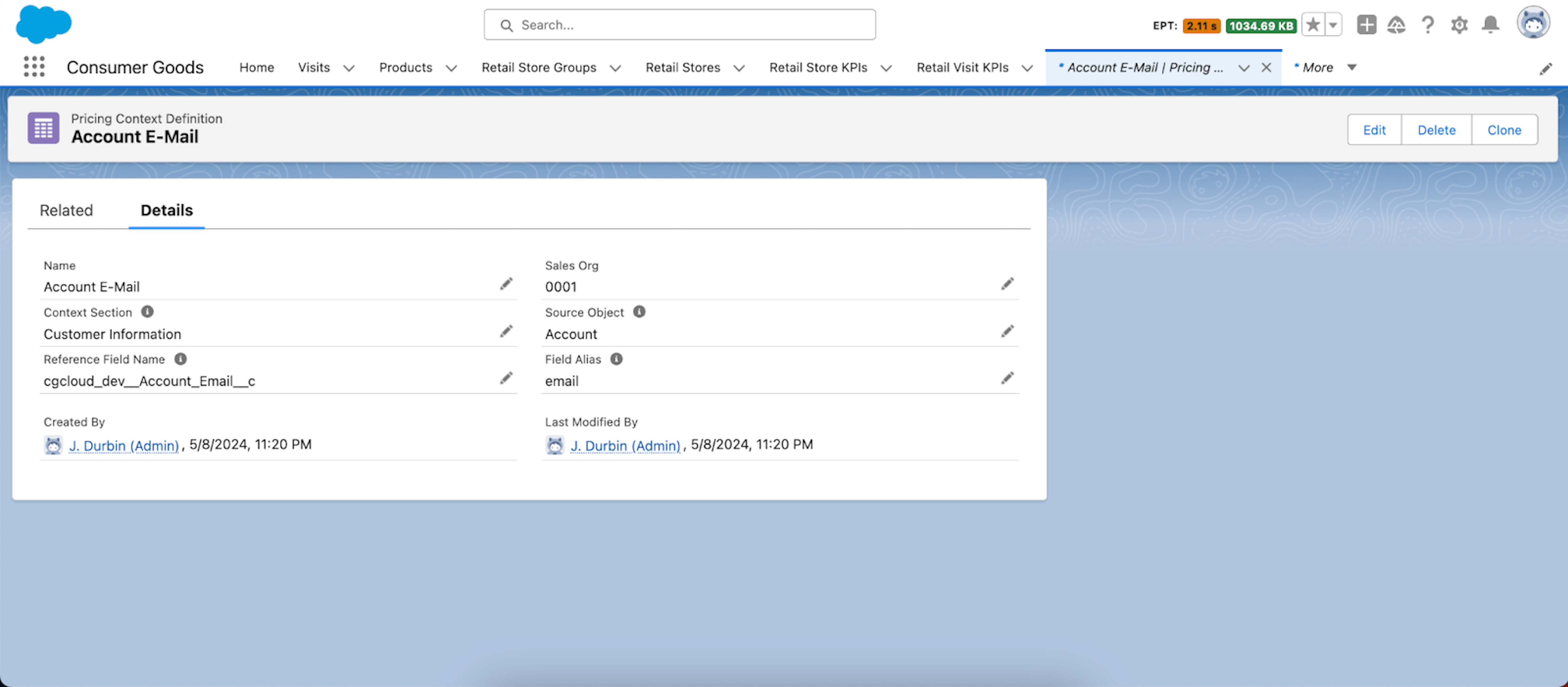
- Provide the API name and alias name for the reference field name and field alias.
- Provide the required fields and save your changes.
- From the App Launcher, find and select Key Attribute.
- Click New.
- Provide the key attribute name, description, sales org, source object, and field alias.
- Save your changes.

The image shows the UI to create a pricing content definition for the custom attribute.
The image shows the UI to create the custom key attribute.
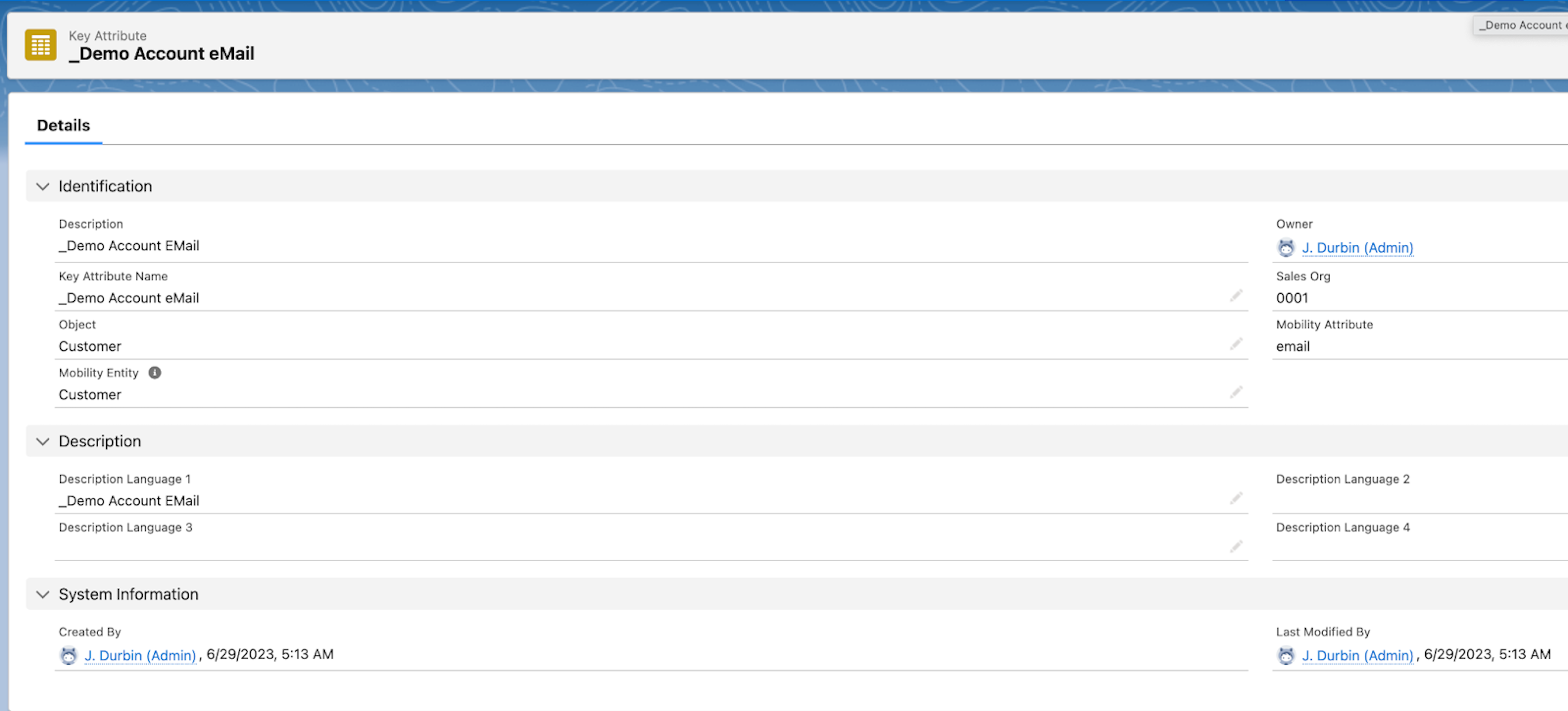
The Mobility Attribute field must match the field alias given in the Pricing Context Definition.
Create a key type and select the custom key attribute in the key definition section. For more information on penny perfect pricing configuration, see Setup for Penny Perfect Pricing.
Adjust the query CndCpReadCustomerAttributes (can be a Product, or Order, or Order Item attribute) in
the data source DsComplex_Pricing_sf on the modeler and add
the custom attribute with the same name as created.