
To maintain uninterrupted connectivity with and access to the Salesforce org, create a connected app and pair the Salesforce org with the CG Cloud Processing Service.
Required Editions
| Available in: Lightning Experience |
| Available in: Enterprise and Unlimited Editions that have Consumer Goods Cloud enabled |
| User Permissions Needed | |
|---|---|
| To set up Consumer Goods Cloud Processing Services: | CGC Cloud Processing Services Register |
Configure Replication Fields in Complex Pricing Condition
Get better performance on data replication in the mobility app by configuring the two replication fields in the Complex Pricing Condition object. The two replication fields are created when you upgrade the managed package.
The replication rule uses the Replication_Key_id__c
field by default for replicating data by using the mobile app. To improve the replication
performance, use these fields instead of the Replication_Key_id__c field:
| Field Name | References |
|---|---|
Replication_Account__c |
account ID |
Replication_Sales_Organization__c |
sales organization ID |
-
To migrate the existing data from
Replication_Key_id__cto these fields, run a batch process by running this code on an anonymous window from the developer console:cgcloud.CGCloudBatch.executePostInstallBatch('BatchPPPConditionsReplicationFields', 2000);If
Replication_Key_id__cis blank, the batch process updates theReplication_Sales_Organization__cfield with the sales organization ID specified in theSales_Org__cfield.If
Replication_Key_id__ccontains an account ID, the batch process updates theReplication_Account__cfield with that account ID. -
To retrieve the Salesforce ID of the user’s salesOrg, adjust your synchronization rules by
creating a named query.
- From the App Launcher, find and select Sync Management.
- On the Sync Configuration tab, select Named Queries.
-
Locate the Limited Distribution section and within that section, click
New to create the named query. Use this definition:
Bindable Name SOQL Statement SalesOrganizationId Select Id from cgcloud__Sales_Organization__c where Name = $User.cgcloud__Mobility_Sales_Org__c
- To verify that the configuration works as expected, click Execute.
-
To update the where condition for the Complex Pricing Condition object, go to Sync Configuration | Tracked Objects
-
Edit the Complex Pricing Condition object.
If you haven’t changed the default configuration provided by the demo data, the “where” condition is similar to:
cgcloud__Sales_Org__c = $User.cgcloud__Mobility_Sales_Org__c AND cgcloud__Valid_From__c <= NEXT_N_DAYS:14 AND cgcloud__Valid_Thru__c >= LAST_N_DAYS:14 AND ( cgcloud__Replication_Key_id__c ='<EMPTY>' OR cgcloud__Replication_Key_id__c IN ::RelevantHierarchyAccountsForUser:: ) -
Update the where condition with the new fields:
cgcloud__Valid_From__c <= NEXT_N_DAYS:14 AND cgcloud__Valid_Thru__c >= LAST_N_DAYS:14 AND (cgcloud__Replication_Account__c IN ::RelevantHierarchyAccountsForUser:: OR cgcloud__Replication_Sales_Organization__c IN ::SalesOrganizationId:: )
-
Edit the Complex Pricing Condition object.
- To verify that the configuration works as expected, click Execute.
- Save the configuration.
Create a Self-Signed Certificate
Log in to your Consumer Goods Cloud org to create a self-signed certificate. You must create a self-signed certificate before you create a connected app.
- From Setup, in the Quick Find box, enter Certificate and Key Management, and then select Certificate and Key Management.
-
Click Create Self-Signed Certificate, and then enter these
details.
- Label: CGCloud_Services
- Unique Name: CGCloud_Services
- Key Size: 2048
- Select Exportable Private Key.
- Save your changes.
Register the Processing Service
Use the self-signed certificate to register your processing service.
- From Setup, in the Quick Find box, enter Processing Services and select it.
-
Register the processing service.
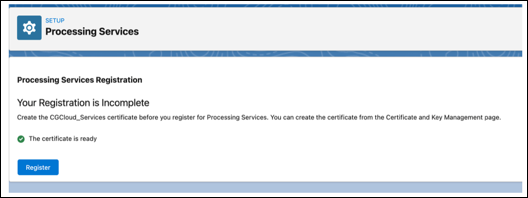
If you already have a certificate, you can use that certificate for registration.
Replace the Self-Signed Certificate
When your self-signed certificate expires, you receive an email notification. To prevent any disruption to your Consumer Goods Cloud services, replace the expiring certificate with a new one before the expiration date.
Required Editions
| Available in: Lightning Experience in Enterprise and Unlimited Editions that have Consumer Goods Cloud enabled |
| User Permissions Needed | |
|---|---|
| To replace a certificate: | CG Cloud Processing Services Register |
- From Setup, in the Quick Find box, enter Certificate and Key Management, and then select Certificate and Key Management.
- Find the CGCloud_Services certificate with the approaching expiration date.
- In the row for that certificate, click Del.
- Click Create New Certificate.
-
Enter the certificate details.
- Label: CGCloud_Services
- Unique Name: CGCloud_Services
- Click Save.
- From Setup, in the Quick Find box, enter Feature Settings, and then select Feature Settings.
- In the Consumer Goods Cloud section, click Processing Services.
-
Register the processing service.
The registration uses the new self-signed certificate you created.
When you add or renew the CGCloud_Services self-signed certificate, click Register again. The registration doesn't update automatically, even if the tenant appears as registered.
Download the Public Key
Use the Processing Services Pairing App to download the public key to use digital signatures in your connected app.
In Setup, on the Processing Services page, register the Processing Services.
- From the App Launcher, find and select Processing Services Pairing App.
-
Click Download Certificate.
The ProcessingServices.crt file is downloaded and valid for 60 minutes.
Create an External Client App
To authenticate, authorize, and integrate your Salesforce org with Consumer Goods processing services, create an external client app.

See New connected apps can no longer be created in Spring ‘26 for more details.
- From Setup, in the Quick Find box, enter Apps, and then select External Client App Manager.
- Click New External Client App.
- Enter a name for the app.
- Enter contact email ID.
- Select Enable OAuth Settings.
- In Callback URL, enter https://login.salesforce.com/services/oauth/success.If you are using a testing sandbox, use https://test.salesforce.com/services/oauth/success.
-
In Selected OAuth Scopes, select these options:
- Access the identity URL service (id, profile, email, address, phone)
- Access unique user identifiers (openid)
- Manage user data via APIs (api)
- Perform requests at any time (refresh_token, offline_access)
- From the Flow Enablement section, select Enable JWT Bearer Flow.
-
Upload the public key that you downloaded.
If the pairing process isn’t completed within an hour after you download the public key, download another public key and upload it. See Download a Public Key.
- If selected, deselect all security settings.
-
Click Create.
External client app is successfully created.
-
Assign access to user profiles and edit policies.
- Click Policies, and then click Edit.
- In the OAuth Policies section, from Permitted Users, select Admin approved users as pre-authorized.
- Confirm your changes.
- Select the required profiles and permission sets.
- Save your changes.
-
Copy consumer key.
- Click Setting.
- In the OAuth Settings, click Consumer Key and Secrets.
- Enter the verification code, and click Verify.
- Copy the consumer key.
You need the consumer key to complete the pairing.
Complete the Pairing
Complete the pairing in the Processing Services Pairing App and schedule a maintenance slot.
- From the App Launcher, find and select Processing Services Pairing App.
-
In the Processing Services Pairing App, click Start.
- Enter the consumer key.
-
Select the users.
For Processing Service User, select users who sync data between Hyperforce and Salesforce. Only users who have the CGC Processing Services Register permission set are listed.
-
To schedule a time slot for maintenance activities, enter a day and time.
The day and time are based on your Salesforce org’s time zone. During this time, the system performs maintenance activity off-core, and the tenant goes into the Maintenance state.
- Click Connect.
Configure User Access for Processing Services
Configure user access to objects for each processing service.

- From the App Launcher, find and select Processing Services Pairing App.
-
Click Manage Users and Services, and select the users.
For Processing Service User, select users who must sync data between Hyperforce and Salesforce.
-
Click Next, and select these services:
If you started to use the Consumer Goods Managed package before Summer ’24, your Processing Service user needs these permission sets to run the respective batches.
Service Permission Set Required Pricing Condition Condensation Batch CGCloud Advanced Pricing Worker Hierarchy Org Unit Batch CGCloud Org Unit Hierarchy Flattening Worker Hierarchy Customer Batch CGCloud Account Hierarchy Flattening Worker Manage CGCloud Processing Services CGC Processing Services Register Segmentation Batch CGCloud Account Segmentation Worker If you started to use the Consumer Goods Cloud Managed package in Summer ’24, your Processing Service user needs these permission sets to run the respective batches.Service Permission Set Required Pricing Condition Condensation Batch CGCloud Retail Advanced Pricing Worker Hierarchy Org Unit Batch CGCloud Retail Org Unit Hierarchy Flattening Worker Hierarchy Customer Batch CGCloud Retail Account Hierarchy Flattening Worker Manage CGCloud Processing Services CGC Processing Services Register Segmentation Batch CGCloud Retail Account Segmentation Worker -
Click Connect.
Important If the username for a selected user is changed, the user is no longer associated with the processing service. Re-pair relevant users to continue to use the processing service.
Replace the Self Signed Certificate for Your Connected App
The certificate used for pairing the connected app is valid for one year, and you receive an email 30 days before it expires. You can also check the certificate's expiration date in the Processing Services Pairing app.
-
Download a new certificate.
- From the App Launcher, find and select Processing Services Pairing App.
-
Click
 , and then select Download Certificate.
The downloaded certificate is valid for only 60 minutes. Replace the expiring certificate and confirm the replacement within 60 minutes of the download.
, and then select Download Certificate.
The downloaded certificate is valid for only 60 minutes. Replace the expiring certificate and confirm the replacement within 60 minutes of the download.
The ProcessingServices.crt file is downloaded. -
Replace the expiring certificate with the new certificate.
- From Setup, in the Quick Find box, find and select App Manager.
- For the app that you want to replace the certificate, click Edit.
- To upload the new certificate, next to Use digital signatures, click Choose File, and then select the certificate that you downloaded.
- Save your changes.
-
Confirm the replacement of the certificate.
- From the App Launcher, find and select Processing Services Pairing App.
- Click Confirm Certificate Replacement.
Configure Session Settings for Consumer Goods Cloud Processing Services
When you create sessions, Consumer Goods Cloud can interact with multiple environments, such as Hyperforce. As a result, IP addresses aren’t static. To avoid errors when you commit and promote changes, disable the session setting and lock sessions to the IP address that they originate from.
- From Setup, in the Quick Find box, enter Session Settings, and then select Session Settings.
- Deselect Lock sessions to the IP address from which they originated.