Set Up Multi-Markets
with Sales
Orgs
Use
multi-market management in Consumer Goods (CG) Cloud to filter data, business processes, and
configurations within a Salesforce org by market and avoid creating multiple Salesforce orgs for
each market. Multi-market management supports a global template approach within an org by
setting up sales organizations within a Salesforce org. Multi-market management supports only
processes that are based on the enhanced data model, such as advanced visits, advanced orders,
sales folders, and advanced promotions. Multi-market isn’t supported out-of-the-box for retail
stores, assessment tasks, action plans, or retail store KPIs.
Required Editions
| Available in: Lightning Experience in Professional, Unlimited, and
Enterprise Editions that have Consumer Goods Cloud enabled
|
Sales organizations are business segments within CG Cloud that you can use to structure your
data and business processes by your organizational unit. For example, if Salesforce
organization is a wardrobe or cabinet, sales organizations are the drawers in which you can
put your products, accounts, or business process configurations to segment your data. Big CG
companies can use sales organizations that have complex and varied Go-To-Market (GTM)
strategies that have various processes for different product categories. Big players can also
use sales organizations to introduce their solutions to various markets and various countries
that differ in processes or GTM strategies.
For example, company A operates in multiple European countries (multi-markets). The company
has multiple retail channels, slightly different products, and substantially different
go-to-market strategy and business processes for each country. Company A can use sales orgs in
two ways: either create a Salesforce Org and CG Cloud sales org for every country or create
one Salesforce Org for Europe and separate CG Cloud Sales Orgs for each country.
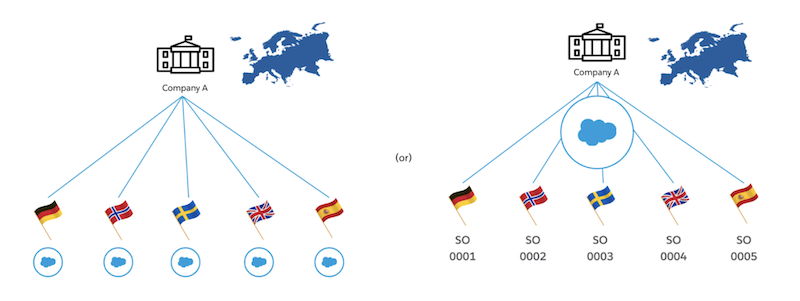
By using sales orgs, you can:
- Assign offline users to one sales org
- Assign online users, such as business admins to one or more sales orgs
- Segment master data, such as accounts and products of a sales org
- Segment master data, such as accounts and products of a sales org
Every user in your company performs a different set of activities. You can typically divide
your users into three groups: admins, supervisors, and reps. Each user can belong to more than
one sales org. You can also assign users to a Mobility Sales Org, which specifies the sales
org of the user’s mobile device. The mobile device receives only data relevant to the
specified Mobility Sales Org. A user can belong to only one Mobility Sales Org.
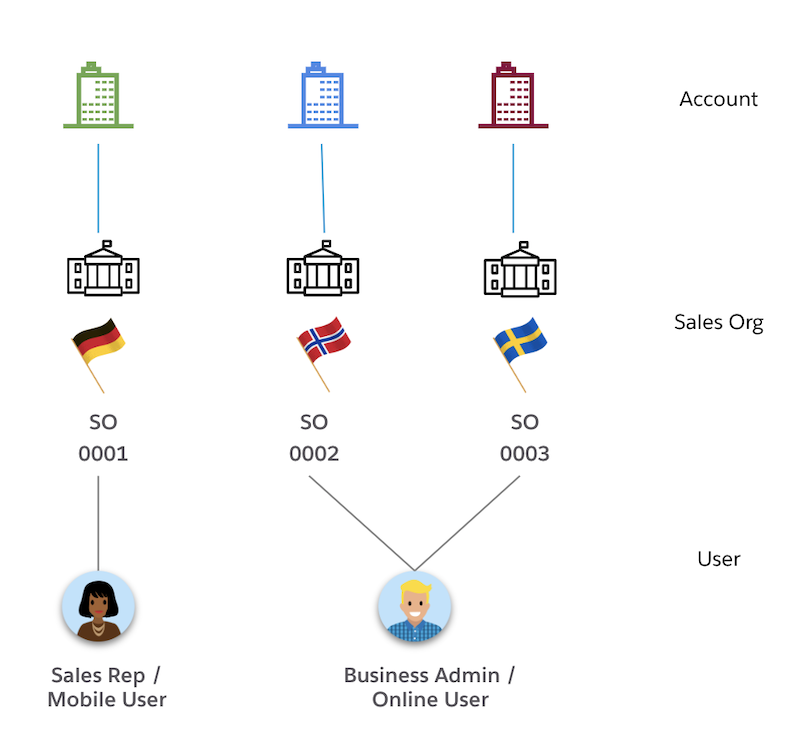
A field user (offline user) usually belongs to only one sales organization (Mobility Sales
Org). A back-office user (online user or business admin) can belong to multiple sales
orgs.
- Add Picklist Values to Sales Org Picklist Value Set
To create a sales org, first add values to the sales org picklist. The Sales Organization drop-down list values are retrieved from the predefined picklist values part of the Global Value Set.
- Add Picklist Values to Business Area Picklist Value Set
To use Retail Execution in the Consumer Goods Offline mobile app, add values to the business area picklist value set.
- Create a Sales Org
Create a sales org to segment data based on your business processes by geography, product division, or account team. Segment configurations by business in one Salesforce org. Manage multiple markets (multi-markets) in one Salesforce org. You can also create multiple sales orgs.
- Set Up Penny Perfect Pricing for Multi-Market
Configure sales organizations with Penny Perfect Pricing to automatically apply market-specific pricing logic based on the customer and order context.

