Use an expression set to create a rule to determine the prior authorization and member
plan status of a service. Add a List Group element in the expression set to fetch the Health
Cloud object fields from the context definition that you created earlier. Based on the prior
authorization and member plan status, calculate the coverage benefit associated with the service
and its approval status.
Required Editions
| Available in: Lightning Experience |
| Available in: Enterprise and Unlimited Editions for clouds that
have Business Rules Engine enabled |
| User Permissions
Needed |
| To create, update, and delete expression sets |
Rule Engine Designer |
| To run expression sets in Business Rules Engine |
Rule Engine Runtime |
-
From the App Launcher
 , find and select Expression Sets.
-
Click New.
-
Enter Member Plan Status Check as the name of the new expression
set.
-
Select Default as the usage type.
-
Select Get_MemberPlan_Details as the context definition.
-
Save your changes.
Create Resources
-
On the Member Plan Status Check expression set record page, click the
Member Plan Status Check V1 expression set version to open it
in Expression Set Builder.
-
In the Expression Set Builder, open Resource Manager by clicking
 .
.
-
Click Add Resource.
-
To create the Date of Service variable, enter these details.
- Resource Type: Variable
- Resource Name: DateOfService
- Data Type: Date
-
Click Done.
-
Similarly, create these variables.
| Resource Type |
Resource Name |
Data Type |
|---|
| Variable |
MemberNumberInput |
Text |
| Variable |
MemberPlanStatus |
Boolean |
| Variable |
PriorAuthDetermination |
Text |
-
Save your changes.
Add Elements
-
In the Expression Set Builder canvas, click
 .
.
-
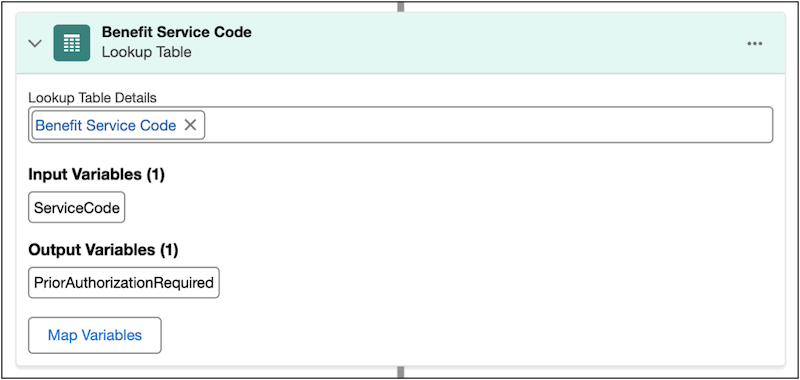
Find and select Lookup Table.
-
In the Lookup Table Details field, find and select the Benefit Service
Code decision matrix.
-
Save your changes.
-
Click after the Benefit Service Code lookup table element.
-
Find and select List Group.
-
Add these details in the List Filter element.
-
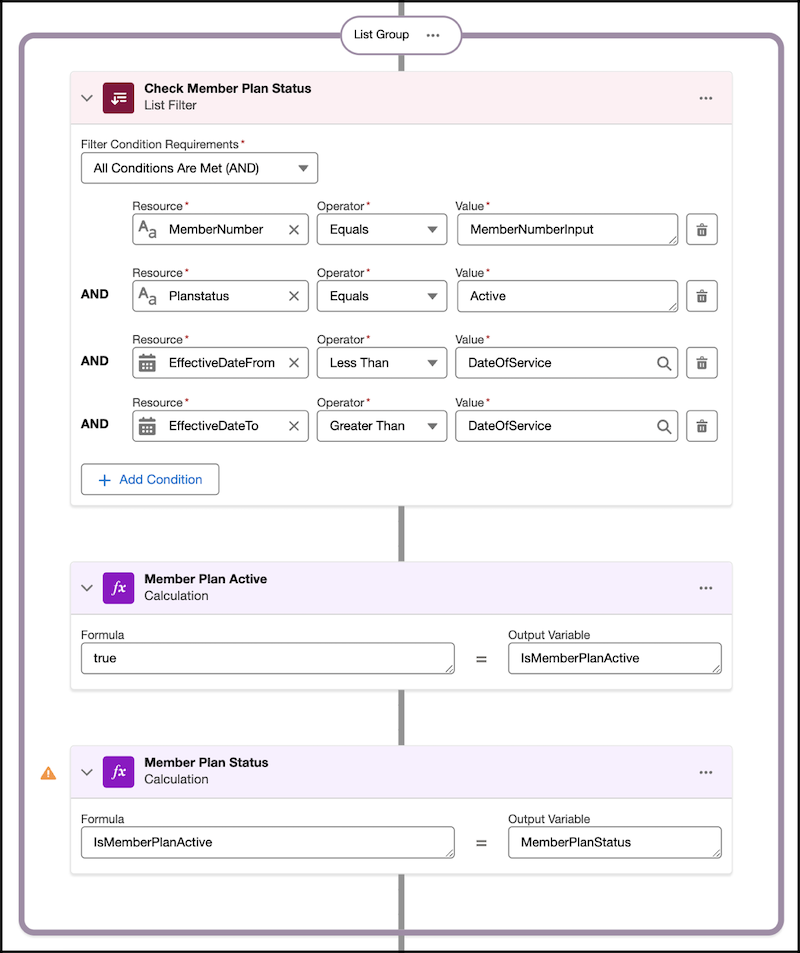
Rename the List Filter element as Check Member Plan
Status.
-
In Filter Condition Requirements, select All Conditions Are Met
(AND).
-
Select MemberNumber as the resource.
-
Select Equals as the operator. Select
MemberNumberInput as the value.
-
Click Add Condition.
-
Select PlanStatus as the resource.
-
Select Equals as the operator.
-
Enter Active as the value.
-
Click Add Condition.
-
Select EffectiveDateFrom as the resource.
-
Select Less Than as the operator.
-
Select DateOfService as the value.
-
Click Add Condition.
-
Select EffectiveDateTo as the resource.
-
Select Greater Than as the operator.
-
Select DateOfService as the value.
-
Click inside the List Group box.
-
Find and select Calculation.
-
Add these details in the calculation element.
-
Rename the Calculation element as Member Plan
Active.
-
Enter true as the formula.
-
Select isMemberPlanActive as the output variable.
-
Click inside the List Group box.
-
Find and select Calculation.
-
Add these details in the calculation element.
-
Rename the Calculation element as Member Plan
Status.
-
Select isMemberPlanActive as the formula.
-
Select MemberPlanStatus as the output variable.
-
Save your changes.
-
Click outside the List Group box.
-
Find and select List Group.
-
Add these details in the List Filter element.
-
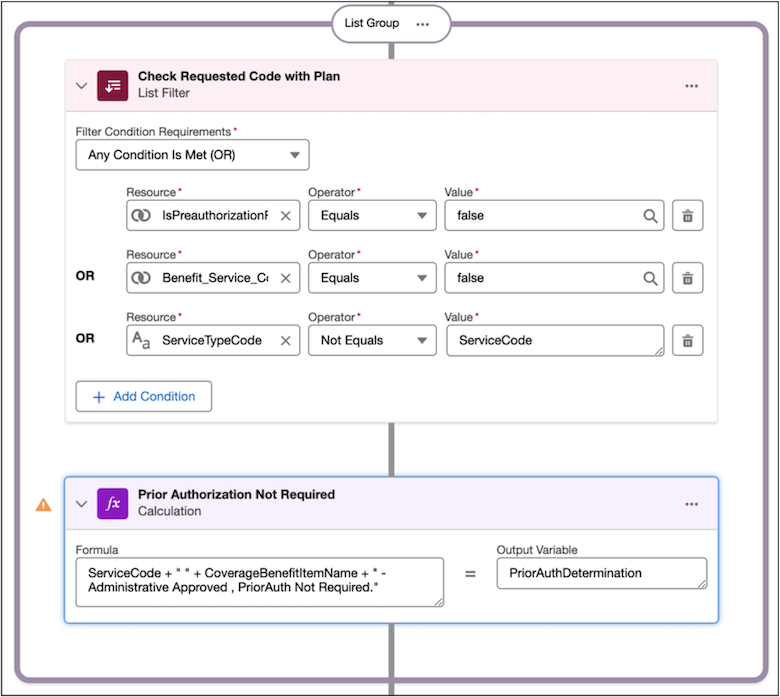
Rename the List Filter element as Check Requested Code with Plan
Condition 1.
-
In Filter Condition Requirements, select Any Condition Is Met
(OR).
-
Select IsPreauthorizationRequired as the resource.
-
Select Equals as the operator.
-
Enter false as the value.
-
Click Add Condition, and add two more conditions with
these details.
| Resource |
Operator |
Value |
|---|
| Benefit_Service_Code__PriorAuthorizationRequired |
Equals |
false |
| ServiceTypeCode |
Not Equals |
ServiceCode |
-
Click inside the List Group box.
-
Find and select Calculation.
-
Add these details in the calculation element.
-
Rename the Calculation element as Prior Authorization Not
Required.
-
Enter ServiceCode + " " + CoverageBenefitItemName + " - Administrative
Not Approved, PriorAuth Not Required or Service Code is not covered for
Benefit." as the formula.
-
Select PriorAuthDetermination as the output
variable.
-
Save your changes.
-
Click outside the List Group box.
-
Find and select List Group.
-
Add these details in the List Filter element.
-
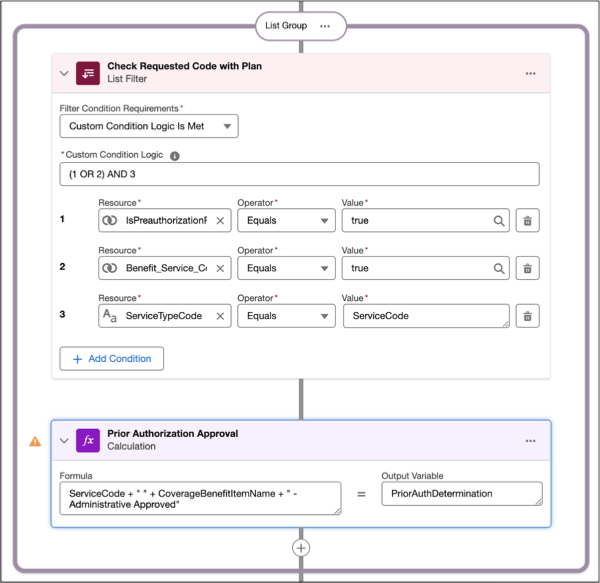
Rename the List Filter element as Check Requested Code with Plan
Condition 2.
-
In Filter Condition Requirements, select Custom Condition Logic is
Met. For Custom Condition Logic, enter (1 OR 2) AND
3.
-
Select IsPreauthorizationRequired as the resource.
-
Select Equals as the operator.
-
Enter true as the value.
-
Click Add Condition, and add two more conditions with
these details.
| Resource |
Operator |
Value |
|---|
| Benefit_Service_Code__PriorAuthorizationRequired |
Equals |
true |
| ServiceTypeCode |
Equals |
ServiceCode |
-
Click inside the List Group box.
-
Find and select Calculation.
-
Add these details in the calculation element.
-
Rename the Calculation element as Prior Authorization
Approval.
-
Enter ServiceCode + " " + CoverageBenefitItemName + " - Administrative
Approved" as the formula.
-
Select PriorAuthDetermination as the output
variable.
-
Save your changes.
-
Click
 in the Expression Set Builder page.
-
Enter 1 as the rank.
-
Select the Prior Authorization Approval element.
-
Click
 in the Expression Set Builder page.
-
Select Include in Output.
-
Similarly, select Include in Output for all the calculation
elements and lookup table element in the expression set.
-
Save your changes.
-
Click Activate.