---
schema_version: "1"
id: 981a3c694ef654ea1f6748e887141174ebda25bb79edd207b656c54ef60a1f48
title: Create a Context Definition for Health Cloud Objects
collection: admin
version: current
locale: en-us
portal_url: https://docs.salesforce.com/admin/current/en-us/ind/264-0-0/bre_hc_create_context_definition.md
canonical_url: https://help.salesforce.com/s/articleView?id=ind.bre_hc_create_context_definition.htm&release=264.0.0&type=5
source_site: help.salesforce.com
content_type: documentation
content_hash: 13a77ce22e67562bf70a981ff7bbdd9a3a5444ef20fe82c6af687ea47e713868
description: Use Context Definition nodes and attributes to create a context definition for the Health Cloud objects and fields. Then, map the nodes with the corresponding objects, and map the attributes with the corresponding fields.
products:
- Industry Solutions
- Cross Cloud
release: "264"
---
# Create a Context Definition for Health Cloud Objects
Use Context Definition nodes and attributes to create a context definition for the Health Cloud objects and fields. Then, map the nodes with the corresponding objects, and map the attributes with the corresponding fields.
### Required Editions
Available in: Lightning Experience
Available in: Enterprise and Unlimited Editions for clouds that have Context Service enabled
User Permissions
Needed
To load, view, edit, and delete context definitions:
Context Service Admin
1. From Setup, in the Quick Find box, enter Context Service, and then select **Context Definitions**.
2. Click **New**.
3. Add these details.
1. Enter Get\_MemberPlan\_Details as the name.
2. In Effective From, enter \[Current Date and Time\].
3. In Time to Live, enter 10 as the duration, and select **Minute** as the unit.
4. Click **Next**.
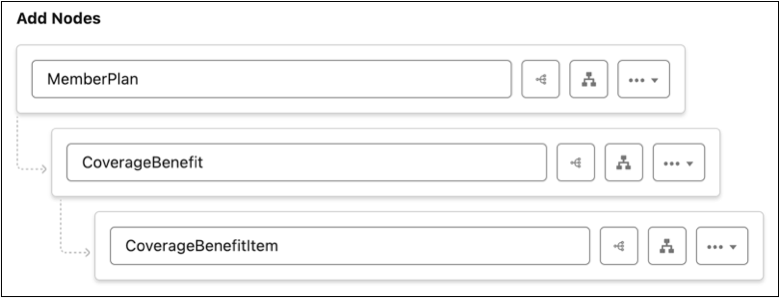
4. Configure a structure to define nodes and the relationship between the nodes.
1. In Add Node, enter MemberPlan.
2. Click  beside the MemberPlan node to add a child node. Enter CoverageBenefit.
3. Click  beside the CoverageBenefit node to add a child node. Enter CoverageBenefitItem.
5. Click **Next**.
## Add Attributes
1. Click **Add Attributes**, and enter these attribute details for each node.
Node: MemberPlan
| Attribute Name | Type | Data Type |
| --- | --- | --- |
| Status | INPUT OUTPUT | STRING |
| EffectiveFrom | INPUT OUTPUT | DATE |
| EffectiveTo | INPUT OUTPUT | DATE |
| isActive | INPUT OUTPUT | BOOLEAN |
| PlanId | INPUT | STRING |
| Name | INPUT | STRING |
| MemberNumber | INPUT | STRING |
Child Node: CoverageBenefit
| Attribute Name | Type | Data Type |
| --- | --- | --- |
| IsActive | INPUT OUTPUT | BOOLEAN |
| CoverageType | INPUT OUTPUT | STRING |
| BenefitPeriodEndDate | INPUT OUTPUT | DATE |
| BenefitPeriodStartDate | INPUT OUTPUT | DATE |
| Name | INPUT OUTPUT | STRING |
| MemberPlanId | INPUT OUTPUT | STRING |
| MemberId | INPUT OUTPUT | STRING |
Child Node: CoverageBenefitItem
| Attribute Name | Type | Data Type |
| --- | --- | --- |
| ServiceTypeCode | INPUT OUTPUT | STRING |
| Name | INPUT OUTPUT | STRING |
| ServiceType | INPUT OUTPUT | STRING |
| IsPreauthorizationRequired | INPUT OUTPUT | BOOLEAN |
| Cost | INPUT | STRING |
2. Click **Next**.
## Add Tags
1. Click **Add Tags** beside the MemberPlan node. Enter MemberPlan, and click **Done**.
2. Similarly, click **Add Tags** beside each of these attributes and enter the corresponding tag names. Click **Done** after you add each tag.
Node: MemberPlan
| Attribute Name | Tag name |
| --- | --- |
| Status | PlanStatus |
| EffectiveFrom | EffectiveDateFrom |
| EffectiveTo | EffectiveDateTo |
| isActive | IsMemberPlanActive |
| PlanId | PlanId |
| Name | MemberName |
| MemberNumber | MemberNumber |
Child Node: CoverageBenefit
| Attribute Name | Tag name |
| --- | --- |
| CoverageBenefit | CoverageBenefit |
| IsActive | IsCoverageBenefitActive |
| CoverageType | CoverageType |
| BenefitPeriodEndDate | BenefitPeriodEndDate |
| BenefitPeriodStartDate | BenefitPeriodStartDate |
| Name | CoverageBenefitName |
| MemberPlanId | MemberPlanId |
| MemberId | MemberId |
| ParentReference | Plan |
Child Node: CoverageBenefitItem
| Attribute Name | Tag name |
| --- | --- |
| CoverageBenefitItem | CoverageBenefitItem |
| ParentReference | CB |
| ServiceTypeCode | ServiceTypeCode |
| Name | CoverageBenefitItemName |
| ServiceType | ServiceType |
| IsPreauthorizationRequired | IsPreauthorizationRequired |
| Cost | Cost |
3. Save your changes.
## Add Context Mapping
1. Click the **Get\_MemberPlan\_Details** context definition to open it.
2. Click the **Map Data** tab.
3. Click **Add Mapping**.
4. Enter Map1 as the name of the mapping.
5. Select **Mark as Default**.
6. Click **Next**.
7. In Mapping Intent, select **Association**, **Hydration**, **Persistence**, and **Translation**.
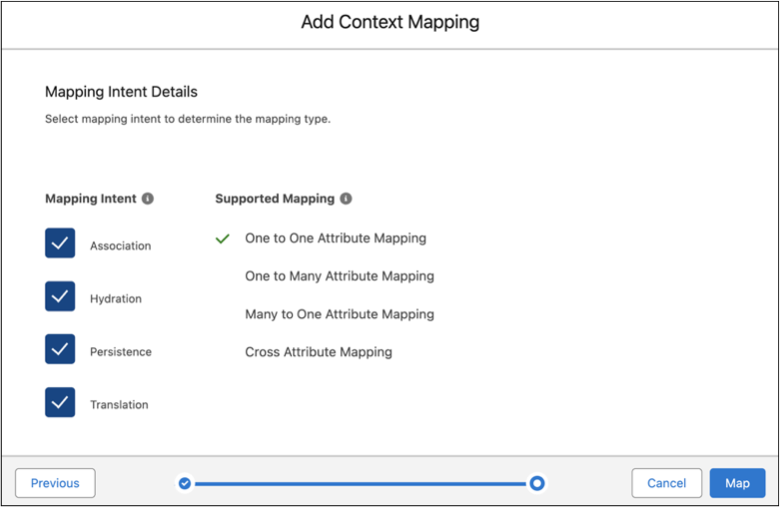
8. Click **Map**.
9. On the Context Mapping builder page, click **Select Data Source**.
10. In the Select an object search field, enter Member Plan, and select the **Member Plan** object from the dropdown.
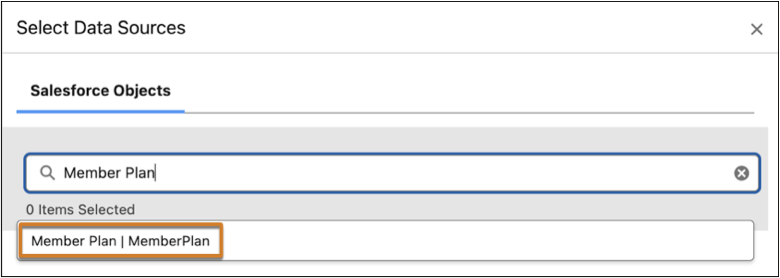
11. Similarly, find and select the **Coverage Benefit** and **Coverage Benefit Item** objects.
12. To select each object and add them to the map, click .
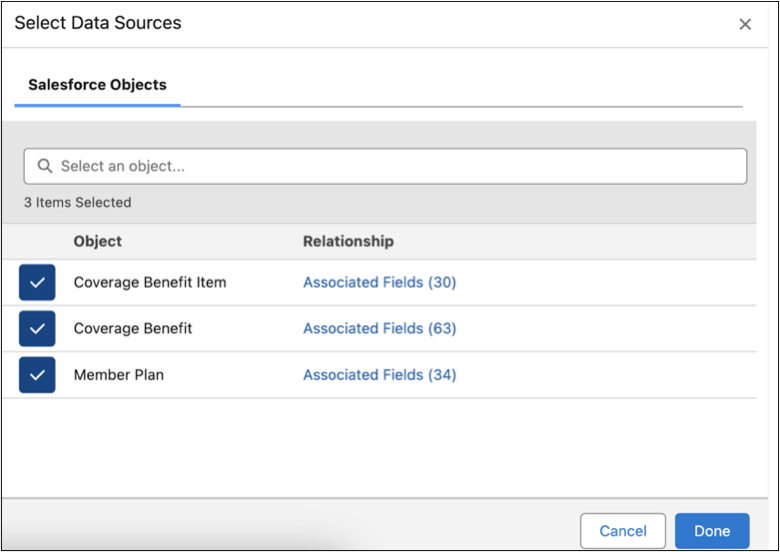
13. Click **Done**.
14. In the Structure: Get\_MemberPlan\_Details section, click  beside the MemberPlan node. Then, click  beside the MemberPlan object under the Connect Objects section and connect the node and object.

Note Map the Nodes first before you map the attributes under each node.
15. Click beside Unmapped under MemberPlan in both the Structure and Connect Objects sections to show all the attributes and fields, respectively.
16. Click  beside the MemberNumber attribute in the Structure section, and then click  beside the MemberNumber field in the Connect Objects section to connect them.
17. Similarly, connect all the nodes and attributes in the Structure section with the corresponding objects and fields in the Connect Objects section, respectively.
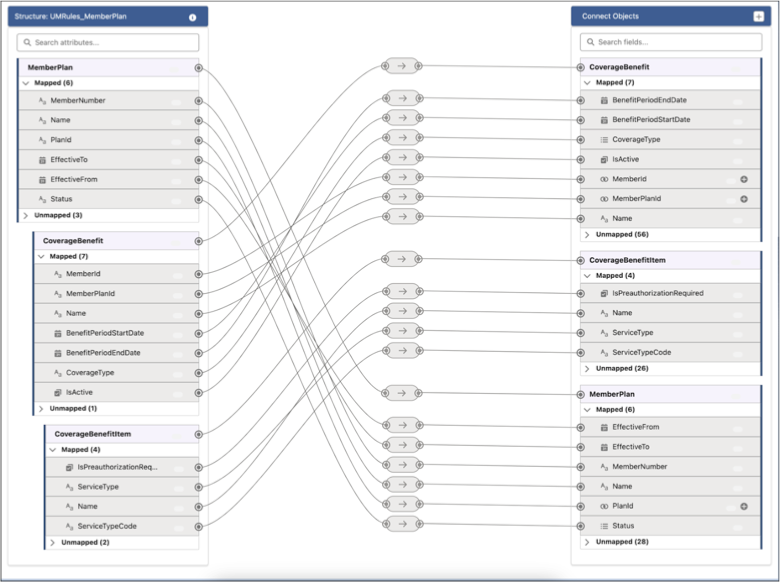
18. Save your changes.
19. Open the Get\_MemberPlan\_Details context definition.
20. Click the **Map Data** tab.
21. Click the dropdown for the Map1 mapping record, and select **Input Mapping**.

22. In the MemberPlan node, for isActive, enter isActive in the Input Mapping field.
23. Save your changes.
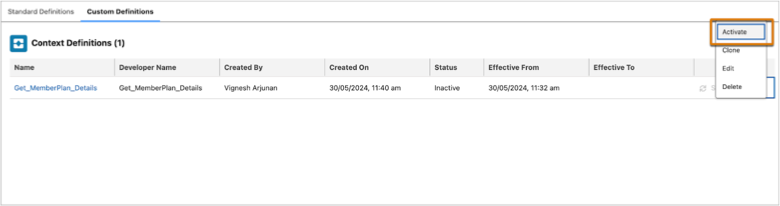
24. On the Custom Definitions tab, click the dropdown for the Get\_MemberPlan\_Details context definition item, and click **Activate**.