
Trigger actions by using Apex code when decision table operations complete asynchronously.
Required Editions
| Available in: Lightning Experience |
| Available in: Enterprise, Unlimited, and Developer Editions for clouds that have Business Rules Engine enabled |
| User Permissions Needed | |
|---|---|
| To create, edit, and activate a decision table: | Rule Engine Designer |
| To run decision tables: |
Rule Engine Designer OR Rule Engine Runtime |
- Open the Developer Console.
- Click Create New
- Click Apex Trigger.
-
Select DecisionTableActionEvent.
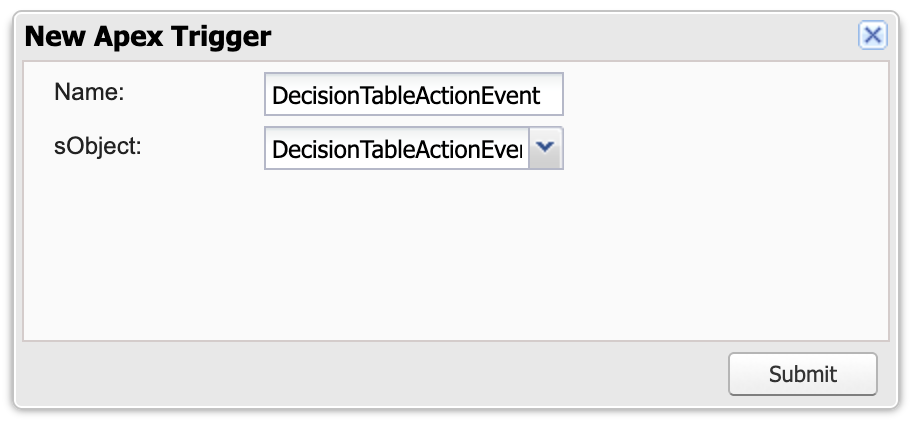
-
Add the provided trigger code:
trigger deci on DecisionTableActionEvent (after insert) { for (DecisionTableActionEvent event : Trigger.new) { // Log the event details to the debug log System.debug('*** APEX DecisionTableActionEvent received! ' + 'Event ID: ' + event.DecisionTableApiName + ', Event Message: ' + event); // Add more debug statements for specific fields based on your requirements // Example: System.debug('New Status: ' + event.New_Status__c); } } - Save the trigger.
To trigger the event, activate your decision table.
To make sure that the event is consumed, in Debug Logs:
- Set Traced Entity Type to Automated Process:
- Set Apex logging to FINER or FINEST.
- Set the Expiration Date to a future date.