
View all the key billing schedule and invoice details in the Billing Schedule Group records.
Required Editions
| Available in: Lightning Experience |
| Available in: Enterprise, Unlimited, and Developer Editions with Revenue Management |
|
This feature is available with the Revenue Management Advanced license or the Revenue Management Billing license. The Usage Management feature is only available with the the Revenue Management Billing license. Contact your Salesforce account executive for more information. |
From the App Launcher, find and select Billing, and then click Billing Schedule Groups. Open any Billing Schedule Group record to view all the required details.
Asset of the Billing Schedule Group
The asset related to the order for which the billing schedule group is created appears on the Asset field of the Billing Schedule Group record.
Billing Schedule Timeline
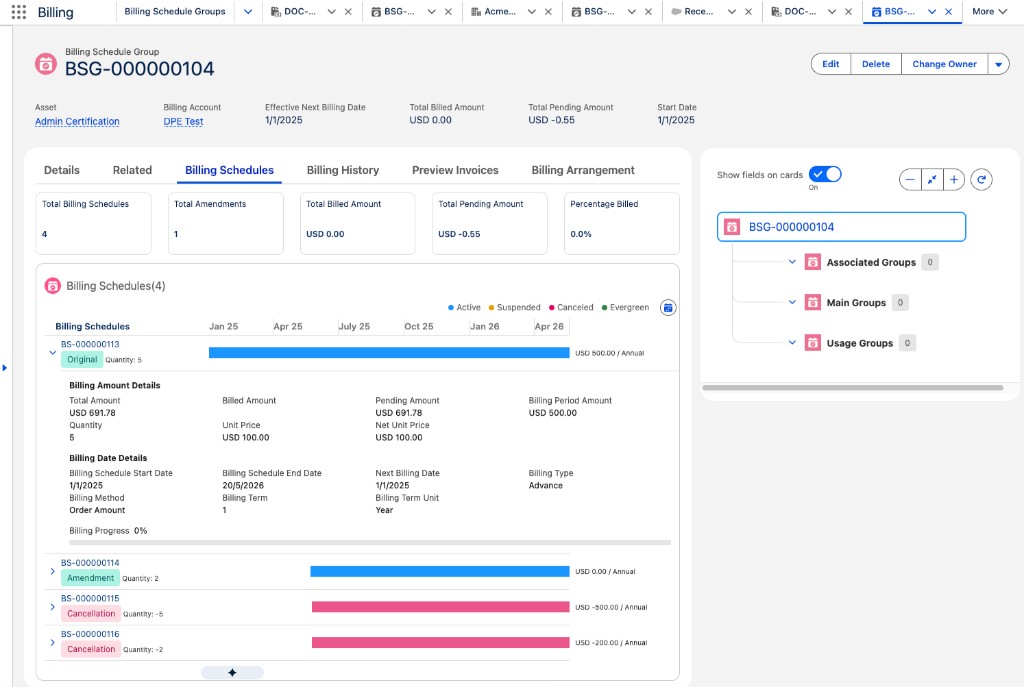
The Billing Schedule Details component shows the billing schedules in a billing schedule group, including summary metrics, a visual timeline of start and end dates, and billing period details. Billing operations teams use the timeline to evaluate billing outcomes. Sales teams use it to demonstrate complex billing.
When the component is on the Billing Schedule Group page, a timeline of the group’s billing schedules appears beneath these summary metrics.
- Total Billing Schedules
- Total Amendments
- Percentage Billed
- Total Billed Amount
- Total Pending Amount
By default, the timeline spans from the earliest start date to the latest end date. For evergreen billing schedules, the range extends 12 months past the latest date. Each row represents a billing schedule. The bar spans the billing schedule’s start and end dates, and its color reflects the billing schedule’s state.
- Active
- Suspended
- Canceled
- Evergreen
Next to each schedule’s name, a tag shows its category, such as Original, Renewal, Amendment, or Cancellation, along with its quantity. The end of each bar shows the billing period amount and the billing frequency, such as / Month or / Annual. One-time billing schedules show (One-Time). Milestone plans show the amount followed by (Milestone Plan). Click the expand icon on a row to view these details.
- Billing amount details: Total amount, billed amount, pending amount, period amount, quantity, unit price, and net unit price.
- Billing date details: Start date, end date, next billing date, billing type, billing method, billing term, and billing term unit.
- Billing progress: Shown as a percentage.
To change the timeline date range, click the Set Date Range icon, enter a start date and an end date, and then click Apply. This filter doesn’t change the summary metrics. Click a billing schedule’s name to open its record.
To add the component to a Billing Schedule Group page, see Add the Billing Schedule Details Component to a Group Page.
Billing Schedules for Original, Amended, Renewed, and Canceled Assets
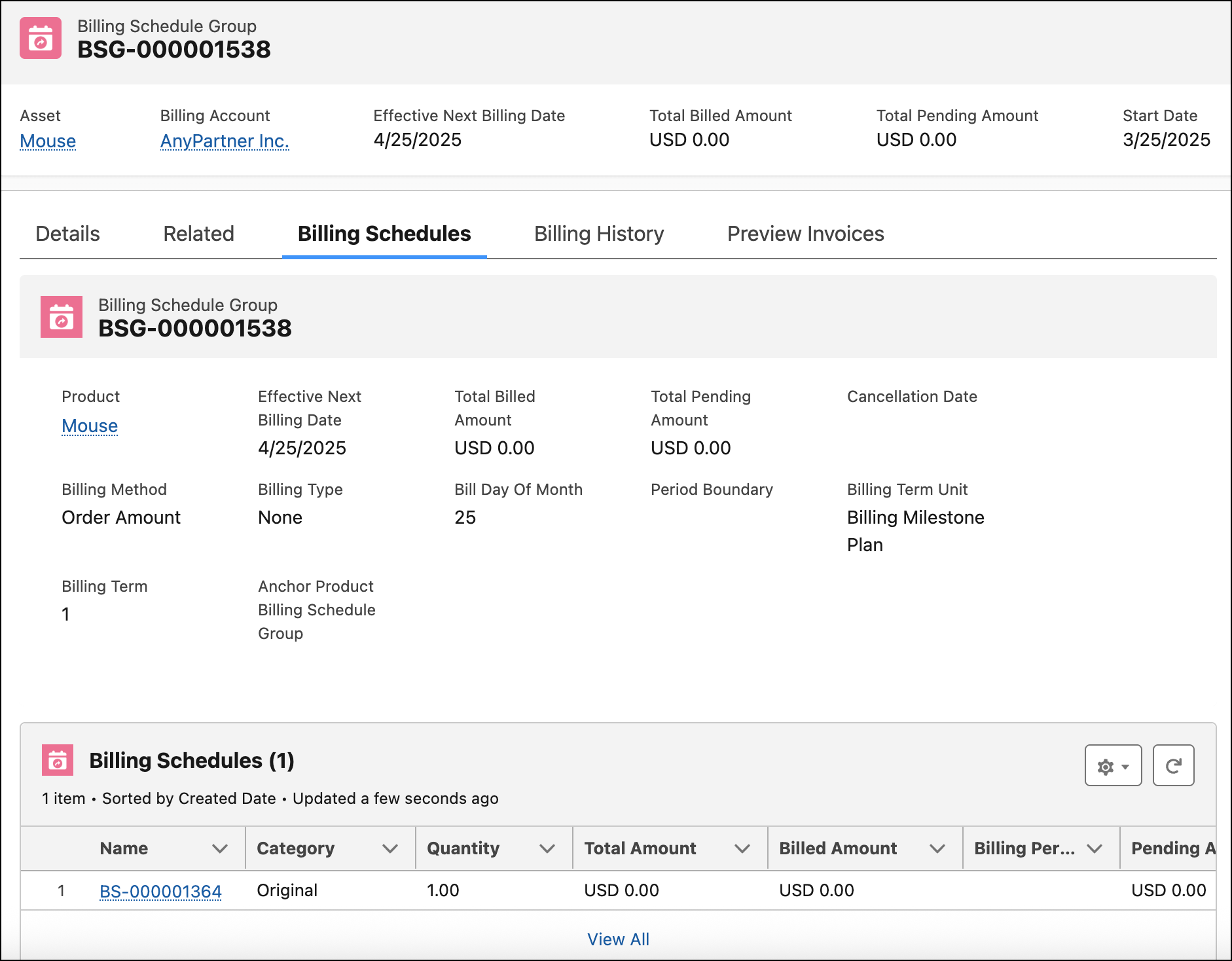
The Billing Schedules related list of a Billing Schedule Group record shows all the billing schedules for original, amended, canceled, and renewed assets. The Billing Schedules tab also shows the same billing schedules with additional details that help you identify and differentiate between them easily.
The billing schedules for original, amended, renewed, or canceled assets are created with the corresponding category.
- The billing schedules created for amended or canceled assets have a reference to the original billing schedule that they’re related to.
- When you cancel an asset, the cancellation date is populated for all the billing schedules that are related to the billing schedule group for the asset.

These examples illustrate the process of how amending and canceling assets affect the creation of billing schedules.
Asset Amendment Scenario: SmartBytes is a large enterprise company that uses Revenue Management. One of its longstanding customers, Greenfield Enterprises, wants to purchase 10 more SmartBytes’ DocuCraft software licenses to cater to a rising employee demand. SmartBytes’ sales operations representative amends Greenfield Enterprises’ existing asset for DocuCraft software licenses to include 10 more licenses. On amending the asset, an amendment quote is created. The sales representative then creates an order for the amendment quote and activates it. On activating the order, a billing schedule is created for 10 licenses with Amendment as the category. The billing schedule is also linked to the billing schedule created for the initial asset.
Asset Cancellation Scenario: One of SmartBytes customers, TechCore Solutions, wants to cancel their ongoing order for DocuCraft software. SmartBytes’ sales operations representative cancels TechCore Solutions’ existing asset for DocuCraft software licenses. On canceling the asset, a cancellation quote is created. The sales representative then creates an order for the cancellation quote and activates it. On activating the order, a billing schedule is created with Cancellation as the category. The billing schedule is also linked to the billing schedule created for the initial asset.
Billing Schedules for Orders and Quotes With Future-Dated Changes
Billing automatically generates billing schedules when termed products are amended or renewed before or after future-dated orders or quotes. Any future-dated renewals on one-time and evergreen products are considered as amendments on the associated orders or quotes.
When you cancel an asset before or after the start of a future-dated amendment, Billing automatically generates billing schedules to reflect the correct quantity across different time periods.
When a future-dated amendment, renewal, or cancellation is rolled back before it takes effect, Billing doesn’t modify existing billing schedules. Instead, Billing creates compensating adjustment billing schedules that offset the impact of the rolled-back change. The original billing schedules are retained for historical accuracy, ensuring that future billing reflects the correct amounts and periods while preserving a complete audit trail.
Billing Schedules for Early Renewals That Supersede Active Renewals or Future-Dated Orders
When an early renewal supersedes an active renewal or a future-dated order, Billing automatically detects the overlap, cancels the billing schedule for the superseded period, and creates a new billing schedule for the early renewal to prevent double-charging the customer for the overlapping period.
You can supersede active renewals or future-dated orders with an early renewal for termed, evergreen, and bundle products, but not for usage-based or ramped products. For evergreen products, Billing treats an early renewal as an amendment.
Acme Software Innovations Inc. sells an analytics platform to their customer, Cloudline Software, under an active contract for 100 units for the January 1, 2026–December 31, 2026 period, with an active renewal contract for the January 1, 2027–December 31, 2027 period.
Acme's Billing Admin creates these billing schedules.
Billing Schedule 1
- Product: Analytics platform
- Quantity: 100
- Base Contract Period: January 1, 2026–December 31, 2026
Billing Schedule 2
- Product: Analytics platform
- Quantity: 100
- Renewal Period: January 1, 2027–December 31, 2027
Before the renewal period begins, Cloudline Software negotiates an early renewal with Acme for a new term period of November 1, 2026–October 31, 2027, increasing the subscription from 100 to 150 units.
The early renewal's start date is on November 1, 2026, which falls before the original renewal's start date of January 1, 2027, and overlaps the still active base contract. Acme's Billing Admin creates these billing schedules for the early renewed order.
Cancellation Billing Schedule 3
- Product: Analytics platform
- Quantity: 100
- Period: November 1, 2026–December 31, 2026
Cancellation Billing Schedule 4
- Product: Analytics platform
- Quantity: 100
- Period: January 1, 2027–December 31, 2027
New Billing Schedule
- Product: Analytics platform
- Quantity: 150
- Period: November 1, 2026–October 31, 2027
Billing Schedules for Usage-Based Products
For usage-based products and add-on packs, billing schedules are ready for invoicing when the rated usage and overage charges are calculated.
Billing Schedules for Ramped Products
For ramped products, Billing automatically creates a billing schedule group for the asset and individual billing schedules for each ramp segment.
Billing Schedules for Price Changes
For evergreen, one-time, and termed products, Billing automatically generates billing schedules whenever a discount amount or discount percentage is applied on the associated quote or order.
Billing Schedules for Swapped Products
For evergreen, one-time, bundled, and termed products, Billing automatically generates billing schedules for the swapped in and swapped out products during various swap scenarios including and not limited to.
- Swap from an evergreen to termed, termed to one-time, or one-time to evergreen product
- Swap a bundled product with one or more single products
- Swap products during the middle of a billing period
- Swap products with different billing frequencies
- Swap partial quantities of the same product
Billing Schedules for Updated Subscription End Dates
When a customer changes the end date of a subscription for an order, the related billing schedules are automatically updated to reflect the new service period. Billing regenerates billing schedules during amendments to ensure billing periods are accurate.
Billing Schedules for Billing Milestone Plans
When a billing treatment is configured for milestone-based billing, Billing creates a billing milestone plan and links it to the billing schedule. Billing generates the invoice lines based on the configured milestones.
Main and Associated Billing Schedule Groups
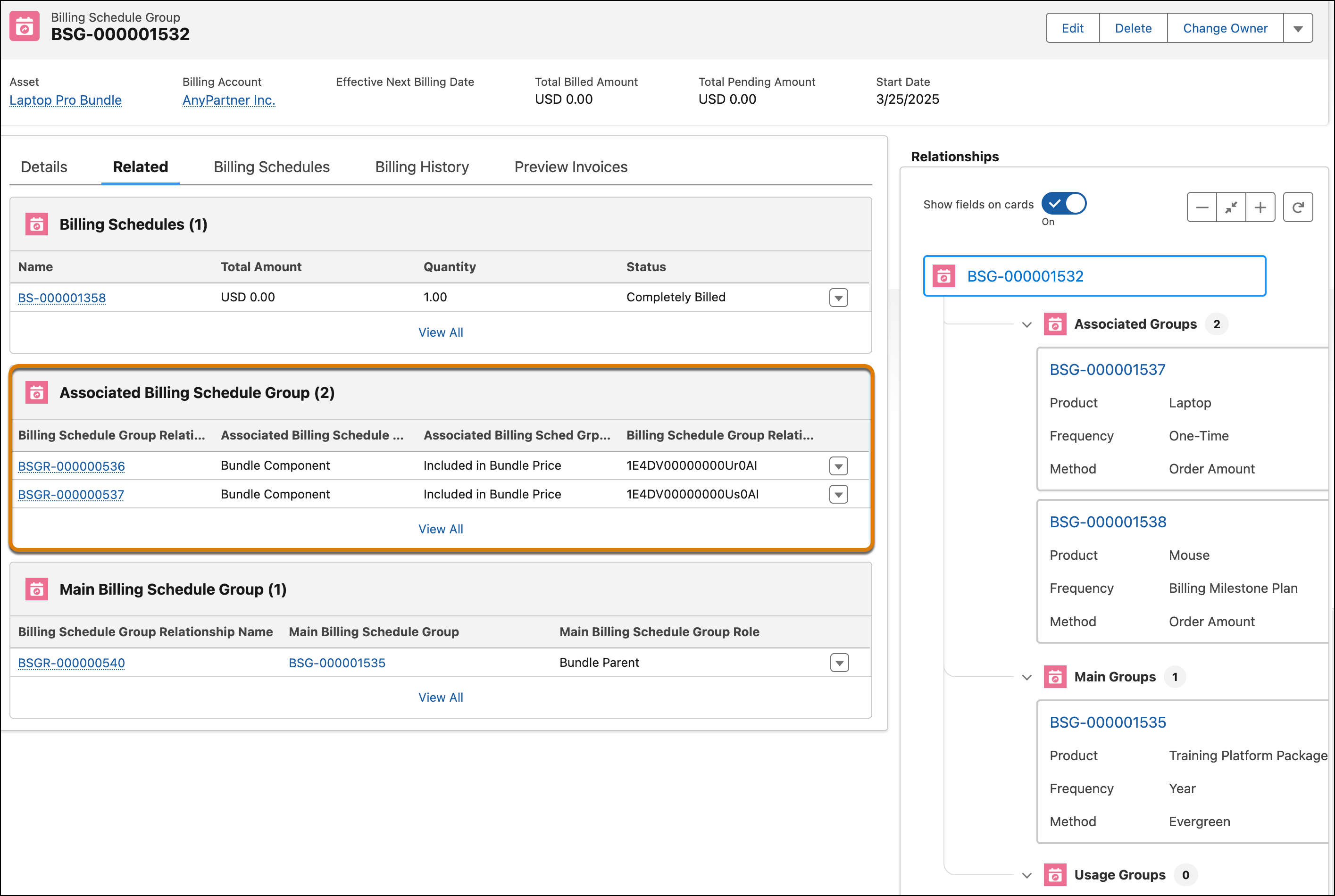
In an order, related products are grouped in a bundle. These order bundles are displayed in a hierarchy to highlight the difference between related and independent products of the order. When billing schedule groups are created for bundled products of an order, billing schedule groups are created for the root bundle product and for each child product. Each order bundle corresponds to a billing schedule bundle.
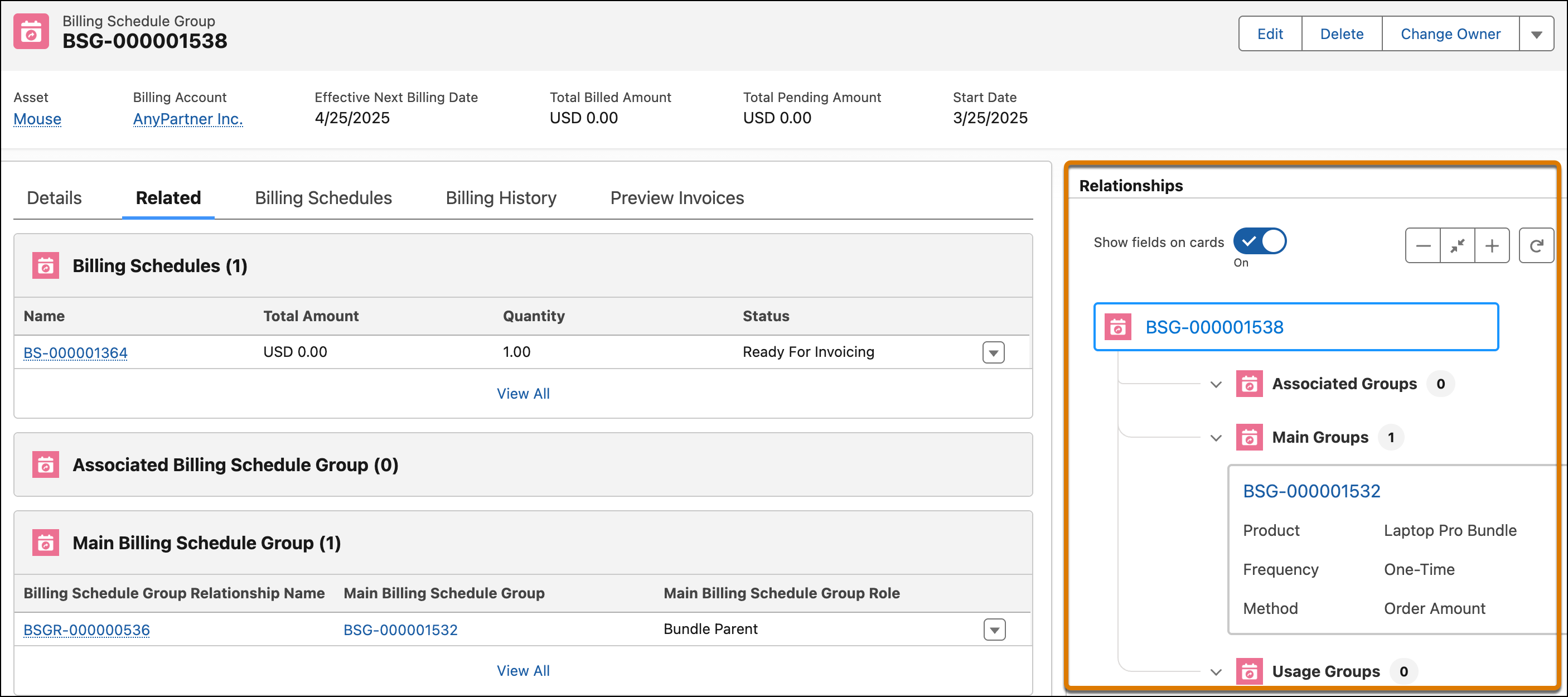
On the Billing Schedule Group record that’s created for a root bundle product, the billing schedule groups that are created for the child products appear in the Associated Billing Schedule Group related list.
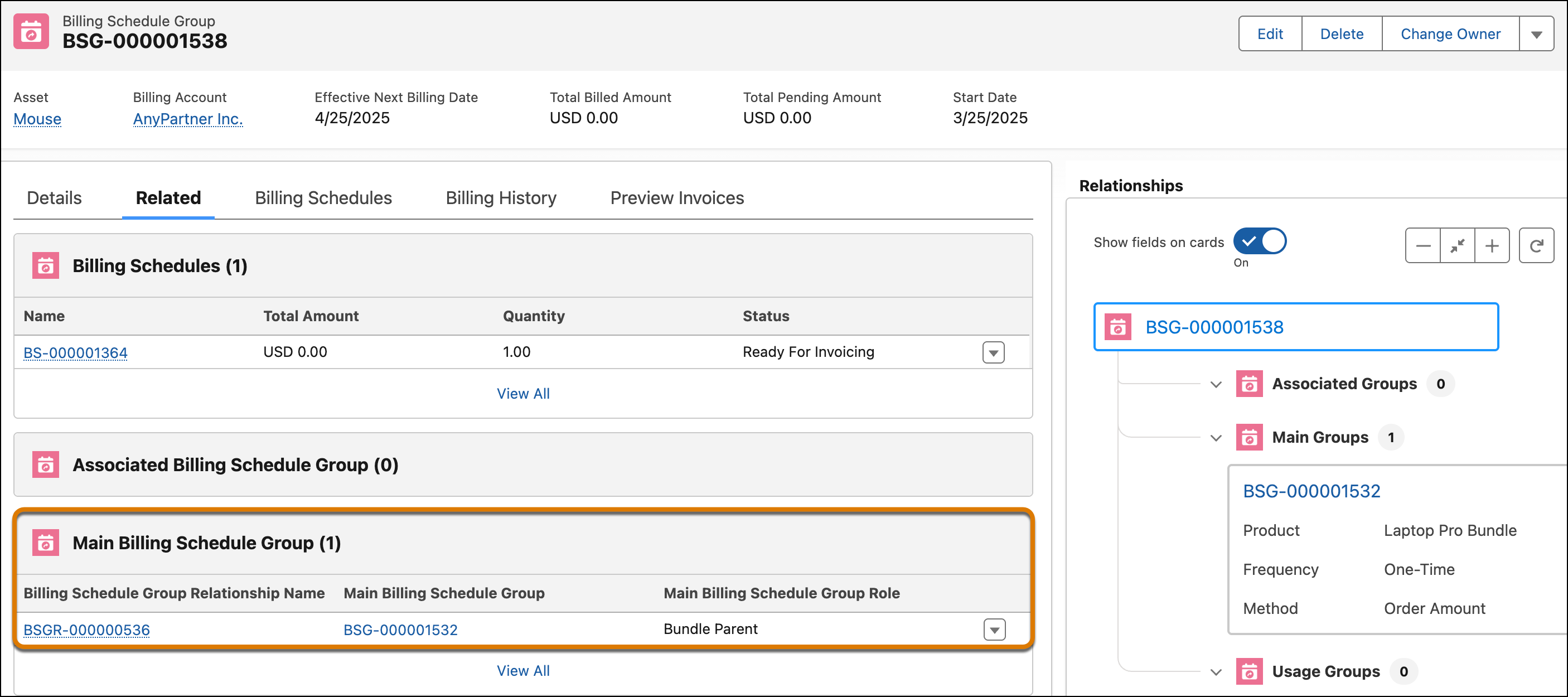
On the Billing Schedule Group record that’s created for a child product, the billing schedule group that's created for the root bundle product appears in the Main Billing Schedule Group related list.
Billing History Tab
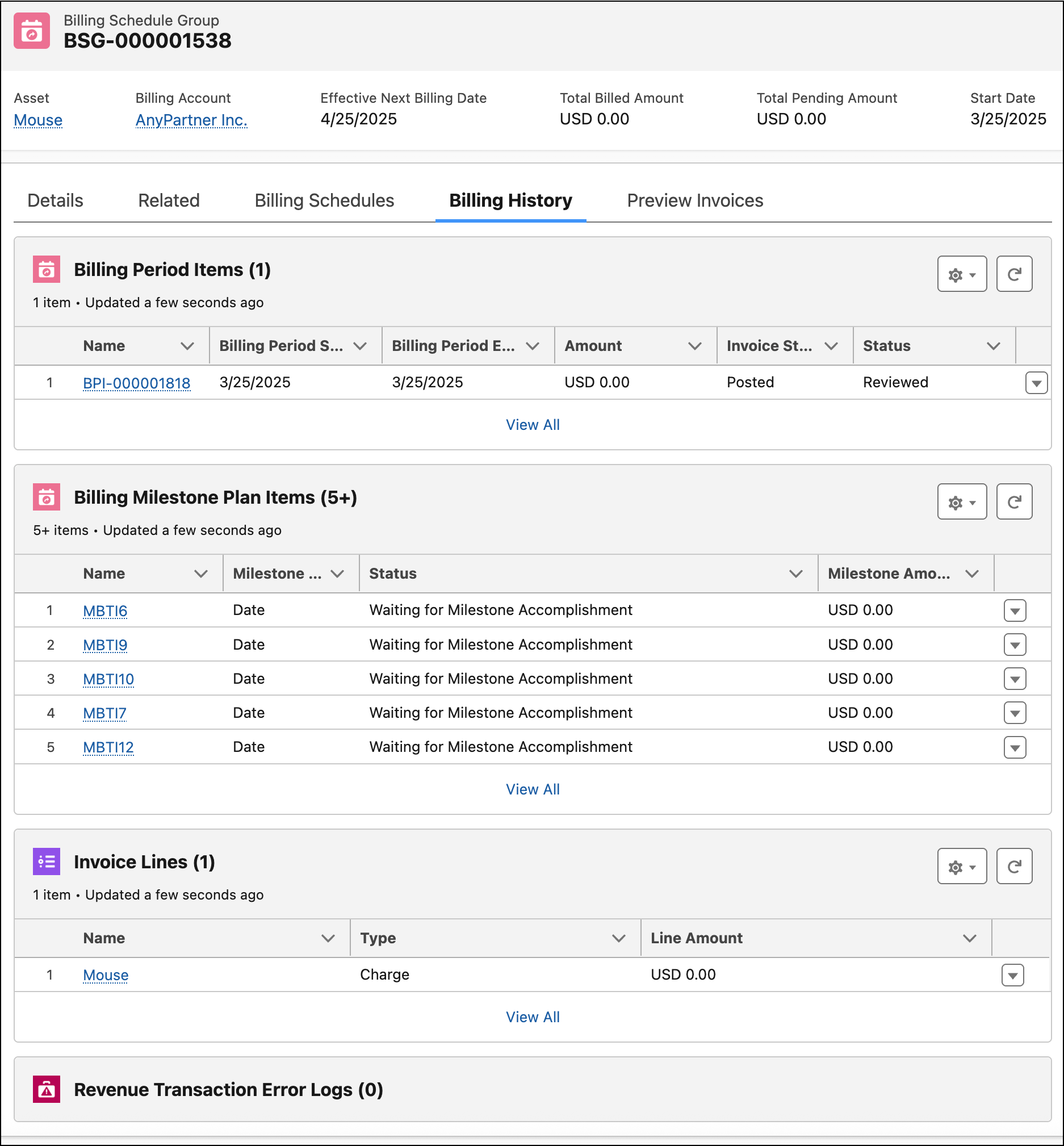
The Billing History tab shows all the billing period items, billing milestone plan items, invoice lines, and revenue transaction error logs that are related to the billing schedule group.
- View the related billing period items to track the billing schedules that were processed and the expected amount to be billed for an invoice.
- View all the billing milestone plan items for the product to understand the status of the project milestones and the milestone amount.
- View all the invoice lines that are generated for the product.
- Troubleshoot invoice batch run errors by accessing all the revenue transaction error logs for a billing schedule group in a single place.
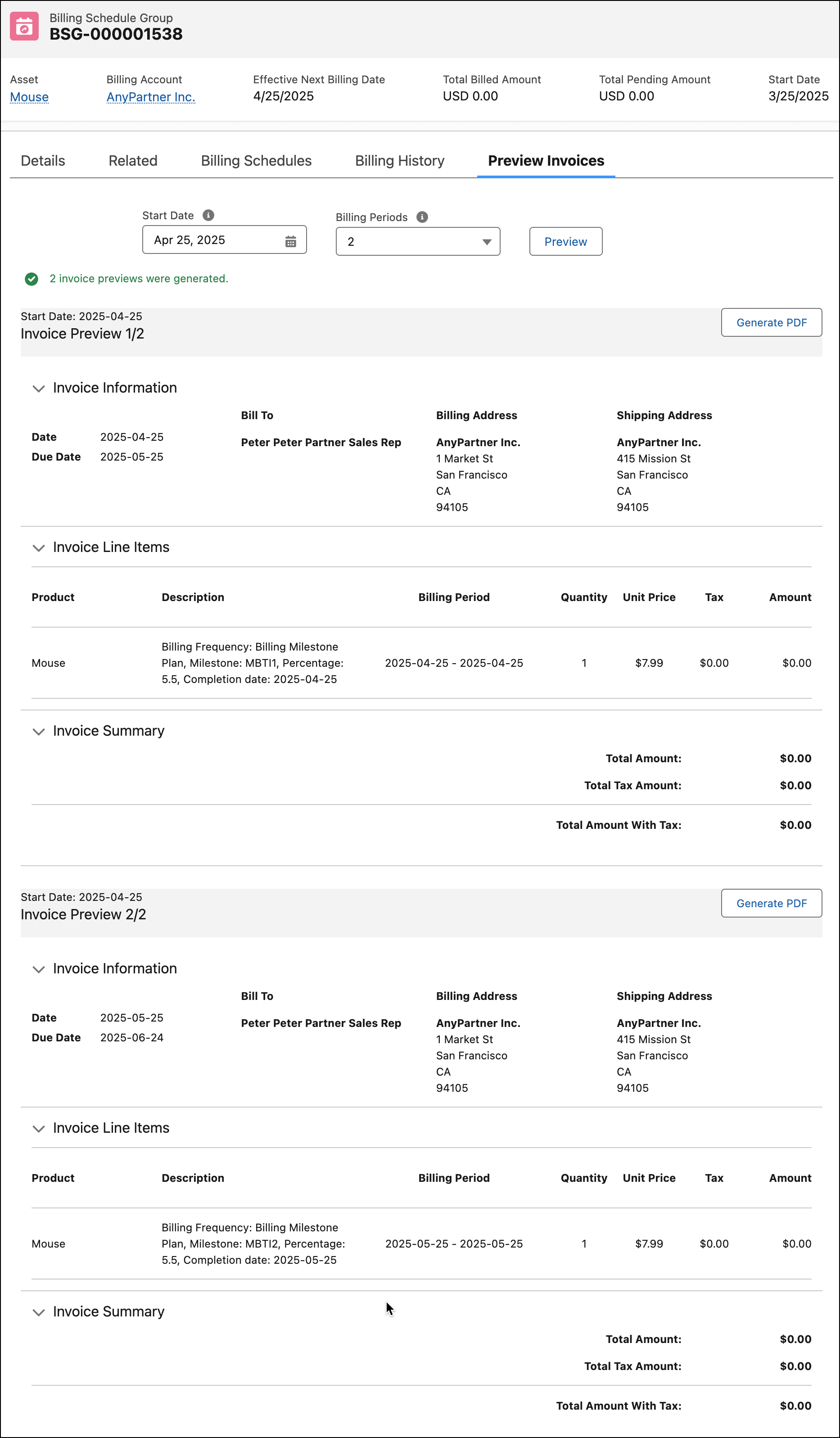
Preview Invoices Tab
You can generate up to two invoice previews for the billing schedule group. The billing schedule group’s effective next billing date is preselected as the start date for the invoice preview.
See Generate Invoice Previews for Billing Schedule Groups.
Relationships Graph
In addition to the Related tab, the Relationships Actionable Relationship Center (ARC) graph also shows the associated and main billing schedule groups. If the billing schedule group is for a usage-based product, the graph also shows the billing schedule groups for the valid product usage grants of the same product.
Quantity and Unit of Measure
Billing schedules inherit their quantity and unit of measure from the related order products’ quantity and unit of measure. A billing schedule’s quantity is rounded off based on the scale and rounding method of its unit of measure.
See View and Edit Orders in Revenue Management and Decimal Quantity Support in Product Catalog Management.
Start and End Dates
Billing prioritizes the start and end dates found on Quote Line Detail and Order Item Detail records. If no dates are specified on the detail records, then Billing uses the dates from the parent order or quote item.