
See invoice lines grouped by product, including usage resources that belong to the same usage product. Invoice Line Summary rolls related lines into one hierarchy, so you can understand and explain one-time, recurring, usage, overage, and milestone charges without scanning the invoice line by line.
Required Editions
| Available in: Lightning Experience |
| Available in: Enterprise, Unlimited, and Developer Editions with the Revenue Cloud Billing license. Contact your Salesforce account executive for more information. |
On an invoice record, open the Invoice Line Summary tab to see each product with its related charges. Open the Invoice Lines tab for the ungrouped list.

The summary includes:
- Name: Product, bundle, or usage resource, with related lines nested under the parent.
- Charge Type: Usage, One Time, Milestone Plan, Recurring - Termed, Recurring - Evergreen, or Other.
- Invoice Line Start Date and Invoice Line End Date: Billing period for the line.
- Quantity: Quantity billed on the line. Grouping rows leave quantity blank.
- Charge Amount, Tax Amount, and Line Amount: Amounts for the line.
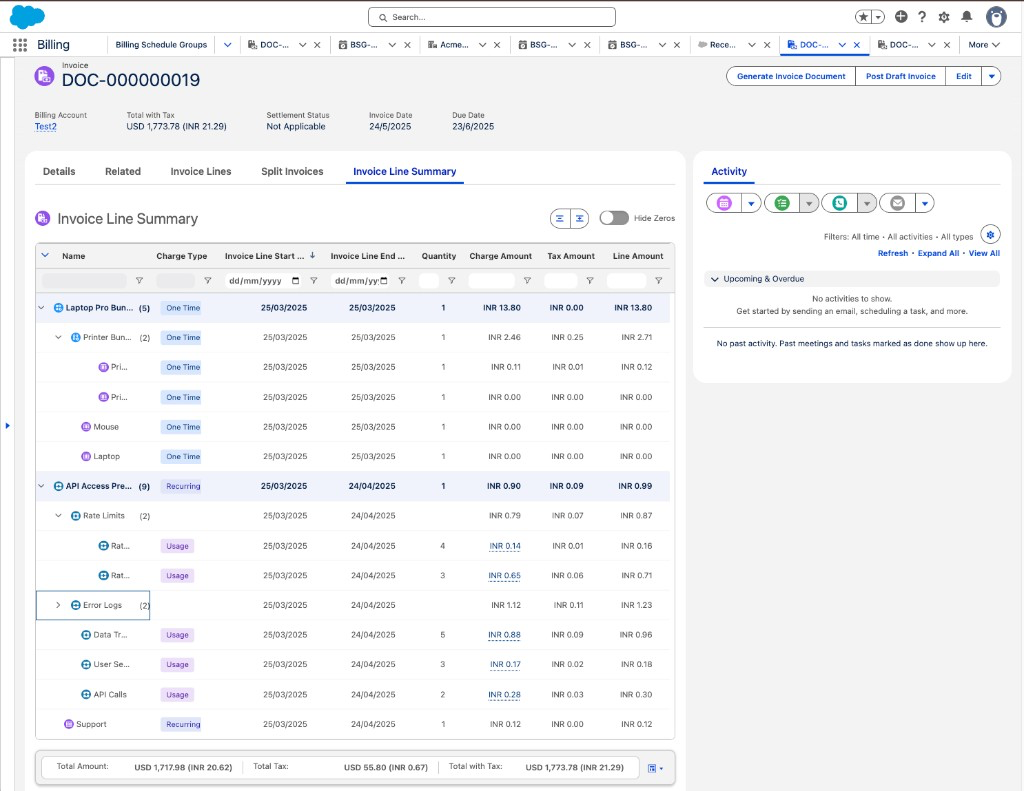
The summary bar shows Total Amount, Total Tax, and Total with Tax from the invoice. The totals stay the same when you hide or filter rows. Switch the summary bar between Horizontal and Vertical, or select Auto to match the available space.
Review Products, Bundles, and Usage Resources
Invoice Line Summary groups invoice lines so that you can review a product and its related charges together.
- Bundle children nest under the parent invoice line.
- Two or more sibling lines for the same product appear under a product group.
- Usage resources that share an anchor billing schedule group nest under that usage product. When no anchor line exists, two or more floating usage lines for the same product appear under a usage product group. A single floating usage line stays at the top-level.
- Grouping rows show rolled-up amounts and the earliest start date and latest end date. Charge type and quantity stay blank.
- Milestone lines can show the milestone name, percentage, and completion date on the name. Usage lines can show usage charge details when you hover over Charge Amount.
Filter and Hide Zero-Amount Rows
Select Expand All or Collapse All to open or close the product hierarchy. Use the column filters to find a product, charge type, date, quantity, or amount.
Turn on Hide Zeros to hide rows whose line amount is zero.