
Create a Document Generation Process record by creating a Flow with a Create Records element or by configuring an Apex class.
Required Editions
| Available in: Lightning Experience |
| Available in: Enterprise, Unlimited, and Developer Editions with the Revenue Cloud Billing license. Contact your Salesforce account executive for more information. |
| User Permissions Needed | |
|---|---|
| To create a flow: | Manage Flow |
| To configure an Apex class: | Author Apex |
| To create a Document Generation Process record: |
Billing Admin permission set OR Billing Operations User permission set |
| To generate invoice PDF documents: | DocGen User permission set |
If you create a flow, add an element to get the document template to use for generating the invoice PDF document. Then, add a Create Records element with these values:
- Enter Generate And Convert as the type.
- Enter Document Template as the document input type.
- Enter DefaultInvoiceTemplate record Id or any custom document template as the document template.
-
Enter a JSON input in the
{"Id":"<Enter Invoice ID>"}format as the data mapper input. -
Enter the ID of the record for which you want generate a PDF document as the reference
object.
The generated PDF document is attached to the record.
-
Enter a JSON input in the
{"keepIntermediate":false,"title":"<Enter Invoice
      Number/ Document Number>"}
format as the request input. - Enter Advanced as the doc generation API version type.
-
Enter In Progress as the status.
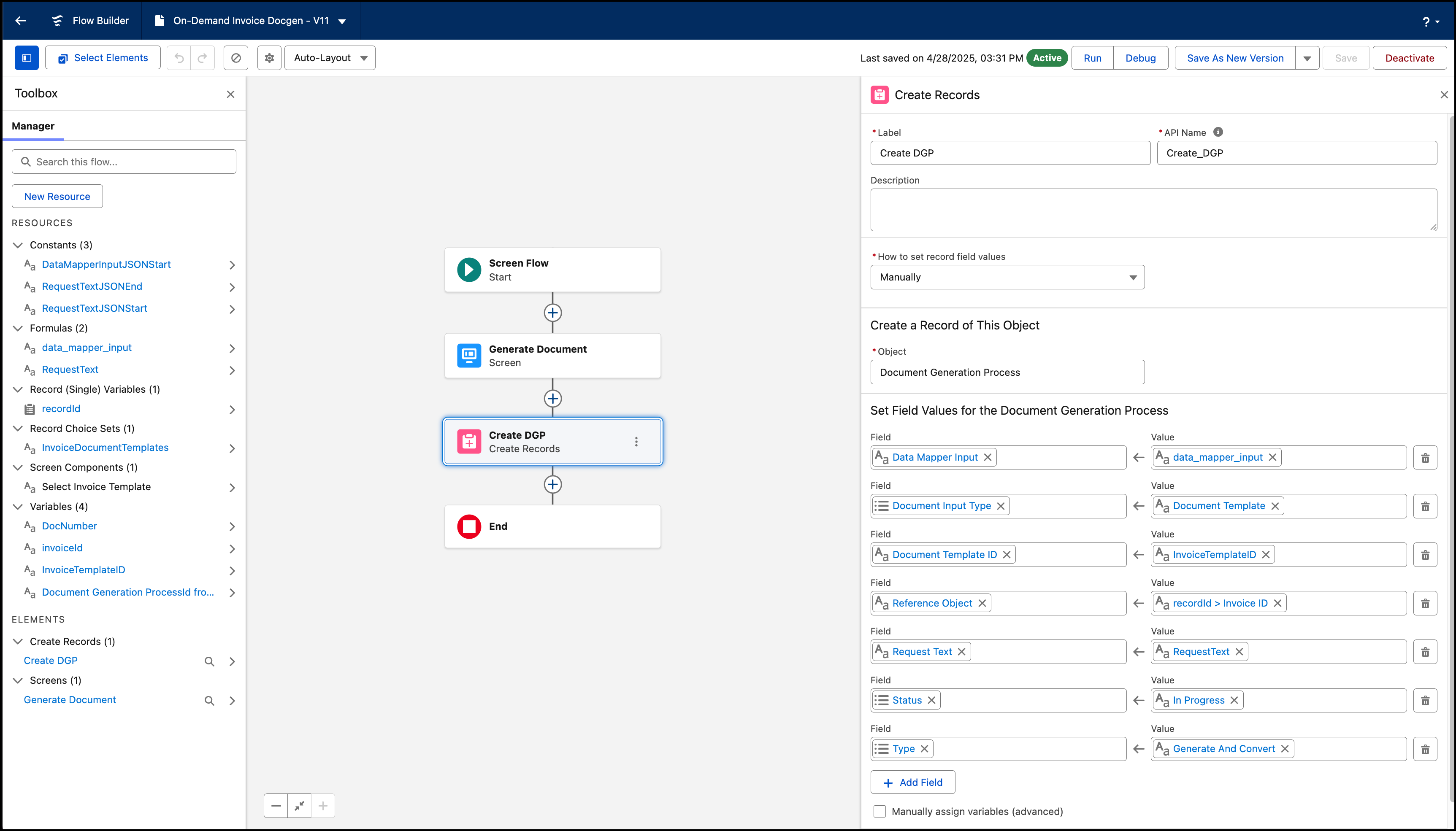
If you configure an Apex class, specify the same values that are mentioned for the Create Records element.