---
schema_version: "1"
id: 7aafd3ba4536fd591a9e11868db9c382ddb5c55a277bc6e07f32a5b5c47d5c70
title: Add More Components to the Vehicle Page
collection: admin
version: current
locale: en-us
portal_url: https://docs.salesforce.com/admin/current/en-us/ind/264-0-0/auto_vehicle_page_layout_customize.md
canonical_url: https://help.salesforce.com/s/articleView?id=ind.auto_vehicle_page_layout_customize.htm&release=264.0.0&type=5
source_site: help.salesforce.com
content_type: documentation
content_hash: 94cf0d2b9154b281ac3b108a8844dafac562d698e88cb844a8c581b9a07155ee
description: Customize the Vehicle record page layout by including more components that are designed to show important information to users. The connected vehicle console helps users track all stakeholders, activities, events, milestones, and related records of a vehicle on a single page. You can customize the Vehicle page layout based on your business requirements. You can also design separate page layouts for different user groups like service agents or sales dealers.
products:
- Automotive
release: "264"
---
# Add More Components to the Vehicle Page
Customize the Vehicle record page layout by including more components that are designed to show important information to users. The connected vehicle console helps users track all stakeholders, activities, events, milestones, and related records of a vehicle on a single page. You can customize the Vehicle page layout based on your business requirements. You can also design separate page layouts for different user groups like service agents or sales dealers.
### Required Editions
Available in: Enterprise, Unlimited, and Developer Editions.
User Permissions Needed
To customize page layouts:
Customize Application

Note Here we describe how to add a few specific components to the default Vehicle page layout that Automotive Cloud provides. You can add other standard and custom components and change the tab names and placement.
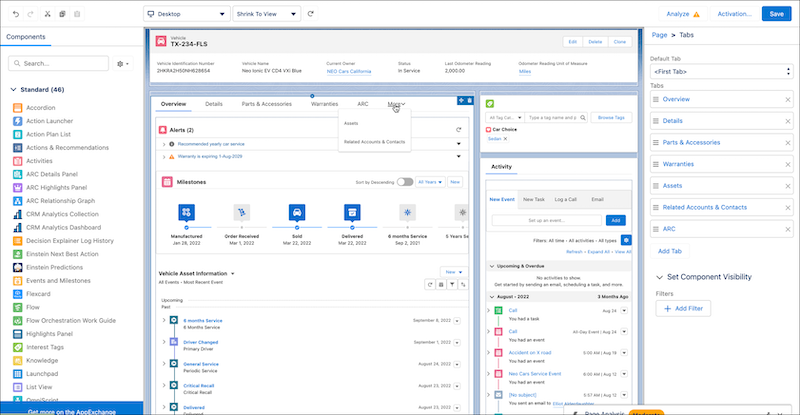
1. Open a Vehicle record, and click **Edit Page** from Setup.
2. Click anywhere in the main region, and click **Add Tab** in the Tabs component properties.
3. For Tab Label, select **Custom**, and enter the tab name that you want, such as Overview.
4. To view record alerts:
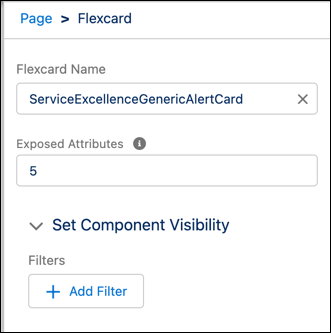
1. Drag the Flexcard component onto the Overview tab.
2. In the Properties panel, in the Flexcard Name field, select **ServiceExcellenceGenericAlertCard**. If you have configured record alerts for your org, this component displays record alerts on the Vehicle record page.
3. In the Exposed Attributes field, enter the maximum number of alerts (from 1 to 20) to be displayed in the component using the syntax, {"Limit":5}.
5. To view a timeline of vehicle activities, work orders, and other related records:
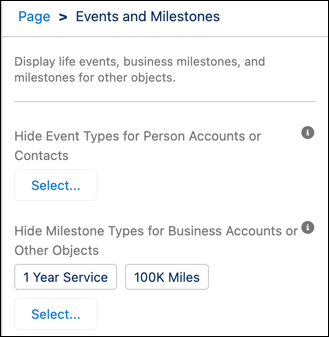
1. Drag the **Events and Milestones** component onto the Overview tab.
See [Display Events and Milestones for Accounts, Contacts, and Vehicles](https://help.salesforce.com/s/articleView?id=ind.auto_events_milestones_component.htm&release=264.0.0&type=5 "Add the Events and Milestones component to the Account, Contact, or Vehicle record page layouts to surface information about key moments in the lifecycle of these records. You can hide life event and milestone types that you don’t want the dealer executives or sales executives to see. For example, if you add the Events and Milestones component to the Vehicle record page layout that you customized for a Dealer Sales Executive, you can hide milestone types related to repair and maintenance, such as General Service, Car Damage, or Body Repair.") to configure the component.
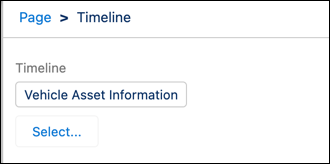
2. Drag the **Timeline** component onto the Overview tab.
See [Add Timeline to a Vehicle Record](https://help.salesforce.com/s/articleView?id=ind.auto_add_timeline_vehicle_page.htm&type=5&language=en_US) to configure the component.
6. To view relationships of a vehicle:
1. Click anywhere in the main region, and click **Add Tab** in the Tabs component properties.
2. For Tab Label, select **Custom**, and enter the desired tab name, such as Related Accounts & Contacts.
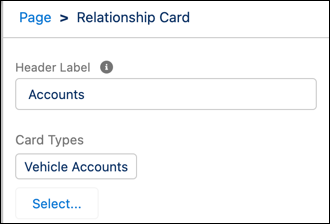
3. Select and drag the **Relationship Cards** component onto the Related Accounts and Contacts tab.
4. In the properties panel, in the Header Label field, enter Accounts.
5. Click **Select** under Card Types, and select the Relationship Card that you created for showing the account information. Click **OK**.
6. Drag the **Relationship Cards** component onto the Related Accounts and Contacts tab again.
7. In the Properties panel, in the Header Label field, enter Contacts.
8. Click **Select** under Card Types, and select the Relationship Card that you created for showing the contact information. Click **OK**.
9. Click anywhere in the main region and click **Add Tab** in the Tabs component properties.
10. For Tab Label, select **Custom**, and enter the desired tab name, such as Actionable Relationship Center.
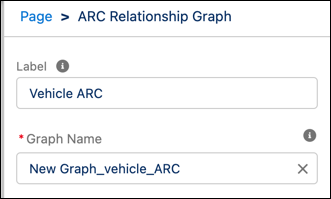
11. Drag the **ARC Relationship Graph** component onto the Actionable Relationship Center tab.
12. In the properties panel, in the Label field, enter a name.
13. Select an active graph in the Graph Name field.
7. To assign interest tags and action plans to a vehicle:
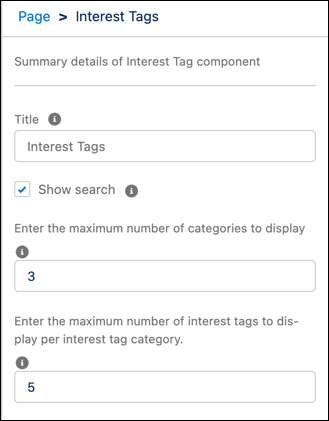
1. Drag the **Interest Tags** component to an area of the page, preferably to the right sidebar.
2. Select the following.
- Enter a title.
- To let users search for interest tags, select **Show Search**.
- Enter the maximum number of tag categories to display in the component. Users can expand the list to see more.
- Enter the maximum number of interest tags to display in the component. Users can expand the list to see more.
1. Drag the **Action Plan List** component to an area of the page, preferably to the right sidebar.
8. Click **Save**, and then click **Activation**.
9. Click **Assign as Org Default**, and then click **Next**.
10. Review the assignments, and save your changes.
11. To view appointments for a vehicle:
A vehicle can either be used an asset for test drive appointments, or is at a dealer or customer location and requires repair and maintenance. Depending on the use case, add either the Test Drive Appointments, or the Service Appointments for Parent Asset related list to the Vehicle page layout.
1. From Setup, go to **Object Manager**.
2. Search for and select **Vehicle**.
3. Click **Page Layouts** and select a page layout.
4. Drag the **Test Drive Appointments** related list from the palette onto the Vehicle Related Lists section on the page.
5. Save your changes.
6. From Setup, go to **Object Manager**.
7. Search for and select **Asset**.
8. Click **Page Layouts** and select a page layout.
9. Drag the **Service Appointments** related lists from the palette onto the Asset Related Lists section on the page.
#### See Also
- [_Salesforce Help_: Manage Vehicle and Asset Information](https://help.salesforce.com/s/articleView?id=ind.auto_manage_vehicles_assets.htm&release=264.0.0&type=5 "Manage the lifecycle of assets and vehicle to effectively serve your customer needs. Use the vehicle console in Automotive Cloud and get information about vehicle details, stakeholder relationships, installed and compatible parts and accessories and asset relationships. You can also use the asset console to view warranties, claims, repair orders, and other activities. Understand how assets and vehicles are connected and learn how to promptly answer dealer and customer queries from the comprehensive vehicle and asset record pages.")