---
schema_version: "1"
id: 1ecb229a5f9b86292bb401ef406b7ec01187c70fc864df586939b646ed12fca8
title: Create a Timeline Using Cases and Engagements in Automotive Cloud
collection: admin
version: current
locale: en-us
portal_url: https://docs.salesforce.com/admin/current/en-us/ind/264-0-0/auto_timeline_engagements.md
canonical_url: https://help.salesforce.com/s/articleView?id=ind.auto_timeline_engagements.htm&release=264.0.0&type=5
source_site: help.salesforce.com
content_type: documentation
content_hash: f2bb85de2732698bd82864ecd8455531ba45bf830549ef30bdde3781cce7b097
description: Create a timeline for a Contact record and show information from engagement interactions and cases. You can select the fields to show for each timeline entry, and even show fields from other related objects and custom objects.
products:
- Automotive
release: "264"
---
# Create a Timeline Using Cases and Engagements in Automotive Cloud
Create a timeline for a Contact record and show information from engagement interactions and cases. You can select the fields to show for each timeline entry, and even show fields from other related objects and custom objects.
### Required Editions
Available in: Enterprise, Unlimited, and Developer Editions.
User Permissions Needed
To configure and customize Timeline:
Customize Application
Make sure that you have read and create access on all objects and fields that you configure on a timeline.
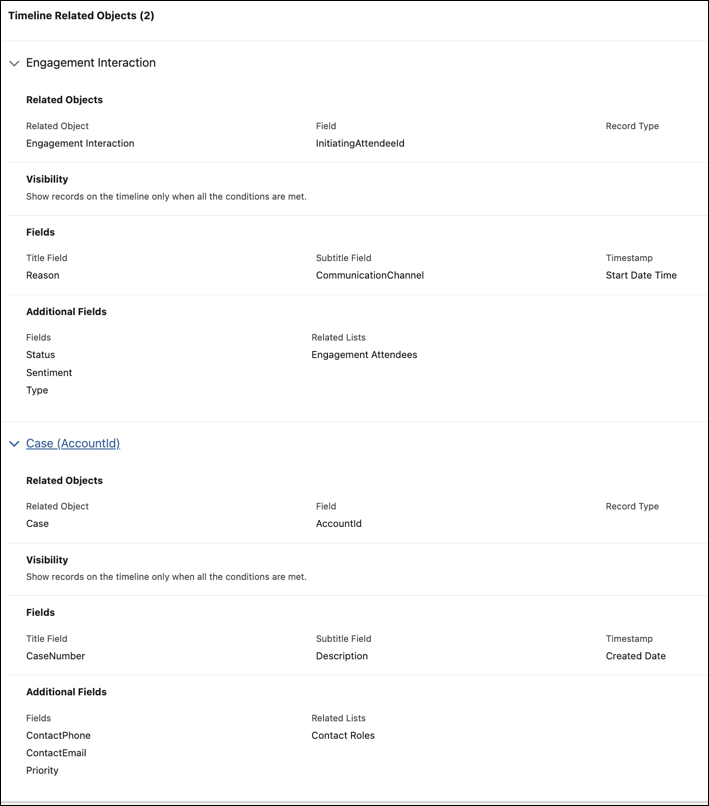
See how you can add a timeline with multiple related objects from Contact and display the timeline on a Contact record. You can use these steps to create a timeline with other objects as per your company’s requirements.
1. From Setup, in the Quick Find box, enter Timeline, and then select **Timeline**.
2. Click **New Timeline**.
3. In the New Timeline window, enter a name for the timeline.
4. Enter an API name for the timeline or accept the name that's auto-generated.
5. Select an object to base the timeline on.
You can base your timeline on a standard or custom Salesforce object that meets your needs. For example, select **Contact** to show the timeline on a Contact page record.
6. Save your changes.
7. Click **Next**.
8. To add an object, click **Add Related Object**.
1. For Parent Object, select **Use Timeline Object**.
2. For Related Object, select **Engagement Interaction**.
3. For Field, select **InitiatingAttendeeId**, and then click **Next**.
4. Add filter conditions to show records on the timeline, and then click **Next**.
5. For Title Field, select **Reason**.
6. For Subtitle Field, select **CommunicationChannel**.
7. For Timestamp, select **Start Date Time**.
8. Click **Next**.
9. Select the **Status**, **Sentiment**, and **Type** fields and the **Engagement Attendees** related lists to show on the timeline, and then click **Add**.
9. To add an object, click **Add Related Object**.
1. For Parent Object, select **Account**.
2. For Related Object, select **Case**.
3. For Field, select **AccountId**, and then click **Next**.
4. Add filter conditions to show records on the timeline, and then click **Next**.
5. For Title Field, select **Case Number**.
6. For Subtitle Field, select **Description**.
7. For Timestamp, select **Created Date**.
8. Click **Next**.
9. Select the **Contact Phone**, **Contact Email**, and **Priority** fields and the Contact Roles related lists to show on the timeline, and then click **Add**.
10. Save and activate the timeline.
11. Optionally, click **Preview Timeline** and select a base object record, like a Contact record in the View Timeline On field.

Tip To make the most of the preview, choose a record that has enough data to show for the different related objects and fields.