---
schema_version: "1"
id: ceaafb8149fdbb766b90b74444614f342e0196ad89313748de3d727ef8ff077d
title: Create Products for Vehicle Models in Automotive Cloud
collection: admin
version: current
locale: en-us
portal_url: https://docs.salesforce.com/admin/current/en-us/ind/264-0-0/auto_products_vehicles.md
canonical_url: https://help.salesforce.com/s/articleView?id=ind.auto_products_vehicles.htm&release=264.0.0&type=5
source_site: help.salesforce.com
content_type: documentation
content_hash: ba6682d8f5f6accbf7c1398f498903bc0d32f98e99e4b7a0edd93146d1b81758
description: Specify the make and model details of vehicles with Product records. Use Automotive Cloud to track the key details of a vehicle’s make, model, trim, version, and brand.
products:
- Automotive
release: "264"
---
# Create Products for Vehicle Models in Automotive Cloud
Specify the make and model details of vehicles with Product records. Use Automotive Cloud to track the key details of a vehicle’s make, model, trim, version, and brand.
### Required Editions
Available in: Enterprise, Unlimited, and Developer Editions.
User Permissions Needed
To create Products:
Automotive Foundation User permission set
Make sure your admin has added the relevant fields to the Product page layout that’s assigned to you.
1. From the App Launcher, find and select **Products**.
2. Click **New**.
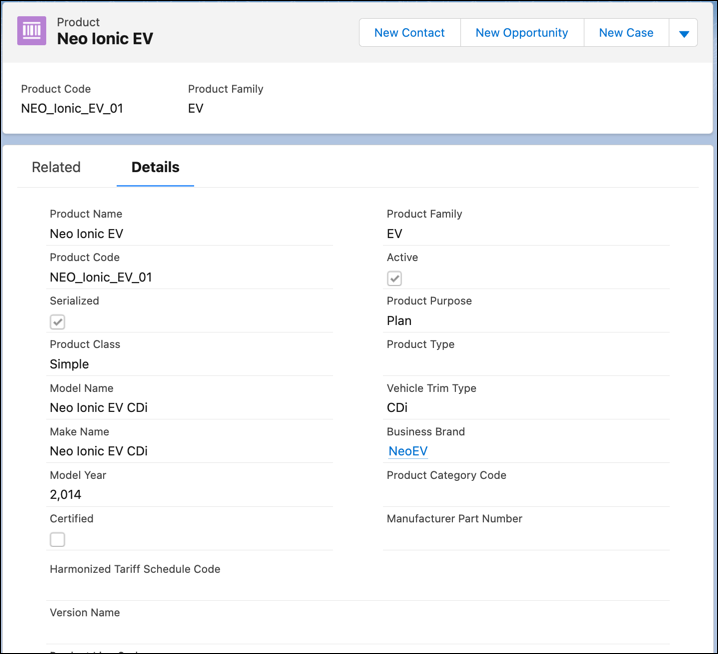
3. Enter a name for the product.
4. Select the business brand associated with the vehicle.
5. Enter the make name of the vehicle. For example, Neo Civic.
6. Enter the model name of the vehicle. For example, Neo Civic CD4.
7. Enter the trim levels supported by the vehicle model. For example, DX, GT, LS.
8. Enter the version name associated with the vehicle model. For example, Limited Edition, Special Edition.
9. Enter the year when the model was launched. For example, 2021.
10. Enter the other details as required, and save your changes.
#### See Also
- [_Salesforce Help_: Customize the Product Page for Automotive](https://help.salesforce.com/s/articleView?id=ind.auto_product_page_layout.htm&release=264.0.0&type=5 "Capture key information about vehicles, parts, and accessories with Product records. Configure the Product page layout to capture both types of information, vehicle definitions and part definitions.")