---
schema_version: "1"
id: 8fa7beb48857f17c8a75d519f597f3ff8366aef118c1225786d64c3965e34216
title: Create Product Related Materials in Automotive Cloud
collection: admin
version: current
locale: en-us
portal_url: https://docs.salesforce.com/admin/current/en-us/ind/264-0-0/auto_product_related_material.md
canonical_url: https://help.salesforce.com/s/articleView?id=ind.auto_product_related_material.htm&release=264.0.0&type=5
source_site: help.salesforce.com
content_type: documentation
content_hash: 8e901f5da9613fe553b010bb242a81ea13f0b248628746c70f897dce52bbd25f
description: An automotive company procures its parts and components from various suppliers, and maps these components to the specific vehicle variant product that they sell. If the same component is used in different car variants, the quantity requirements are different along with the lead time required to produce each component. The automotive company can maintain a bill of materials to track the list of components required to create a single vehicle. Use Product Related Material records to document these details.
products:
- Automotive
release: "264"
---
# Create Product Related Materials in Automotive Cloud
An automotive company procures its parts and components from various suppliers, and maps these components to the specific vehicle variant product that they sell. If the same component is used in different car variants, the quantity requirements are different along with the lead time required to produce each component. The automotive company can maintain a bill of materials to track the list of components required to create a single vehicle. Use Product Related Material records to document these details.
### Required Editions
Available in: Enterprise, Unlimited, and Developer Editions.
User Permissions Needed
To create product related materials:
Automotive Foundation User permission set
Read, Create permission on Product Related Material
1. Create supplier products, such as front suspensions or brakes.
1. From the App Launcher, find and select **Products**.
2. Click **New**.
3. Enter a name.
4. Select Product Purpose as **Sell**.
5. Select the **Active** checkbox.
6. Save your changes.
2. Create final products, such as a vehicle model.
1. From the App Launcher, find and select **Products**.
2. Click **New**.
3. Enter a name.
4. Select Product Purpose as **Plan**.
5. Select the **Active** checkbox.
6. Save your changes.
3. Map the component with the final product.
1. From the App Launcher, find and select **Product Related Materials**.
2. Click **New**.
3. Enter a name.
4. Select a product.
5. Select a product component.
6. Enter the quantity per product unit.
7. Enter the minimum eligible quantity.
8. Enter the lead time.
9. Select the lead time unit of measure.
10. Select the **Active** checkbox.
11. Save your changes.

Example You can create Product Related Material records to store data about multiple levels of component requirements. Here’s an example.
Record 1
- Product: Neo Civic LS
- Product Component: 6 Inch Tyres
- Quantity Per Product Unit: 5
- Minimum Eligible Quantity: 4
- Lead Time: 1 month
Record 2
- Product: 6 Inch Tyres
- Product Component: Rubber Tube
- Quantity Per Product Unit: 2
- Minimum Eligible Quantity: 1
- Lead Time: 1 week
Record 3
- Product: Rubber Tube
- Product Component: Rubber Sheet
- Quantity Per Product Unit: 1
- Minimum Eligible Quantity: 1
- Lead Time: 1 week
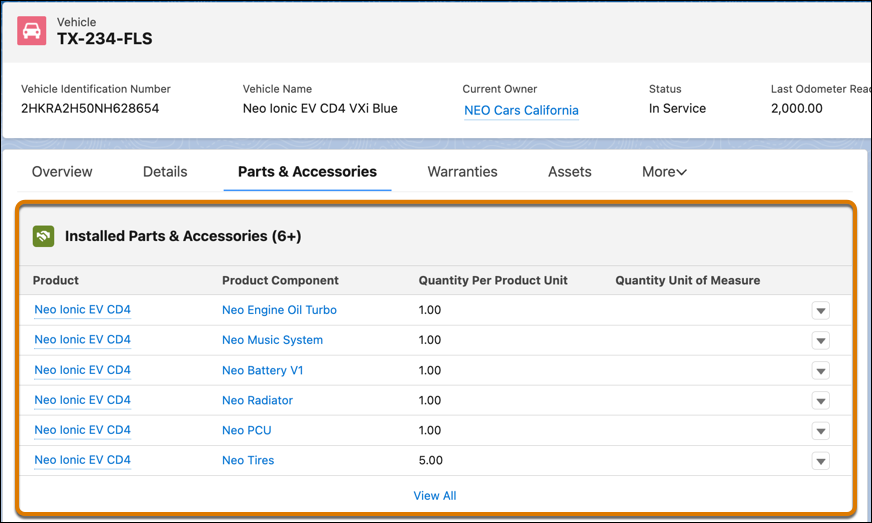
The Installed Parts and Accessories related list on a Vehicle record page layout derives information from the Product Related Material records. All parts and accessories that are used in the base configuration of a specific vehicle are displayed along with their quantity.