---
schema_version: "1"
id: f4d801e1a8ad9fa83d9960a4ecd31c8d6c3f51794bf6a45798e5a66fc8908547
title: Add Components to Product Bundles in Automotive Cloud
collection: admin
version: current
locale: en-us
portal_url: https://docs.salesforce.com/admin/current/en-us/ind/264-0-0/auto_product_related_component.md
canonical_url: https://help.salesforce.com/s/articleView?id=ind.auto_product_related_component.htm&release=264.0.0&type=5
source_site: help.salesforce.com
content_type: documentation
content_hash: 31f40997c33f348c4acb0d8965cc77f4667a4fed20de7493547643d795edc329
description: Group multiple products into one sellable product bundle for the convenience of customers, product completion, or visualization. With Automotive Cloud, you can create product bundles that include a parent product and multiple child products. Typically, dealers and original equipment manufacturers (OEMs) sell certain accessories and parts along with a specific make and model of vehicle. For example, create a parent product Neo_Ionic_EV_CD4 and add one unit of Neo Car Power Roof Top Window and 5 units of Neo Engine Oil Turbo products as child products. The child products are Product Related Component records.
products:
- Automotive
release: "264"
---
# Add Components to Product Bundles in Automotive Cloud
Group multiple products into one sellable product bundle for the convenience of customers, product completion, or visualization. With Automotive Cloud, you can create product bundles that include a parent product and multiple child products. Typically, dealers and original equipment manufacturers (OEMs) sell certain accessories and parts along with a specific make and model of vehicle. For example, create a parent product Neo\_Ionic\_EV\_CD4 and add one unit of Neo Car Power Roof Top Window and 5 units of Neo Engine Oil Turbo products as child products. The child products are Product Related Component records.
### Required Editions
Available in: Enterprise, Unlimited, and Developer Editions.
User Permissions Needed
To create product related components:
Automotive Foundation User permission set AND Read access on Product Relationship
Type

Note Make sure the Bundle Tree component is added to the Product page layout.
You can only create Child Products for a Product record where Product Type is Bundle.
1. Create a parent product, like a vehicle.
1. From the App Launcher, find and select **Products**.
2. Click **New**.
3. Enter a name.
4. Select Product Type as **Bundle**.
5. Select the **Active** checkbox.
6. Save your changes.
2. Create a child product, like a spare part.
1. From the App Launcher, find and select **Products**.
2. Click **New**.
3. Enter a name.
4. Select Product Type as **Bundle**.
5. Select the **Active** checkbox.
6. Save your changes.
3. Define the relationship between products.
1. From the App Launcher, find and select **Product Relationship Types**.
2. Click **New**.
3. Enter a name.
4. For Main Product Role Category, select Bundle Parent.
5. For Associated Product Role Category, select Bundle Component.
6. Save your changes.
4. Add the child products to a bundle.
1. Open the parent product record and click **Bundles**.
2. Click **Add**.
3. .Select a product.
Only the products with Product Type as Bundle show up in the list.
4. Click **Next**.
5. Select the Product Relationship Type record you created.
6. To allow others to change the quantity o the component within the bundle, select **Allow quantity changes**.
7. Enter the minimum and maximum quantity of the component within the bundle.
For example, if you’re adding Doors as a component to the Vehicle product bundle, specify the Max Quantity as 4.
8. Save your changes.
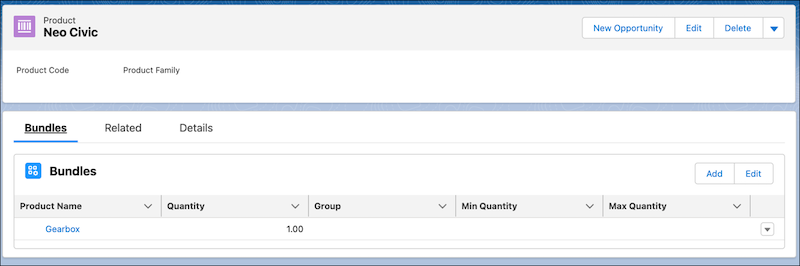
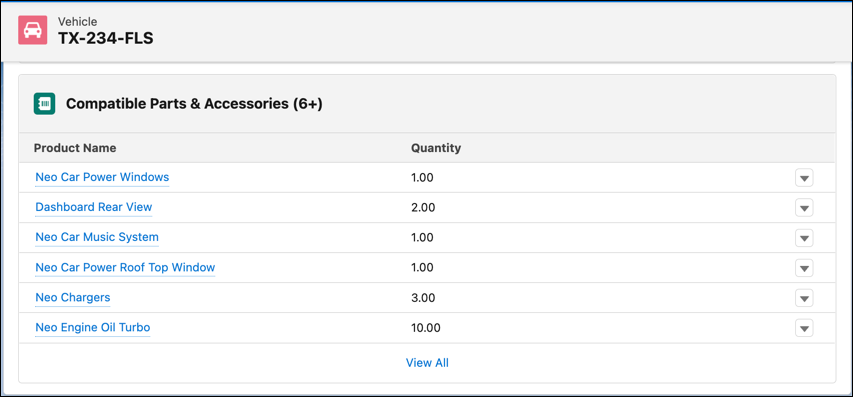
The Compatible Parts and Accessories related list on a Vehicle record page layout derives information from the Product Related Component records. The parts and accessories that aren’t part of the base vehicle configuration but that can be recommended or sold are displayed along with the quantity.