---
schema_version: "1"
id: 29cb10f6dac3dbfc9f7e1e1b6605936d8215de2297417aa18e31c865e8c287c1
title: Customize the Product Page for Automotive Cloud
collection: admin
version: current
locale: en-us
portal_url: https://docs.salesforce.com/admin/current/en-us/ind/264-0-0/auto_product_page_layout.md
canonical_url: https://help.salesforce.com/s/articleView?id=ind.auto_product_page_layout.htm&release=264.0.0&type=5
source_site: help.salesforce.com
content_type: documentation
content_hash: ceece1ac1ca3943c991b20fd6c55d4a17124718600176a958002bd9fd5239ba2
description: Capture key information about vehicles, parts, and accessories with Product records. Configure the Product page layout to capture both types of information, vehicle definitions and part definitions.
products:
- Automotive
release: "264"
---
# Customize the Product Page for Automotive Cloud
Capture key information about vehicles, parts, and accessories with Product records. Configure the Product page layout to capture both types of information, vehicle definitions and part definitions.
### Required Editions
Available in: Enterprise, Unlimited, and Developer Editions.
User Permissions Needed
To customize page layouts:
Customize Application
We recommend that you create two record types and then create separate page layouts for these record types. You can create two record types for Vehicles and Parts. Some fields on the Product page are designed for users to define vehicle models, while others are designed to define parts and accessories.
1. Create two record types.
1. From Setup, go to Object Manager.
2. Search for and select **Product**.
3. Select **Record Types**, and click **New**.
4. Enter a record type label that's unique within the object.
5. Enter a record type name.
The Record Type Name refers to the component when using Metadata API and prevents naming conflicts on package installation in managed packages.
6. Activate the record type.
7. To make the record type available to a user profile, select **Make Available**.
To make the record type available for all profiles, select the checkbox in the header row.
8. Click **Next**.
9. Select a page layout option to determine what page layout displays for records with this record type.
- To apply a single page layout for all profiles, select **Apply one layout to all profiles**, and select the page layout from the dropdown list.
- To apply different page layouts based on user profiles, select **Apply a different layout for each profile**, and select the page layout for each profile.
10. To create another record type, click **Save & New**.
2. Add fields to the Vehicle record type Product page layout.
1. From Setup, go to Object Manager.
2. Search for and select **Product**.
3. Select Page Layouts and click select the page layout corresponding to the Vehicle record type.
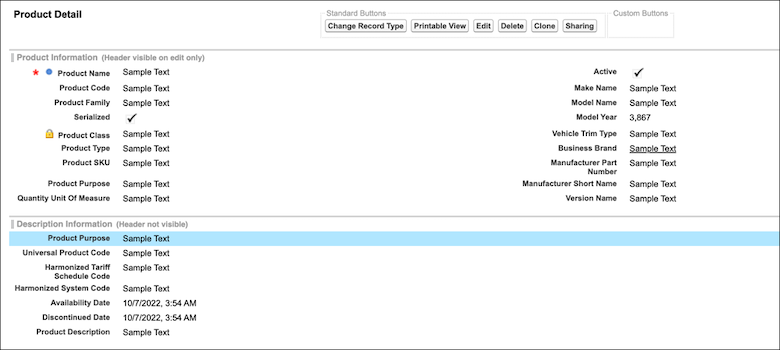
4. Drag the following fields from the palette onto the Product Detail section on the page.
- Business Brand
- Make Name
- Model Name
- Model Year
- Version Name
- Vehicle Trim Type
5. Save your changes.
3. Add fields to the Parts record type Product page layout.
1. From Setup, go to Object Manager.
2. Search for and select **Product**.
3. Select Page Layouts and click select the page layout corresponding to the Parts record type.
4. Drag the following fields from the palette onto the Product Detail section on the page.
- Harmonized System Code
- Harmonized Tariff Schedule Code
- Manufacturer Short Name
- Manufacturer Part Number
- Product Line Code
- Product Category Code
- Universal Product Code
- Availability Date
- Discontinued Date
- Environmental Protection Regulation Compliant
- Certified
5. Save your changes.
4. Add related lists for both page layouts.
1. From Setup, go to Object Manager.
2. Search for and select **Product**.
3. Select Page Layouts and click select a page layout.
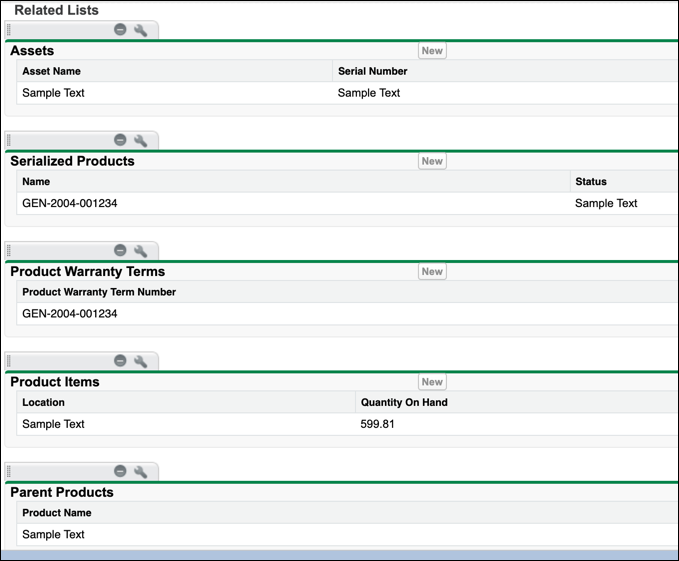
4. Drag the following related lists from the palette onto the Product Related Lists section on the page.
- Assets
- Product Warranty Terms
- Product Items
- Price Books
- Child Products
- Parent Products
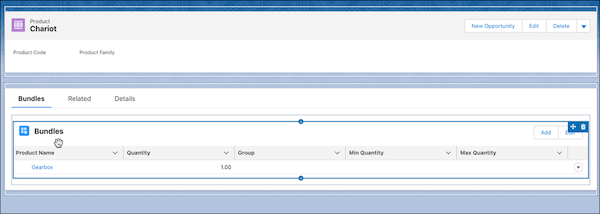
5. To view product bundles, follow these steps.
1. Open a Product record an click **Edit Page**.
2. Drag the **Bundle Tree** component onto the page layout, either on a new or existing tab.
3. Save your changes and activate the page layout.
#### See Also
- [_Salesforce Help_: Create Vehicle Models](https://help.salesforce.com/s/articleView?id=ind.auto_products_vehicles.htm&release=264.0.0&type=5 "Specify the make and model details of vehicles with Product records. Use Automotive Cloud to track the key details of a vehicle’s make, model, trim, version, and brand.")
- [_Salesforce Help_: Create Parts and Accessories](https://help.salesforce.com/s/articleView?id=ind.auto_products_parts_accessories.htm&release=264.0.0&type=5 "Use Product records to define the parts and accessories for a vehicle. With Automotive Cloud, you can track the key details of a part, such as the part's manufacturer part number, availability and discontinued dates, and other aspects.")