---
schema_version: "1"
id: 990fb59cf8ebd020a9366d1ae79ba360e2b6b4d13c73a6f81010419e63f03df4
title: Create Lead Preferred Sellers
collection: admin
version: current
locale: en-us
portal_url: https://docs.salesforce.com/admin/current/en-us/ind/264-0-0/auto_lead_preferred_seller_create.md
canonical_url: https://help.salesforce.com/s/articleView?id=ind.auto_lead_preferred_seller_create.htm&release=264.0.0&type=5
source_site: help.salesforce.com
content_type: documentation
content_hash: e68c498b3d4d946edc496c2962ba6a35a7876f9c2ff894b7e8dfd0a73bad75be
description: "Sometimes leads prefer to purchase from the most closely located dealer or a dealer that they previously negotiated with. And often, automotive companies use lead providers or digital marketing agencies to source high-quality leads. You can capture such key information by creating Lead Preferred Seller records and relating them with Lead records. A Lead Preferred Seller record forms two lead relations: relation of a dealer to a lead and relation of a lead provider to a lead."
products:
- Automotive
release: "264"
---
# Create Lead Preferred Sellers
Sometimes leads prefer to purchase from the most closely located dealer or a dealer that they previously negotiated with. And often, automotive companies use lead providers or digital marketing agencies to source high-quality leads. You can capture such key information by creating Lead Preferred Seller records and relating them with Lead records. A Lead Preferred Seller record forms two lead relations: relation of a dealer to a lead and relation of a lead provider to a lead.
### Required Editions
Available in: Enterprise, Unlimited, and Developer Editions.
User Permissions Needed
To create lead preferred sellers:
Partner Lead Management permission set
Make sure that the Preferred Sellers related list is added to the Lead page layout.
1. From the App Launcher, find and select **Leads**.
2. Select the required lead record.
3. In the Preferred Sellers related list, click **New**.
Depending on how your admin configures the Lead page layout, you can access the Preferred Sellers related list as a card on the page layout or from the Related tab.
4. Enter a name for the preferred seller.
5. Search for and select the account of the preferred seller.
6. Search for and select the contact of the preferred seller, if applicable.
7. In the Account Role field, select **Dealer** or **Lead Provider**.
8. Save your changes.
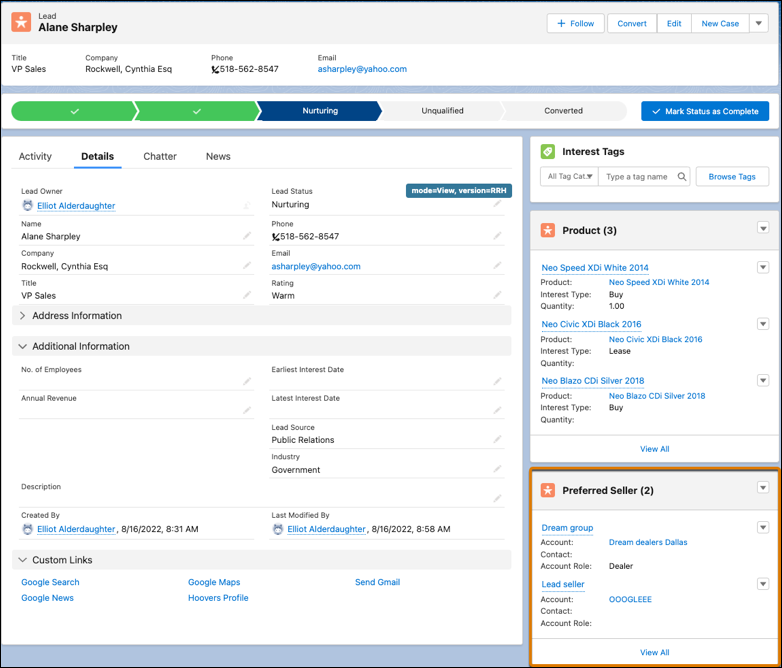
When you convert the lead to an opportunity, the lead preferred sellers automatically get converted to opportunity preferred sellers if the required configurations are defined.
#### See Also
- [_Salesforce Help_: Create and Deploy Mappings for Automotive Lead Management](https://help.salesforce.com/s/articleView?id=ind.auto_create_deploy_mappings.htm&release=264.0.0&type=5 "Convert lead line items into opportunity line items and lead preferred sellers into opportunity preferred sellers automatically when you convert a lead into an opportunity. For custom fields ad additional attributes, use the ObjectHierarchyRelationship metadata API to create and deploy field mappings.")