---
schema_version: "1"
id: 70d165548c3399e934302412537948b361ef9e8cac4f03a589655f50ece46942
title: Set Up Geo Countries for Automotive Cloud
collection: admin
version: current
locale: en-us
portal_url: https://docs.salesforce.com/admin/current/en-us/ind/264-0-0/auto_geocountry.md
canonical_url: https://help.salesforce.com/s/articleView?id=ind.auto_geocountry.htm&release=264.0.0&type=5
source_site: help.salesforce.com
content_type: documentation
content_hash: d5af89c504d3cab65282a1777653ed16bb683718de32c3f834d4b24381e20957
description: Create Geo Country and Geo State records to model the countries and states where vehicles are registered or sold. Vehicle definitions are associated with geocountries because the make and model specifications can vary by country. Asset titles are associated to geo states because a vehicle is officially registered in a state.
products:
- Automotive
release: "264"
---
# Set Up Geo Countries for Automotive Cloud
Create Geo Country and Geo State records to model the countries and states where vehicles are registered or sold. Vehicle definitions are associated with geocountries because the make and model specifications can vary by country. Asset titles are associated to geo states because a vehicle is officially registered in a state.
### Required Editions
Available in: Enterprise, Unlimited, and Developer Editions.
User Permissions Needed
To create geocountries and geostates:
Create access on GeoCountry and GeoState
1. From the App Launcher, find and select **Geo Countries**.
2. Click **New**.
3. Enter the two-character alphabetic ISO code for the country.
For a list of supported ISO codes, see [Standard Countries and Territories for Address Picklists](https://help.salesforce.com/s/articleView?id=xcloud.admin_state_country_picklists_standard_countries.htm&type=5&language=en_US).
4. Save your changes.
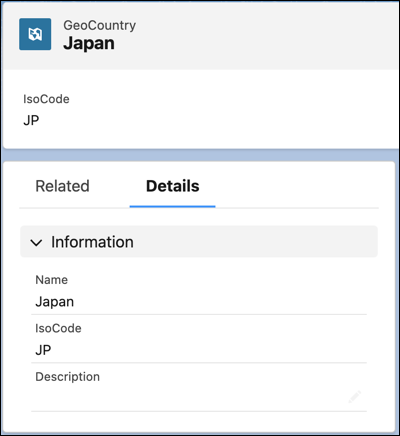
The record is automatically created and based on the ISO code, the Name field is populated by the country name. For example, if you enter AU as the ISO code, a record with name Australia is created.
5. From the App Launcher, find and select **Geo States**.
6. Click **New**.
7. Enter the name of the state or province.
8. Enter the two-character alphabetic ISO code for the state or province.
9. Select the geo country that the state or province is in.
10. Save your changes.