---
schema_version: "1"
id: 45a6ccd608dcb710f001da89e59818a51fa0f0a73384e9df5f00ae14b948abaa
title: Customize the Opportunity Page for Automotive Cloud
collection: admin
version: current
locale: en-us
portal_url: https://docs.salesforce.com/admin/current/en-us/ind/264-0-0/auto_customize_opp_page_layout.md
canonical_url: https://help.salesforce.com/s/articleView?id=ind.auto_customize_opp_page_layout.htm&release=264.0.0&type=5
source_site: help.salesforce.com
content_type: documentation
content_hash: b9f95a1a77cc773cec6e7c05fa123f1f680d998adde0f2c998a68ef16a9f6001
description: When a lead gets converted into an opportunity, the underlying records for Lead Line Item and Lead Preferred Seller also get converted. Add the Products and Preferred Sellers related lists to the Opportunity record page layout to display the information to your users.
products:
- Automotive
release: "264"
---
# Customize the Opportunity Page for Automotive Cloud
When a lead gets converted into an opportunity, the underlying records for Lead Line Item and Lead Preferred Seller also get converted. Add the Products and Preferred Sellers related lists to the Opportunity record page layout to display the information to your users.
### Required Editions
Available in: Enterprise, Unlimited, and Developer Editions.
User Permissions Needed
To customize page layouts:
Customize Application
1. From Setup, go to Object Manager.
2. Search for and select **Opportunity**.
3. Click **Page Layouts**, and select a page layout.
4. Drag and drop the **Products**, **Preferred Sellers**, and **Service Appointments** related lists from the palette to the Opportunity Related Lists section on the page.
5. Drag the **Schedule Test Drive** button from the palette onto the Standard Buttons section of the page.
6. Remove the **Schedule Appointment** quick action from the page.Drag the **Related Lists** component onto the right sidebar area on the page. Or, add a **Related** tab in the main region, and add the **Related Lists** component to that tab.

Important This quick action automatically gets added to the page layout when you enable Salesforce Scheduler but launching this action would allow you to only use the default flow for appointment scheduling. To use the predefined test drive appointment flow unique to Automotive Cloud, remove this action and add the Schedule Test Drive button to the page.
7. Save your changes.
8. Open an Opportunity record, and click **Edit Page**.
9. Drag and drop the **Related Lists** component to the right sidebar area of the page. Or, add a **Related** tab in the main region, and add the **Related Lists** component to that tab.

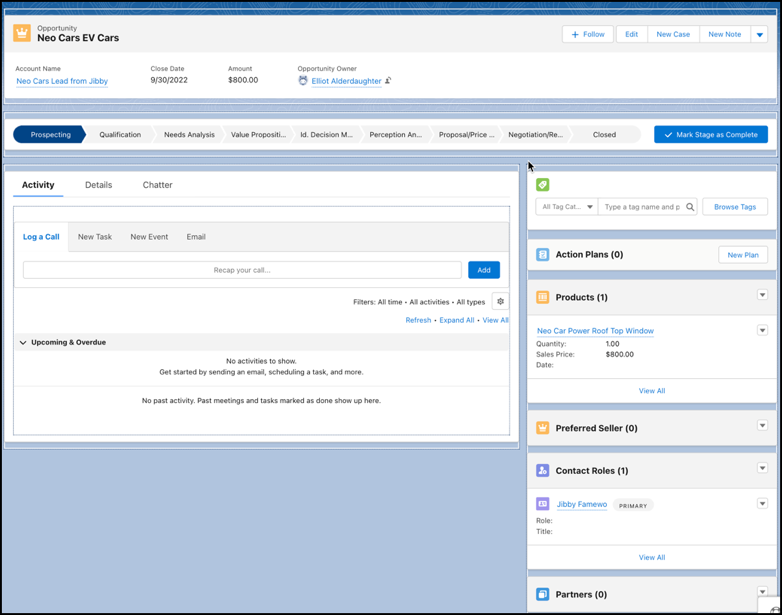
Tip It’s easier for sales personnel and dealer reps to view information when you add the related lists to the right sidebar, because the related lists appear as cards showing key details of records.
10. Drag the **Interest Tags** component to an area of the page, preferably to the right sidebar.
11. Select the following.
- Enter a title.
- To let users search for interest tags, select **Show Search**.
- Enter the maximum number of tag categories to display in the component. Users can expand the list to see more.
- Enter the maximum number of interest tags to display in the component. Users can expand the list to see more.
12. Save your changes.
13. To apply the changes, click **Activation**.