---
schema_version: "1"
id: 4409156ecaabf6f3ca3b0c8d220cc0385a45373cd9875c693fe8ecee5a1da1ea
title: Create Dealer Visit Key Performance Indicators
collection: admin
version: current
locale: en-us
portal_url: https://docs.salesforce.com/admin/current/en-us/ind/264-0-0/auto_create_visit_kpi.md
canonical_url: https://help.salesforce.com/s/articleView?id=ind.auto_create_visit_kpi.htm&release=264.0.0&type=5
source_site: help.salesforce.com
content_type: documentation
content_hash: 7f955f6928da99d88cbf0d20138e34f319b5ccd1b0197e6ee6bc21edd956c0ca
description: Create Generic Visit Key Performance Indicator records to relate an assessment indicator definition to a visit task context. For example, a visit task, Quarterly Product Recalls, can be related to an assessment indicator definition, Number of Damaged Spare Parts. The sales manager can estimate an expected value based on the average number of damaged spare parts reported by dealers over the past few years per visit. During the visit, the district manager or evaluation officer can check with the dealer and capture the actual value based on how many damaged spare parts exist in a showroom. The sales manager can then find the information for both expected and actual values on the Generic Visit Key Performance Indicator record.
products:
- Automotive
release: "264"
---
# Create Dealer Visit Key Performance Indicators
Create Generic Visit Key Performance Indicator records to relate an assessment indicator definition to a visit task context. For example, a visit task, Quarterly Product Recalls, can be related to an assessment indicator definition, Number of Damaged Spare Parts. The sales manager can estimate an expected value based on the average number of damaged spare parts reported by dealers over the past few years per visit. During the visit, the district manager or evaluation officer can check with the dealer and capture the actual value based on how many damaged spare parts exist in a showroom. The sales manager can then find the information for both expected and actual values on the Generic Visit Key Performance Indicator record.
### Required Editions
Available in: Enterprise, Unlimited, and Developer Editions.
User Permissions Needed
To create generic key performance indicators:
Partner Visit Management permission set
Create access on Generic Visit Key Performance Indicator
1. From the App Launcher, find and select **Generic Visit Key Performance Indicators**, and then click **New**.
2. Search for and select a Visit Task Context record.
3. Search for and select an Assessment Indicator Definition record.
4. Based on the field type of the assessment indicator, define the expected value.
5. Save your changes.
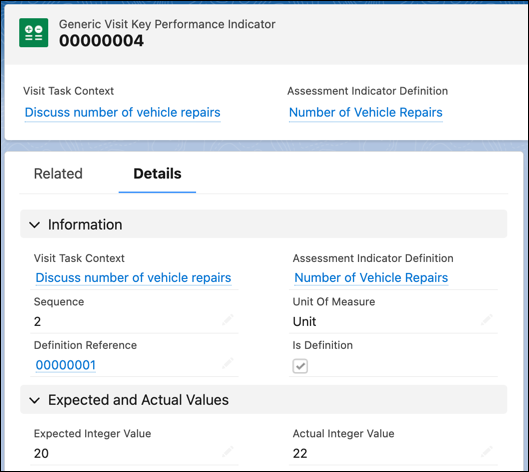
After a visit task is completed, the actual value for the assessment indicator is populated.