---
schema_version: "1"
id: 94f22e72bf84589a27a9d9d54166aa4bae07edd2c4d0017ad17e5f04bd789d80
title: Create Catalogs and Categories in Automotive Cloud
collection: admin
version: current
locale: en-us
portal_url: https://docs.salesforce.com/admin/current/en-us/ind/264-0-0/auto_create_cataalogs_categories.md
canonical_url: https://help.salesforce.com/s/articleView?id=ind.auto_create_cataalogs_categories.htm&release=264.0.0&type=5
source_site: help.salesforce.com
content_type: documentation
content_hash: 3b563177f7c9d7f371e593d107aa933b234ba5b54014db1d9f9a0b7ba72af33a
description: Use catalogs and categories to organize and classify the products you sell. While catalogs help you classify products at a higher level, you can associate multiple categories with a single catalog. For example, you can create catalogs such as Traditional Cars, Spare Parts, or Premium Vehicle Accessories. The Premium Vehicle Accessories catalog can have multiple categories such as Heated Seats, Phone Mounts, and Bluetooth Transmitters.
products:
- Automotive
release: "264"
---
# Create Catalogs and Categories in Automotive Cloud
Use catalogs and categories to organize and classify the products you sell. While catalogs help you classify products at a higher level, you can associate multiple categories with a single catalog. For example, you can create catalogs such as Traditional Cars, Spare Parts, or Premium Vehicle Accessories. The Premium Vehicle Accessories catalog can have multiple categories such as Heated Seats, Phone Mounts, and Bluetooth Transmitters.
### Required Editions
Available in: Enterprise, Unlimited, and Developer Editions.
User Permissions Needed
To create catalogs and categories:
Automotive Foundation User permission set
1. From App Launcher, find and select **Catalogs**.
2. Click **New**.
3. Enter a name.
4. Save your changes.
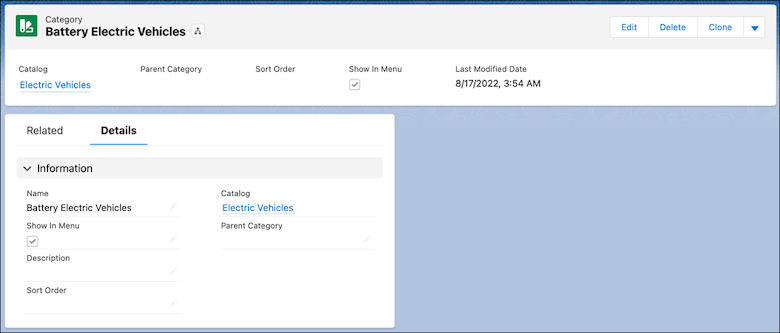
5. From App Launcher, find and select **Categories**.
6. Click **New**.
7. Enter a name.
8. Search for, and select the Catalog record you created.
9. Save your changes.