---
schema_version: "1"
id: fef4d140af38a4ea350d3c861f4ebf71035b62f483a58299404c999eb76fd6fe
title: Create Business Profiles in Automotive Cloud
collection: admin
version: current
locale: en-us
portal_url: https://docs.salesforce.com/admin/current/en-us/ind/264-0-0/auto_create_businness_profiles.md
canonical_url: https://help.salesforce.com/s/articleView?id=ind.auto_create_businness_profiles.htm&release=264.0.0&type=5
source_site: help.salesforce.com
content_type: documentation
content_hash: 35db9c53ce38d83b47d78e8ad5c365f606c7a28f9254586f58a1976ae42360bc
description: In Automotive Cloud, you can model all stakeholders for an automotive company as Account records. To capture additional information about each stakeholder account, primarily dealers, create Business Profile records. Each dealer can have a Business Profile record where you can add details, such as the type of services provided by the dealer, and the registered name and code of the account.
products:
- Automotive
release: "264"
---
# Create Business Profiles in Automotive Cloud
In Automotive Cloud, you can model all stakeholders for an automotive company as Account records. To capture additional information about each stakeholder account, primarily dealers, create Business Profile records. Each dealer can have a Business Profile record where you can add details, such as the type of services provided by the dealer, and the registered name and code of the account.
### Required Editions
Available in: Enterprise, Unlimited, and Developer Editions.
User Permissions Needed
To create business profiles:
Automotive Foundation permission set
Make sure your admin has defined picklist values for the Region field on the Business Profile object in Object Manager. The admin can also add picklist values for Service Type and Business Partner Type.
1. From the App Launcher, find and select **Business Profiles**.
2. Click **New**.
3. Search for and select an account.
4. Enter a name for the business profile.
5. For Business Operating Name, enter the name that’s registered for the business.
6. For Business Partner Code, enter the official code that’s registered for the business.
7. For Business Partner Registered Name, enter the legal name of the business partner.
8. For External Reference Number, enter the ID of the business partner as on the external data source.
9. For Business Partner Type, select the type of role associated with the business partner:
- Customer
- Financier
- Sales Dealer
- Service Dealer
10. For Service Type, select all the types of services that the business partner provides, such as Spare Parts Sales, Sales, Repair & Maintenance, or Consultation.
11. For Business Tax Identifier, enter the unique code that’s assigned to a business by the revenue department for tax reporting.
12. For Region, select the operational region or territory of the partner.
13. For Service Territory, select a dealer’s operating location.
If you use Automotive Scheduler capabilities for scheduling test drives and service appointments, this is a required step.
14. Save your changes.

Example
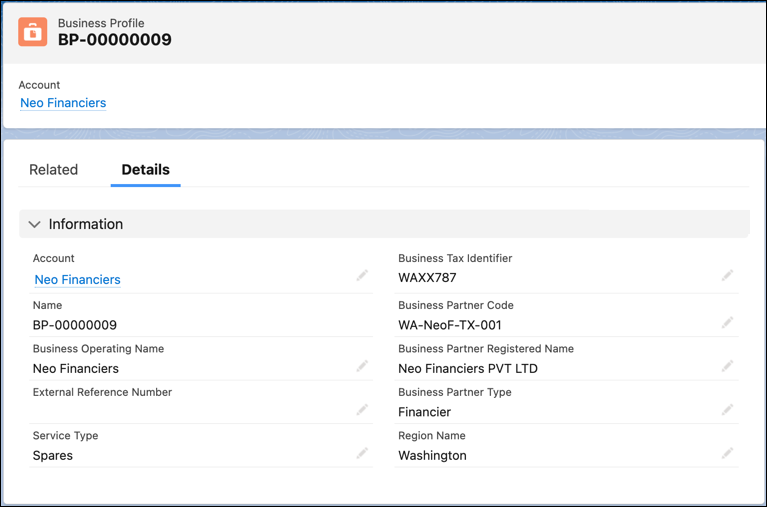
Neo Motors has multiple car dealerships across North America. Neo Motors wants to capture additional information about each primary dealer account. Here's how a Neo Motors admin can add details about each dealer account:
- From the App Launcher, search and select **Business Profiles**.
- Click **New**.
- Specify these values, and then save the changes:
- Account: **Dream Dealers New York North America**
- Name: BP-00045
- Business Partner Code: NA\_Dream\_Dealers\_NY\_001
- Business Operating Name: New York Dealer 001
- Business Partner Type: **Sales Dealer**
- Business Tax Identifier: ABX3456
- Business Partner Registered Name: Dream Dealers Motors NY
- Service Type: **Vehicle Sales**, and **Spare Parts Sales**
- Region Name: **New York**
#### See Also
- [_Salesforce Help_: Customize the Business Profile Page for Automotive](https://help.salesforce.com/s/articleView?id=ind.auto_add_business_profile_fields.htm&release=264.0.0&type=5 "Develop a business profile for all dealer accounts that are associated with your automotive business. Add fields to the Business Profile record page layout to capture key information about sales and service dealers.")