---
schema_version: "1"
id: a3676b5fc19831962204b0ccaa33d758adc8ba75e46339f06f857d409b797c1a
title: Create Assets to Model Vehicles and Parts
collection: admin
version: current
locale: en-us
portal_url: https://docs.salesforce.com/admin/current/en-us/ind/264-0-0/auto_create_assets.md
canonical_url: https://help.salesforce.com/s/articleView?id=ind.auto_create_assets.htm&release=264.0.0&type=5
source_site: help.salesforce.com
content_type: documentation
content_hash: b91b86d5f1236ba1b7a82f12527162e7b13b4247b61a86f91ec6ca941ffc749c
description: Track the lifecycle of each asset right from production to retirement with Asset records in Automotive Cloud. You can create assets to represent the vehicles as well as the parts and accessories that you sell to customers. Capture key details such as the related account, product, and contact, purchase and installation dates, and quantity and price of the asset.
products:
- Automotive
release: "264"
---
# Create Assets to Model Vehicles and Parts
Track the lifecycle of each asset right from production to retirement with Asset records in Automotive Cloud. You can create assets to represent the vehicles as well as the parts and accessories that you sell to customers. Capture key details such as the related account, product, and contact, purchase and installation dates, and quantity and price of the asset.
### Required Editions
Available in: Enterprise, Unlimited, and Developer Editions.
User Permissions Needed
To create assets:
Automotive Foundation User permission set.
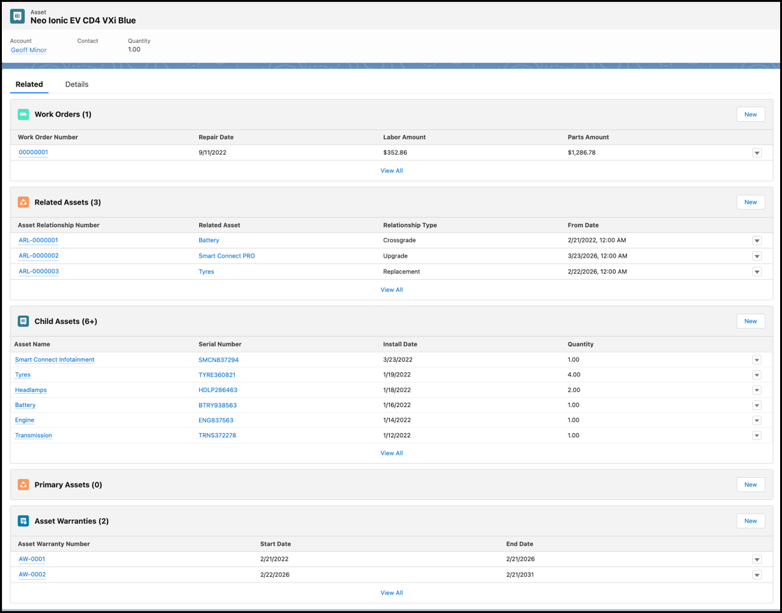
Make sure your admin has added the relevant fields and related lists to the Asset page layout that’s assigned to you.
1. From the App Launcher, find and select **Assets**.
2. Click **New**.
3. Select a product. The Product Code gets automatically populated.
4. Enter a name for the asset.
5. Select an account, contact, or both to indicate who has purchased the asset.
6. Fill out the remaining fields as needed. See [Asset Fields](https://help.salesforce.com/s/articleView?id=service.assets_fields.htm&type=5&language=en_US).
7. To create hierarchical relationships between assets, use the Parent Asset field and the Child Assets related list on the Asset page.
8. If the asset is a competitor’s product, select **Competitor Asset**. If it’s produced or used internally, select **Internal Asset**.
9. If the asset is a vehicle that’s already in the system, search for and select a Vehicle record.
If the Vehicle record is not yet created, you can create it after creating the Asset record.
10. If the asset is a serialized product like a part or accessory, enter the serial number.
11. Save your changes.
#### See Also
- [_Salesforce Help_: Customize the Asset Page for Automotive](https://help.salesforce.com/s/articleView?id=ind.auto_customize_asset_page_layout.htm&release=264.0.0&type=5 "While products represent the vehicles, parts, and accessories that your company sells, assets represent the specific products that your customers have purchased. Configure the Asset page layout to capture key information about the products that you’ve sold or installed, and add the Vehicle lookup to help users relate an asset with a vehicle. Add related lists that help your users view asset relationships and associated records.")