---
schema_version: "1"
id: 95229a28849a777958a2a646bd07368ab518c6075072c236f835474232be287e
title: Create Tasks for Dealer Visits
collection: admin
version: current
locale: en-us
portal_url: https://docs.salesforce.com/admin/current/en-us/ind/264-0-0/auto_create_a_visit_task.md
canonical_url: https://help.salesforce.com/s/articleView?id=ind.auto_create_a_visit_task.htm&release=264.0.0&type=5
source_site: help.salesforce.com
content_type: documentation
content_hash: 91f019a44667828ab306ed0b6f8c619a99760f2d7ce7538ca29a43fb533c01f0
description: Create tasks for district managers and evaluation officers to perform during dealer visits. For example, the officer can check on the ongoing promotions at the dealer showrooms, discuss monthly targets or incentives with the dealer representatives, and upsell spare parts or accessories. The information and metrics collected by evaluation officers during these tasks provide helpful insights into dealer performance. Sales managers can define their own tasks and associate their own assessment indicators with the tasks to capture key business and performance metrics.
products:
- Automotive
release: "264"
---
# Create Tasks for Dealer Visits
Create tasks for district managers and evaluation officers to perform during dealer visits. For example, the officer can check on the ongoing promotions at the dealer showrooms, discuss monthly targets or incentives with the dealer representatives, and upsell spare parts or accessories. The information and metrics collected by evaluation officers during these tasks provide helpful insights into dealer performance. Sales managers can define their own tasks and associate their own assessment indicators with the tasks to capture key business and performance metrics.
### Required Editions
Available in: Enterprise, Unlimited, and Developer Editions.
User Permissions Needed
To create generic visit tasks:
Partner Visit Management permission set
Create access on Generic Visit Task
When a sales manager creates a generic visit task, the manager always selects the task as a definition. The runtime equivalent of the task is created automatically when the evaluation officer starts the task on their mobile app.
1. From the App Launcher, find and select **Generic Visit Tasks**, and then click **New**.
2. Enter a name and a description for the task.
3. To mark the task as a definition, for Status, select **Is Defined**.
4. To mark the task as mandatory, select **Required**.
5. Select the start date, the end date, and the time.
6. Enter a numeric value for Sequence.
7. Save your changes.
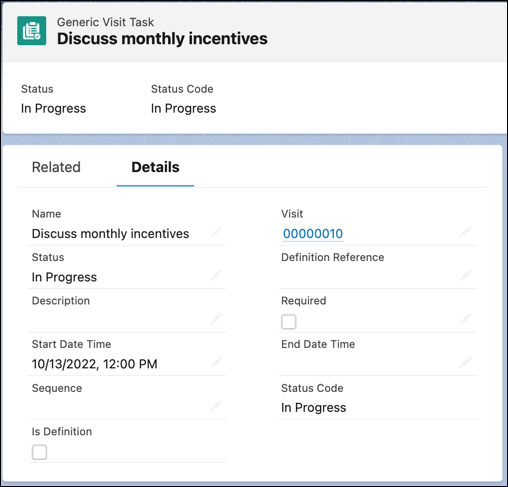

Note If you use the Generic Visit Tasks related list on a Visit record to create a task, the Visit field is auto-populated.