---
schema_version: "1"
id: 635733ea4701510e3ab1aa3c51e9e3243130e5e174b3bc417c0f702566496f57
title: Configure Icons for Events and Milestones in Automotive Cloud
collection: admin
version: current
locale: en-us
portal_url: https://docs.salesforce.com/admin/current/en-us/ind/264-0-0/auto_configure_icons_milestones.md
canonical_url: https://help.salesforce.com/s/articleView?id=ind.auto_configure_icons_milestones.htm&release=264.0.0&type=5
source_site: help.salesforce.com
content_type: documentation
content_hash: 909e25a2569b71be7cfbffe20ec11dcbe31b1f60ac23da3c645496800dd4208b
description: Use icons to identify the event types or milestone types that you create. You can replace the default icon for life event types, business milestone types, financial account milestone or asset milestone types with your own icons. For example, if you create an Asset Milestone type for 10,000 Miles Completed, you can use an odometer icon to signify the milestone.
products:
- Automotive
release: "264"
---
# Configure Icons for Events and Milestones in Automotive Cloud
Use icons to identify the event types or milestone types that you create. You can replace the default icon for life event types, business milestone types, financial account milestone or asset milestone types with your own icons. For example, if you create an Asset Milestone type for 10,000 Miles Completed, you can use an odometer icon to signify the milestone.
### Required Editions
Available in: Enterprise, Unlimited, and Developer Editions.
User Permissions Needed
To customize Person Life Events, Business Milestones, and Asset Milestones:
Customize Application
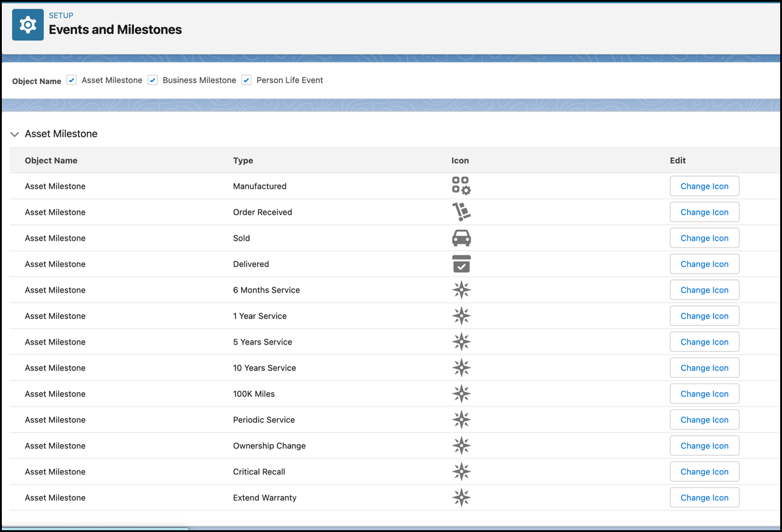
1. From Setup, in the Quick Find box, enter Events and Milestones, and then select **Events and Milestones**.
2. For Object Name, select one or more from Life Events, Business Milestones, Financial Account Milestones, and Asset Milestones.
3. For the milestone or event type for which you want to change the icon, click **Change Icon**.
4. Click **Upload Files**, and select the SVG file for the icon.
5. Save your changes.