---
schema_version: "1"
id: 1f5d67948a7c2ebb688f795af6156e942d94928e9e2a4697dfcce0c97e37ea0c
title: Create a Timeline Using Vehicle Asset Information in Automotive Cloud
collection: admin
version: current
locale: en-us
portal_url: https://docs.salesforce.com/admin/current/en-us/ind/264-0-0/auto_asset_timeline.md
canonical_url: https://help.salesforce.com/s/articleView?id=ind.auto_asset_timeline.htm&release=264.0.0&type=5
source_site: help.salesforce.com
content_type: documentation
content_hash: 541f38041156ab5b5e572441d5b99d5a5cb6a567180a740e4ac25601ec6f0aa4
description: Create a timeline for a Vehicle record and show information from the asset record that’s related to the vehicle. Bring in information from asset warranties, asset account and contact participants, and asset milestones on one interactive timeline on the corresponding Vehicle record. You can also enhance your timeline view to show information from custom objects, location, or vehicle definition.
products:
- Automotive
release: "264"
---
# Create a Timeline Using Vehicle Asset Information in Automotive Cloud
Create a timeline for a Vehicle record and show information from the asset record that’s related to the vehicle. Bring in information from asset warranties, asset account and contact participants, and asset milestones on one interactive timeline on the corresponding Vehicle record. You can also enhance your timeline view to show information from custom objects, location, or vehicle definition.
### Required Editions
Available in: Enterprise, Unlimited, and Developer Editions.
User Permissions
Needed
To configure and customize Timeline:
Customize Application
Make sure that you have read and create access on all objects and fields that you configure on a timeline.
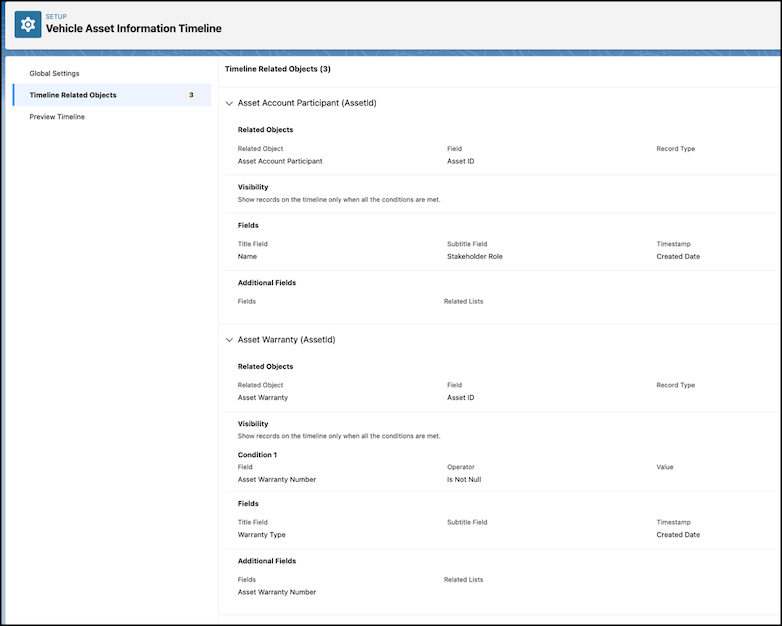
See how you can add a timeline with multiple related objects from Asset and display the timeline on a Vehicle record. You can use these steps to create a timeline with other objects as per your company’s requirements.
1. From Setup, in the Quick Find box, enter Timeline, and then select **Timeline**.
2. Click **New Timeline**.
3. In the New Timeline window, enter a name for the timeline.
4. Enter an API name for the timeline or accept the name that's auto-generated.
5. Select an object to base the timeline on.
You can base your timeline on a standard or custom Salesforce object that meets your needs. For example, select **Vehicle** to surface the timeline on a Vehicle page record.
6. Save your changes.
7. To show the age of the base or primary object at the time of occurrence of the event and the date of the event, turn on **Show Age**.
8. If you want to show the age and the timestamp, choose the field to use for calculating age.
Let’s say, the timeline is on a Vehicle record, Neo PowerUp CD Blue, and Show Age is enabled with the field as Created Date. For a timeline event, such as update of Asset Account Participant, the age of the vehicle at the time of adding the participant is shown.
9. Click **Next**.
10. To add an object, click **Add Related Object**.
We recommend that you add at least Asset Warranty, Asset Milestone, and Asset Account Participant with these configurations. You can also add more objects, such as Asset Contact Participant.
1. Select a parent object from where you derive the timeline information, such as **Asset**.
To continue to use Vehicle as the parent object, select **Use Timeline Object**.
2. Select a related standard or custom object that stores the information that you want to show on the timeline, such as **Asset Account Participant**.
You can add up to five related objects per base object. If an object has record types, you can select up to five record types.
3. Select the field that associates the related object with the base timeline object, such as Asset ID, and then click **Next**.
If a related object has only one lookup to the base object, then the field is auto-selected and can’t be changed.
4. Add filter conditions to show records on the timeline, and then click **Next**.
For example, if the Related Object is Asset Warranty, you can select the condition as Asset Warranty Number isn’t null.
5. Select the title, subtitle, and timestamp fields for the timeline events, and then click **Next**.
For example, if the Related Object is Asset Account Participant, you can choose the title field as Name, the Subtitle field as Stakeholder Role, and the timestamp as Created Date.
6. Select the fields and related lists that you want to show on the timeline, and then click **Add**.
For example, if the Related Object is Asset Milestone, you can add Stage and Milestone Location as additional fields, and Approval History as related list.
11. Save and activate the timeline.
12. Optionally, click **Preview Timeline** and select a base object record, like a Vehicle record in the View Timeline On field.

Tip To make the most of the preview, choose a record that has enough data to show for the different related objects and fields.