---
schema_version: "1"
id: ca581640b3276b57ad776441afbc10d4dcd475ef8ff885f87669a5a9aba7b80d
title: Assess Dealer Visits with Metrics
collection: admin
version: current
locale: en-us
portal_url: https://docs.salesforce.com/admin/current/en-us/ind/264-0-0/auto_assessment_indicators.md
canonical_url: https://help.salesforce.com/s/articleView?id=ind.auto_assessment_indicators.htm&release=264.0.0&type=5
source_site: help.salesforce.com
content_type: documentation
content_hash: 1aa256f30fba589a601e01b033d2cafb1a8719bda01c2156f5becead6fcec279
description: Sales managers can relate Assessment Indicator Definition records to visit tasks to measure a dealer’s performance or compliance. Each task performed during a visit can be assessed based on different parameters or metrics. For example, a sales manager can create a numeric assessment indicator, Number of Vehicle Repairs, to count the number of vehicle repair jobs completed by a service dealer in the previous month. Or, the manager can create a date-time indicator, to capture the last date that the dealer participated in a product knowledge training.
products:
- Automotive
release: "264"
---
# Assess Dealer Visits with Metrics
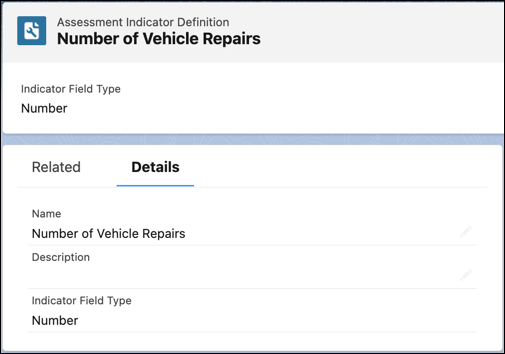
Sales managers can relate Assessment Indicator Definition records to visit tasks to measure a dealer’s performance or compliance. Each task performed during a visit can be assessed based on different parameters or metrics. For example, a sales manager can create a numeric assessment indicator, Number of Vehicle Repairs, to count the number of vehicle repair jobs completed by a service dealer in the previous month. Or, the manager can create a date-time indicator, to capture the last date that the dealer participated in a product knowledge training.
### Required Editions
Available in: Enterprise, Unlimited, and Developer Editions.
User Permissions Needed
To create assessment indicator definitions:
Partner Visit Management permission set
Create access on Assessment Indicator Definition
1. From the App Launcher, find and select **Assessment Indicator Definitions**, and then click **New**.
2. Enter the name and the description for the indicator.
3. Select an indicator field type:
- Number
- Boolean
- Percentage
- Date Time
- Text
- Decimal
4. Save your changes.