---
schema_version: "1"
id: e2223bbca9fecdaae838c5f4665df30cf3994d16f5cb00e7c2e60d582d3960fc
title: Explore the Actionable Relationship Center on Vehicle
collection: admin
version: current
locale: en-us
portal_url: https://docs.salesforce.com/admin/current/en-us/ind/264-0-0/auto_arc_vehicle_user.md
canonical_url: https://help.salesforce.com/s/articleView?id=ind.auto_arc_vehicle_user.htm&release=264.0.0&type=5
source_site: help.salesforce.com
content_type: documentation
content_hash: d6e510f8a1b9fe47c6e3cd485211cbfae04e4004f047845902a086f984cfebe1
description: Explore relationships on an Actionable Relationship Center (ARC) relationship graph to get a single, unified view of records associated with a vehicle.
products:
- Automotive
release: "264"
---
# Explore the Actionable Relationship Center on Vehicle
Explore relationships on an Actionable Relationship Center (ARC) relationship graph to get a single, unified view of records associated with a vehicle.
### Required Editions
Available in: Enterprise, Unlimited, and Developer Editions.
User Permissions Needed
To use Actionable Relationship Center graphs:
Automotive Foundation User permission set.
Make sure your admin has added the ARC Relationship Graph component to the Vehicle page layout that’s assigned to you.
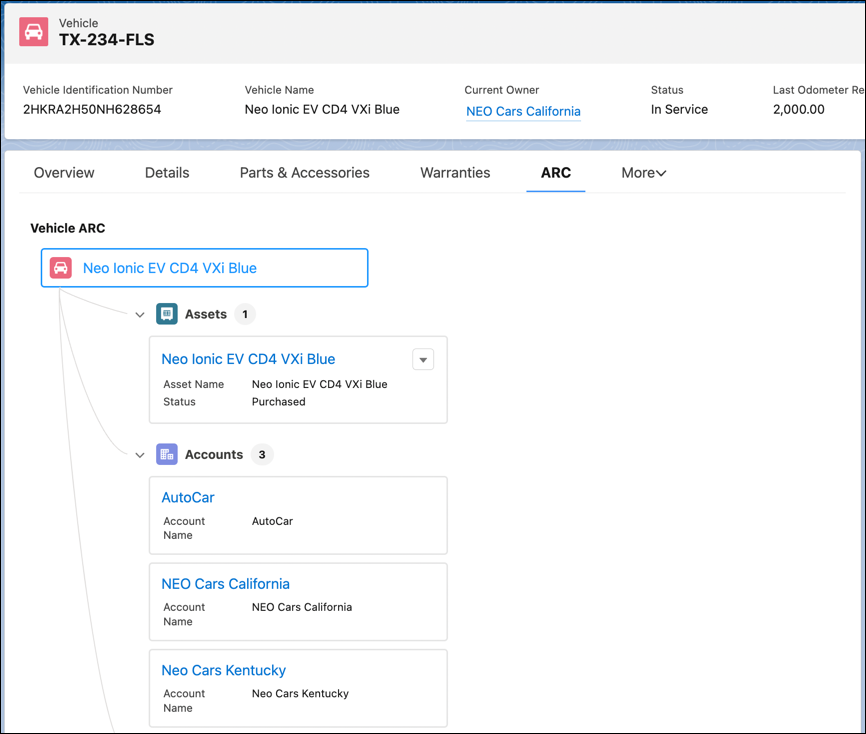
1. Open a Vehicle record.
2. Click the ARC graph tab.
3. View the following information:
- Root record name: Name of the vehicle.
- Child record name: Name of the related record such as the asset name, account name, or product name.
- Node actions: Actions such as Edit, Clone, or Delete. This depends on how your admin has configured the graph.
- Node information: Information such as asset status, model name, or make name. This depends on how your admin has configured the graph.
- Number of child records: Number of records for a related object.
4. To show record details, click a record name on a node.
5. If there are more than five child records, click **Show More** to see more records.
When Show Child Records is enabled, child records show in the same node as the parent node.
#### See Also
- [_Salesforce Help_: Configure Actionable Relationship Center Graphs for Accounts and Vehicles](https://help.salesforce.com/s/articleView?id=ind.auto_configure_arc.htm&release=264.0.0&type=5 "Help users understand the relationship between people and vehicles with Actionable Relationship Center (ARC) graphs. Build custom ARC graphs to connect objects that show related information such as households, visits and vehicles associated to an account. Add the ARC Relationship Graph component to Vehicle or Account pages to let your users engage with the records. Customize card names, display fields, and object and record actions so your users can easily navigate and interact with records during customer engagements.")
- [_Salesforce Help_: Configure Actionable Relationship Center Graphs](https://help.salesforce.com/s/articleView?id=ind.auto_configure_arc.htm&release=264.0.0&type=5 "Help users understand the relationship between people and vehicles with Actionable Relationship Center (ARC) graphs. Build custom ARC graphs to connect objects that show related information such as households, visits and vehicles associated to an account. Add the ARC Relationship Graph component to Vehicle or Account pages to let your users engage with the records. Customize card names, display fields, and object and record actions so your users can easily navigate and interact with records during customer engagements.")