
Show information about all stakeholders, vehicle definitions, and assets on a visual graph for Vehicle records. Configure an Actionable Relationship Center (ARC) Graph with information that’s relevant for sales dealers, service technicians, and agents looking at Vehicle records.
Required Editions
| Available in: Enterprise, Unlimited, and Developer Editions. |
| User Permissions Needed | |
|---|---|
| To customize page layouts: | Customize Application |

Note Here we show you how to create an ARC relationship graph with multiple related objects from
Vehicle and display the graph on a Vehicle record. You can add other objects and fields as per
your company’s requirements. For example, you can follow these steps to create a similar
relationship graph on Account and show information that’s derived from assets, business
profiles, contacts, vehicles, and party relationship groups.
- From Setup, in the Quick Find box, enter Actionable Relationship Center, and then select Actionable Relationship Center.
- Click New Relationship Graph.
-
Select a graph template and click Create Graph.
Select Custom Templates to create your template, or select Installed Templates to use a template created by a third party.
-
Configure the graph properties:
-
Enter a label, for example, Vehicle Relationships, and a unique developer name.
When you add the ARC Relationship Graph component to a record page, the label displays in the list of available graphs.
- Click the root node on the graph and complete the root node fields on the Properties tab:
- Object: Vehicle
- Sort By: Last Modified Date Descending
- Node Configuration: Use As Default
-
Enter a label, for example, Vehicle Relationships, and a unique developer name.
- To add child nodes to the relationship graph, click the plus icon below the root node.
-
Configure the child object:
- Complete the child node fields on the Properties tab:
- Object: Asset
- Relationship Type: One-to-Many
- Parent Node Lookup Field: Vehicle
- Sort By: Last Modified Date Descending
- To add another child node to the relationship graph, click the plus icon below the root node.
-
Configure the child object:
- Complete the child node fields on the Properties tab:
- Object: Account
- Relationship Type: Many-to-Many
- Junction Object: Asset Account Participant
- Parent Node Lookup Field: Vehicle
- Object Lookup Field: Account
- Sort By: Account Name Ascending
- Complete the child node fields on the Display tab:
- Label: Accounts
- Show Field: Account Name
- To add another child node to the relationship graph, click the plus icon below the root node.
-
Configure the child object:
- Complete the child node fields on the Properties tab:
- Object: Product
- Relationship Type: Many-to-Many
- Junction Object: Asset
- Parent Node Lookup Field: Vehicle
- Object Lookup Field: Product
- Sort By: Last Modified Date Descending
- Complete the child node fields on the Display tab:
- Label: Products
- Show Field: Make Name
- Show Field: Vehicle Trim Type
-
To add a child node below an existing child node, click the plus icon below the existing
child node.
For example, click the plus icon below the Account node to add a child node.
-
Configure the child object:
- Complete the child node fields on the Properties tab:
- Object: Party Relationship Group
- Relationship Type: One-to-Many
- Parent Node Lookup Field: Account
- Sort By: Last Modified Date Descending
- Complete the child node fields on the Display tab:
- Label: Party Relationship Groups
- Show Field: Name
- Show Field: Category
- Show Field: Lifetime Vehicle Purchase Value
- Show Field: Lifetime Vehicle Purchase Count
-
Save your changes.
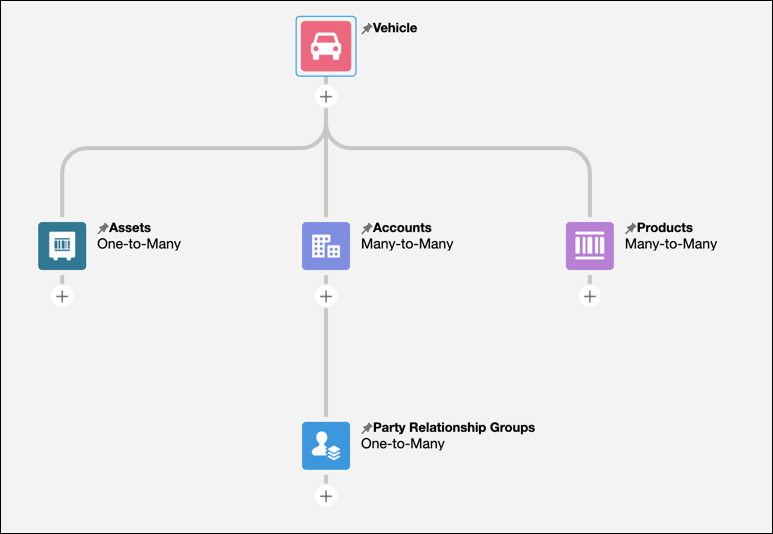
Add the ARC Relationship Graph component to a Vehicle record page layout and assign the page layout to users who an view the information you configured.