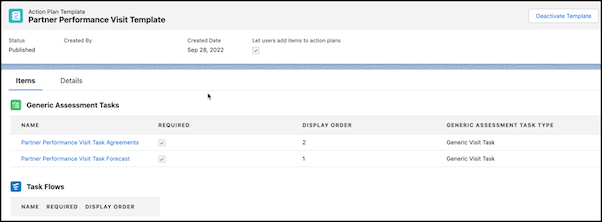
Sales managers can create action plan templates to capture frequently performed tasks
and to specify mandatory tasks. When you add tasks, the assessment indicator definitions related
to a task are automatically added to the template. The template acts as a reusable framework
because you can relate a template with multiple Visit records. For example, create an action plan
template for quarterly front-office check-ins and add typical tasks, such as conducting a survey,
upselling new vehicle accessories, and assessing ongoing promotions.
Required Editions
| Available in: Enterprise, Unlimited, and Developer
Editions. |
| User Permissions Needed |
| To create action plans: |
- Partner Visit Management permission set
- Create access on Action Plan Template
|
-
From the App Launcher, find and select Action Plan Templates, and
then click New.
-
Enter a name and a description for the template.
-
For Target Object, select Visit.
-
For Action Plan Type, select Assessment Execution.
-
Click Save.
-
Click New Generic Assessment Task.
-
Select Is Required if you want to make the task mandatory to
perform.
-
Enter a value for Display Order.
-
To add more tasks, click New on the header and click
Generic Assessment Task.
-
Save your changes.
-
Click Publish Template to activate it.