---
schema_version: "1"
id: 5abd8ba278efb557db2606a3c489790d8d934164e64653dfeef8718f6aaf65c0
title: Recalculate Forecast in a Single Click
collection: admin
version: current
locale: en-us
portal_url: https://docs.salesforce.com/admin/current/en-us/ind/264-0-0/af_user_recalculate_task.md
canonical_url: https://help.salesforce.com/s/articleView?id=ind.af_user_recalculate_task.htm&release=264.0.0&type=5
source_site: help.salesforce.com
content_type: documentation
content_hash: ed4a0876de551d63219c3af8de10446d17cde05b683e9d88eb2953a34bc590b7
description: Recalculate forecasts for your account in a single click. During the adjustment period in your Salesforce org, you can recalculate forecasts to view the latest values after multiple users edit the values.
products:
- Manufacturing
release: "264"
---
# Recalculate Forecast in a Single Click
Recalculate forecasts for your account in a single click. During the adjustment period in your Salesforce org, you can recalculate forecasts to view the latest values after multiple users edit the values.
### Required Editions

Note
There’s a newer version of forecasting available called Advanced Account Forecasting. Ask your admin about migrating. To learn more, see [Maintain Holistic Account Forecasts](https://help.salesforce.com/s/articleView?id=ind.aaf_user_container_concept.htm&release=264.0.0&type=5 "Track advanced account forecasts to make informed decisions, draw easy comparisons between data points, and monitor key metrics over time. Adjust individual or multiple forecast values simultaneously, based on industry trends, business planning, and other factors. Filter forecasts to concentrate on the relevant data and easily identify patterns.").
Available in: Lightning Experience
Available in: Enterprise, Unlimited, and Developer Editions
User Permissions Needed
To recalculate forecast
Read, Edit permissions on Account Forecasts
Forecasts are recalculated when you edit the growth metrics, or when you choose to only recalculate based on existing growth metrics.
1. Open an account’s record and navigate to the Forecast tab.
2. Click **Show Growth** or **Recalculate**.
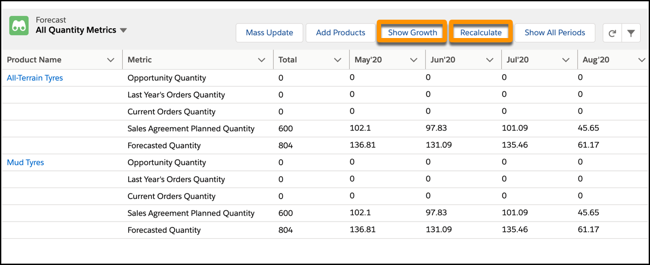
3. If you clicked Show Growth, you can edit the account and market growth percentage values, and click **Apply**. If you clicked Recalculate, the process is immediately triggered with the existing metrics.

Note If an account forecast is being recalculated and you click **Recalculate**, it will only be recalculated after the in-progress recalculation is completed.
The recalculation process derives quantities and revenues from orders, opportunities, and sales agreements. It applies the forecast formula and the updated growth metrics from the last recalculation date and updates the forecast.
You receive an in-app notification when the process is complete. To view the latest values, refresh the record.