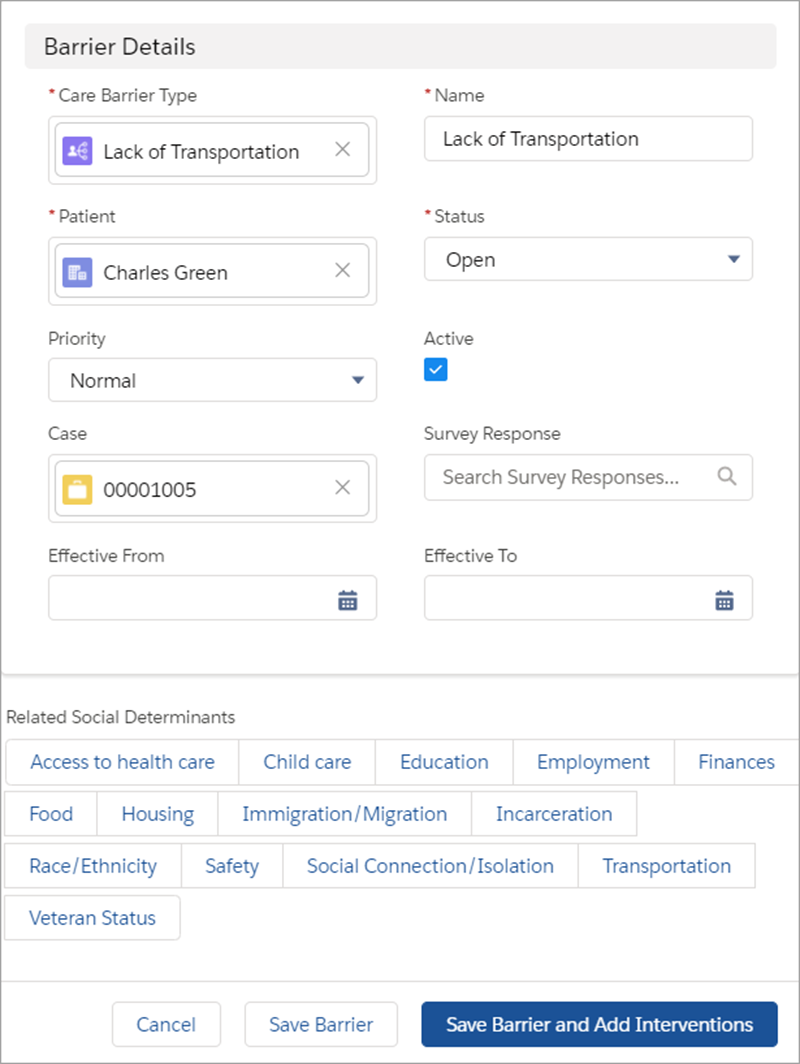
The Care Determinants Lightning component lets you associate barriers with an object like an account and configures how barriers and their details appear in the app.
Required Editions
|
Available in: Lightning Experience Available in: Enterprise and Unlimited Editions with Health Cloud or Life Sciences Cloud |
- In the Lightning App Builder, select the Care Determinants component and move it to an editable part of a case record page or an account record page.
- In the property editor, configure the component’s properties. For Lookup Context, select the object that this component is related to. When you select Account, the lookup is to the account that’s associated with the barrier. When you select Case, the lookup is to the case that’s associated with the barrier.
- For Barrier Header Label, enter the label text for the barrier component.
- For Determinant Help Text, optionally replace the delivered field-level help text that users see when hovering over the Info icon next to the social determinant field.
- For Show barrier publisher, select the field if you want users to create barriers. If the checkbox isn’t selected, only existing barriers appear without the option to add new ones.
- For Hide addressed barriers, select the field to show only unaddressed or open barriers in the component.
- Save your changes and activate the page if it's not already active.
- From Object Manager in Setup, go to the Task object and create a record type named SocialDeterminant. Make the record type available to all profiles that use the component. This record type drives the Task page layout used in the Care Determinants component.

Example Sample Care Determinant component: