Help enhance the quality of care offered to advanced therapy patients by setting up
teams per service territory, per work type (stage), and per user. Configure team members, assign a
participant role, and associate the team member records with users in your org who perform the
tasks.
Required Editions
|
Available in: Lightning Experience
Available in: Enterprise and Unlimited Editions with Health Cloud
or Life Sciences Cloud
|
| User Permissions Needed |
| To create teams and team member records: |
Health Cloud Advanced Therapy Orchestration permission set |
-
From the App Launcher, find and select Teams.
-
Click New.
-
In the New Team window, add the following changes.
-
Enter a name for your team.
-
In Status, select Active.
-
From the App Launcher, find and select Team Members.
-
Click New.
-
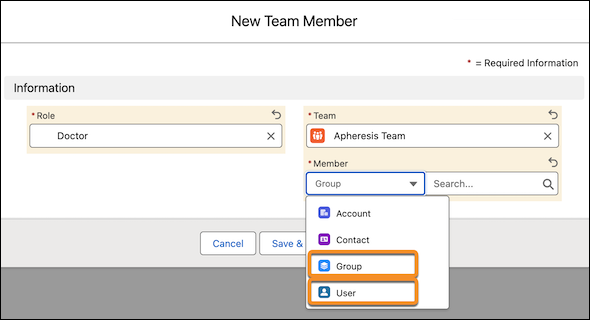
In the New Team Member window, add the following changes.
-
For Role, select a participant role.
-
For Team, select the team you created.
-
In Member, first select User, and then search and select a user
who is part of the team. Alternatively, select Group, and then search and select a user
group.
-
Save your changes.