---
schema_version: "1"
id: cc1dd31189c119cb393d067f67599f269a8e97b591e7cc9be0352a95a04d13e3
title: Add a Business Object to Load the Display Details
collection: admin
version: current
locale: en-us
portal_url: https://docs.salesforce.com/admin/current/en-us/ind/264-0-0/add_business_object_to_load_details.md
canonical_url: https://help.salesforce.com/s/articleView?id=ind.add_business_object_to_load_details.htm&release=264.0.0&type=5
source_site: help.salesforce.com
content_type: documentation
content_hash: cf0f6e48a20c10ce106325b58fe52ae26004d2fa8322268b31030f4dd30e5376
description: When you tap a list item on the parent list, for the master-detail handler to load the item detail, create a business object (CurrentDisplay).
products:
- Consumer Goods
release: "264"
---
# Add a Business Object to Load the Display Details
When you tap a list item on the parent list, for the master-detail handler to load the item detail, create a business object (CurrentDisplay).
### Required Editions
Available in: Enterprise and Unlimited Editions where Consumer Goods Cloud is enabled
User
Permissions Needed
To add and configure a business object
Customizer, Developer
You can configure the behavior of the master-detail handler to reload the list even if the list item is unselected. For example, when you modify the values of fields such as name and description, the app updates those values in the detail area. The app also automatically saves the updates you make to the business objects and runs the validations required to save the changes, regardless of whether a save action was initiated by the user.
1. In your VS Code based Modeler workspace, create a business object by running this command - `sf modeler workspace add`.
The framework creates the default functions required for a business object.
```
? Select the resource you want to add. businessobject
? Specify a name for the businessobject: Display
? Select the module to which businessobject 'Display' should be added. MyDisplay
? Do you really want to create the businessobject 'Display'? Yes
Successfully created businessobject 'BoMyDisplay'. */Users/demoUser/modeler_demo/src/MyDisplay/BO/BoMyDisplay/BoMyDisplay.businessobject.xml */Users/demoUser/modeler_demo/src/MyDisplay/BO/BoMyDisplay/Mv2/CreateAsync/BoMyDisplay.AfterCreateAsync.bl.js */Users/demoUser/modeler_demo/src/MyDisplay/BO/BoMyDisplay/Mv2/CreateAsync/BoMyDisplay.BeforeCreateAsync.bl.js */Users/demoUser/modeler_demo/src/MyDisplay/BO/BoMyDisplay/Mv2/DoValidateAsync/BoMyDisplay.AfterDoValidateAsync.bl.js */Users/demoUser/modeler_demo/src/MyDisplay/BO/BoMyDisplay/Mv2/DoValidateAsync/BoMyDisplay.BeforeDoValidateAsync.bl.js */Users/demoUser/modeler_demo/src/MyDisplay/BO/BoMyDisplay/Mv2/Initialize/BoMyDisplay.AfterInitialize.bl.js */Users/demoUser/modeler_demo/src/MyDisplay/BO/BoMyDisplay/Mv2/Initialize/BoMyDisplay.BeforeInitialize.bl.js */Users/demoUser/modeler_demo/src/MyDisplay/BO/BoMyDisplay/Mv2/LoadAsync/BoMyDisplay.AfterLoadAsync.bl.js */Users/demoUser/modeler_demo/src/MyDisplay/BO/BoMyDisplay/Mv2/LoadAsync/BoMyDisplay.BeforeLoadAsync.bl.js */Users/demoUser/modeler_demo/src/MyDisplay/BO/BoMyDisplay/Mv2/SaveAsync/BoMyDisplay.AfterSaveAsync.bl.js
*/Users/demoUser/modeler_demo/src/MyDisplay/BO/BoMyDisplay/Mv2/SaveAsync/BoMyDisplay.BeforeSaveAsync.bl.js
* /Users/demoUser/modeler_demo/src/MyDisplay/DS/DsBoMyDisplay_sf.datasource.xml
```
2. Define the simple properties of the business object.
```
```
3. To load display records from the database, define the DsBoMyDisplays data source.
1. Configure the columns and corresponding mapping attribute names used in business object. simple properties.
2. To read a single Display record by a given pKey or id, define a condition and a parameter.
3. Specify a pKey parameter and use it in the query condition to select a specific record.
```
```
4. To save the updated value, when the sales rep modifies a value in the detail area, the app should save the business object. Call the `Facade.saveObjectAsync` framework function in the standard method `beforeSaveAsync`, which is called before the business object is saved.
5. Business objects aren’t saved by default because in some cases, you need read-only business objects. To make the business object storable, add this code in the `beforeSaveAsync` method - `var promise=Facade.saveObjectAsync(me);`.
The save function takes the simple properties of the business object and updates the database record by using the mappings defined in the data source.
6. Save your changes.
7. To test the changes, build the contracts by running this command. `sf modeler workspace build`
8. Refresh the simulator app.
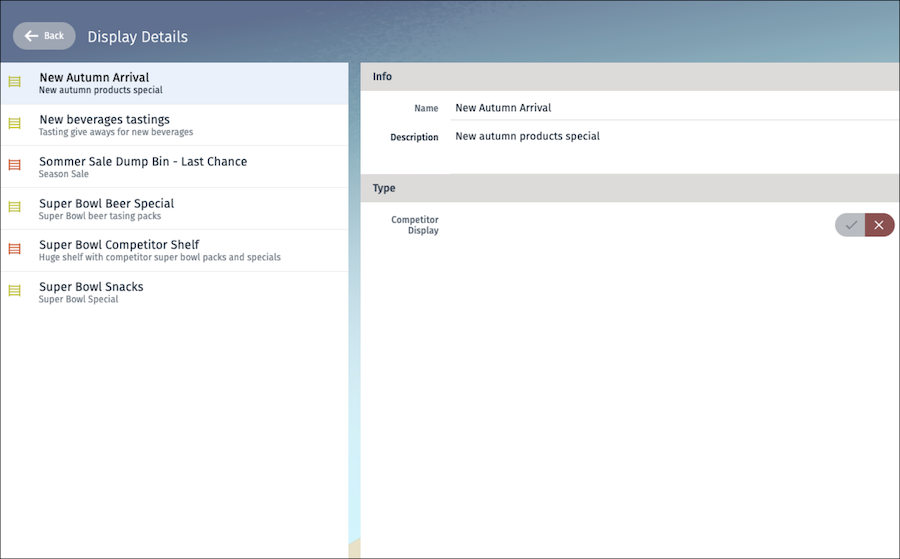
9. On the Display card, click **SHOW ALL DISPLAYS**.
The new UI page opens as shown.