
Adjust your advanced account forecasts to reflect changing market conditions, evolving negotiations, and other factors, and track the reasons for adjustments. You can update individual values at a time or simultaneously update multiple values of advanced account forecasts. You can edit forecast values only during the adjustment period that your Salesforce admin defines for your user profile. You can update the forecast values only when the advanced account forecast set use record is active. You can’t update the forecast values when the advanced account forecast set related to the advanced account forecast set use record is inactive, or when recalculation is in progress.
Required Editions
| Available in: Lightning Experience |
| Available in: Enterprise, Unlimited, and Developer Editions |
| User Permissions Needed | |
|---|---|
| To modify advanced account forecasts | Read and Edit permissions on Advanced Account Forecasts |
| To mass update advanced account forecasts | Mass Update for Advanced Account Forecasting System Permission |
Salesforce admins define the adjustment periods for various user profiles when they define advanced account forecast sets. See Create and Configure Forecast Sets for Advanced Account Forecasting.
To help you update the values for a measure, your Salesforce admin must select the User-Editable calculation method for the measure in the forecast set. See Create and Configure Forecast Sets for Advanced Account Forecasting.
Update Individual Forecast Values
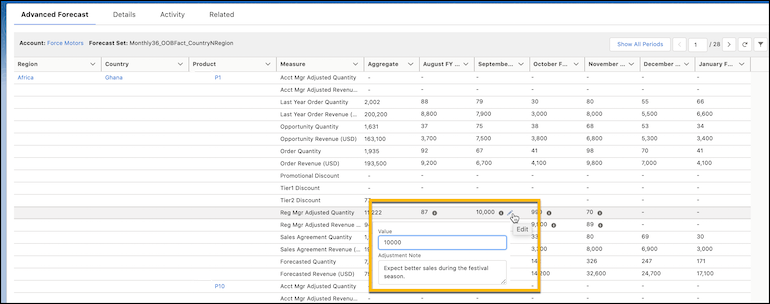
Revise the individual values of advanced account forecasts and note the reasons for the revisions.
- From the App Launcher, go to Advanced Account Forecast Set Uses.
- Open the record for which you want to update the forecast values.
- On the cell that has the value that you want to edit, click the pencil icon.
- Enter the new value for the measure and add an adjustment note.

Update Multiple Forecast Values
Simultaneously update the forecast values for a measure for the desired dimensions across all periods. For example, for demand forecasts on forklifts, mass update the Variable Cost Per Unit measure values across all periods for a production location and a product. To mass update values, select a measure, an advanced account forecast fact list view, and the change in value.
To mass update forecast values, first create a list view on the Advanced Account Forecast Fact object. Define your list view filter criteria by specifying the desired fields on the Advanced Account Forecast Fact object, operators, and logic statements. See Create or Clone a List View in Lightning Experience. You can't specify the list views of a custom forecast fact object to mass update advanced account forecast values.
- From the App Launcher, go to Advanced Account Forecast Set Uses.
- Open the record for which you want to mass update the forecast values.
- Click Mass Update.
- Select the measure that you want to change the values for.
- Find and select an advanced account forecast fact list view.
-
Select an action.
- Increase By
- Decrease By
- Replace With
- Enter a value for the selected action. To use the value as a percentage, select Use as percentage.
- Save your changes.

A manufacturing company sells products in two locations: New York and Singapore. They sell products under two product categories: Hammers and Compactors. Here’s how they set up advanced account forecasting.
- Dimensions: Location and Product Category
- Measures: Order Revenue, Order Quantity, and Adjusted Order Revenue
- Period frequency: Monthly
- Start date: January 1, 2022
- End date: December 31, 2022
The forecast for their partner account, Acme, has twelve monthly periods starting from January 1, 2022 and ending on December 31, 2022. The forecast has 48 forecast fact records (12 periods * 2 locations * 2 product categories).
A partner at Acme asks the account manager to anticipate more demand for hammers in New York. The account manager wants to increase Acme’s order quantity for the Hammer product category sold in the New York location by 10% across all periods. To update this data, the account manager creates a list view called Hammers New York 2022 on the Advanced Account Forecast Fact object with these filters.
- Location equals New York
- Product Category equals Hammers
To update the forecast, the account manager opens the relevant Advanced Account Forecast Set Partner record and selects these values for the mass update action.
- Measure: Adjusted Order Quantity
- List view: Hammers New York 2022
- Action: Increase By
- Value: 10
- Use as percentage: Selected
When the mass update is completed, the account manager gets a notification and can view the updated values in the forecast grid.
