---
schema_version: "1"
id: c99fd3532bd5e3394f571f6151abbe3e6441f62c62be8980ce144d514e914576
title: Define a Dimension Source for Advanced Account Forecasting
collection: admin
version: current
locale: en-us
portal_url: https://docs.salesforce.com/admin/current/en-us/ind/264-0-0/aaf_admin_dimension_task.md
canonical_url: https://help.salesforce.com/s/articleView?id=ind.aaf_admin_dimension_task.htm&release=264.0.0&type=5
source_site: help.salesforce.com
content_type: documentation
content_hash: a1e5bdb9ab62584c14eb52a1595ff74abc174876e13459cbefdec16f95bfd614
description: Dimensions are qualitative attributes, such as product, region, customer segment, business unit, and inventory location, that group forecast data. In Advanced Account Forecasting, dimensions segment the forecasts that appear in the forecasts table. When you configure a forecast set, you can select the dimensions to be used in forecast set. To choose dimensions for a forecast set, first, you must define the source objects for the dimensions. For example, you can define Category as the source object for the product category dimension.
products:
- Manufacturing
release: "264"
---
# Define a Dimension Source for Advanced Account Forecasting
Dimensions are qualitative attributes, such as product, region, customer segment, business unit, and inventory location, that group forecast data. In Advanced Account Forecasting, dimensions segment the forecasts that appear in the forecasts table. When you configure a forecast set, you can select the dimensions to be used in forecast set. To choose dimensions for a forecast set, first, you must define the source objects for the dimensions. For example, you can define Category as the source object for the product category dimension.
### Required Editions
Available in: Lightning Experience
Available in: Enterprise, Unlimited, and Developer Editions
User Permissions
Needed
To modify forecast settings:
Customize Application
Ensure that your forecast fact object contains a field corresponding to the dimension you create. See [Manage Your Forecast Fact Object for Advanced Account Forecasting](https://help.salesforce.com/s/articleView?id=ind.aaf_admin_custom_fact_task.htm&release=264.0.0&type=5 "A forecast fact object stores generated forecast values, such as forecast revenue and quantity. Each forecast fact record represents a set of forecast values for a combination of dimensions and a forecast set. The fields in a forecast fact object represent dimensions, such as account and product, and measures, such as opportunity quantity and forecasted revenue. The records in a forecast fact object are updated based on forecast set configurations whenever the forecast data calculations happen. Advanced Account Forecasting includes a predefined forecast fact object called Advanced Account Forecast Fact. To meet your business needs, you can add fields to the Advanced Account Forecast Fact object or create a custom forecast fact object.").
1. From Setup, in the Quick Find box, enter Advanced Account Forecasting, and then select **Advanced Account Forecasting**.
2. Go to the Dimensions tab.
3. Click **New**.
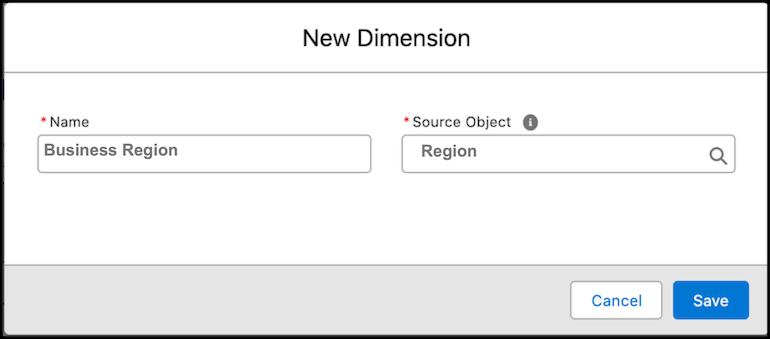
4. Specify a name and a source object for the dimension.
For example, create a dimension called Business Region with the source object as Location.
5. Save your work.
You can use the dimension you created in a forecast set.