---
schema_version: "1"
id: c430b67295ec61cdf6e1a99b043118fd3f0445a7b72d711fa20f16e873009bed
title: Define Custom Fiscal Years for Advanced Account Forecasting
collection: admin
version: current
locale: en-us
portal_url: https://docs.salesforce.com/admin/current/en-us/ind/264-0-0/aaf_admin_define_custom_year.md
canonical_url: https://help.salesforce.com/s/articleView?id=ind.aaf_admin_define_custom_year.htm&release=264.0.0&type=5
source_site: help.salesforce.com
content_type: documentation
content_hash: d43f1c06f134529ae59e58509adf7d04b5abd2fd01fc9e594a1dce389c3f52b9
description: If your fiscal year follows a different structure from the Gregorian calendar, you can define a custom fiscal year. You can calculate, roll over, and show forecasts based on custom fiscal years. You must define a custom fiscal year if you want to use the weekly forecast frequency.
products:
- Manufacturing
release: "264"
---
# Define Custom Fiscal Years for Advanced Account Forecasting
If your fiscal year follows a different structure from the Gregorian calendar, you can define a custom fiscal year. You can calculate, roll over, and show forecasts based on custom fiscal years. You must define a custom fiscal year if you want to use the weekly forecast frequency.
### Required Editions
Available in: Lightning Experience
Available in: Enterprise, Unlimited, and Developer Editions
User Permissions
Needed
To change fiscal year
Customize Application

Warning After you enable custom fiscal years, you can’t disable the feature. However, to revert to standard fiscal years, you can define custom fiscal years that follow the same Gregorian calendar structure as the Salesforce standard fiscal years.

Warning If you have an existing implementation of Account Forecasting or Advanced Account Forecasting, after you enable custom fiscal years, sometimes all your forecasts data gets corrupted. To fix this issue, run the Recalculate All option for Account Forecasting or the Regenerate Account Forecast data processing engine definition for Advanced Account Forecasting.
1. From Setup, in the Quick Find box, enter Fiscal Year, and then select **Fiscal Year**.
2. To create a custom fiscal year, select **Custom Fiscal Years**. 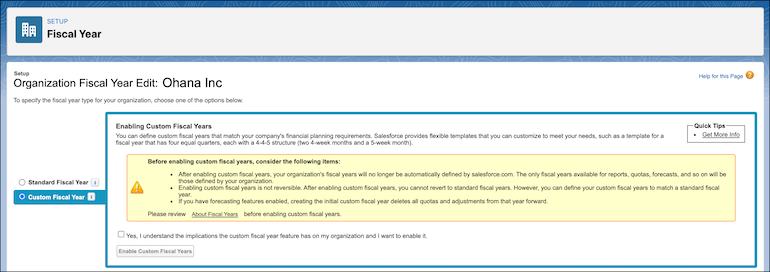
3. Select **Yes** to acknowledge the implications.
4. Click **Enable Custom Fiscal Years**, and define your fiscal year.
See [Define a Custom Fiscal Year](https://help.salesforce.com/s/articleView?id=xcloud.admin_define_cfy.htm&type=5&language=en_US).
5. Save your work.