You can customize the default forecast set and out-of-the-box Data Processing Engine templates by adding additional dimensions, measures, and filters. This example shows how to add a dimension called Location and customize the out-of-the-box Generate Account Forecast Data Processing Engine definition to generate account forecasts.
Required Editions
| Available in: Lightning Experience |
| Available in: Enterprise, Unlimited, and Developer Editions |
-
Create a custom object called Product Location Mapping with these fields.
Field Name Type Product_c Lookup to Product object Location_c Lookup to Location object 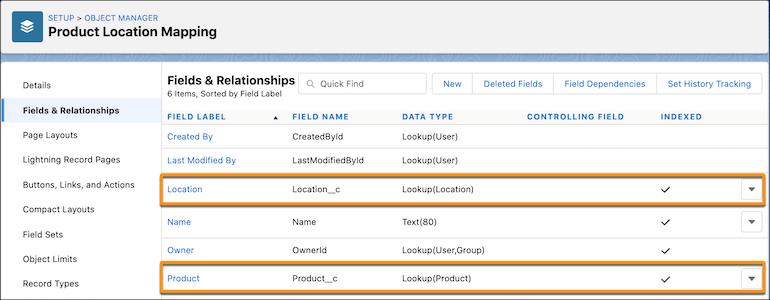
- Add product and location mapping records in the Product Location Mapping object.
-
In the Advanced Account Forecasting setup, create a dimension called Location with the
following values.
Field Name Value Name Location Source Object Location -
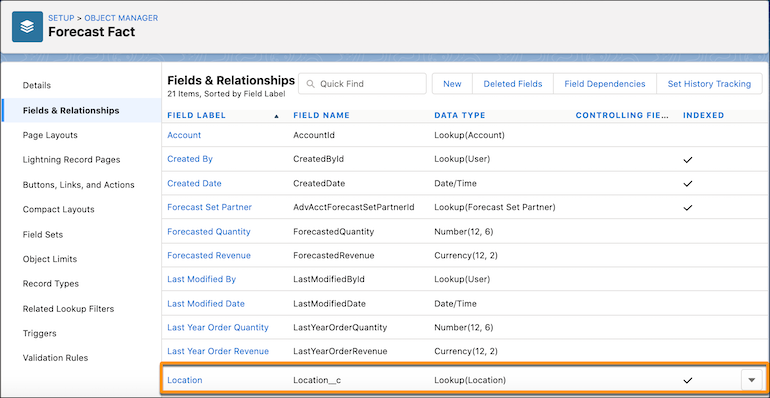
In the Default Forecast Fact object, add a custom field called Location with a lookup to
the Location object.
-
Configure the Default Forecast Set to include the Location dimension. To show the forecast
data with products for each location, change the display order for the Product dimension to 2
and enter the display order for Location as 1.
Field Name Description Name Location Forecast Fact Dimension Field Location_c Display Order 1 - Open the out-of-the-box Generate Account Forecast Data Processing Engine definition.
- Click Save As, and then save the definition as Custom Generate Account Forecast.
-
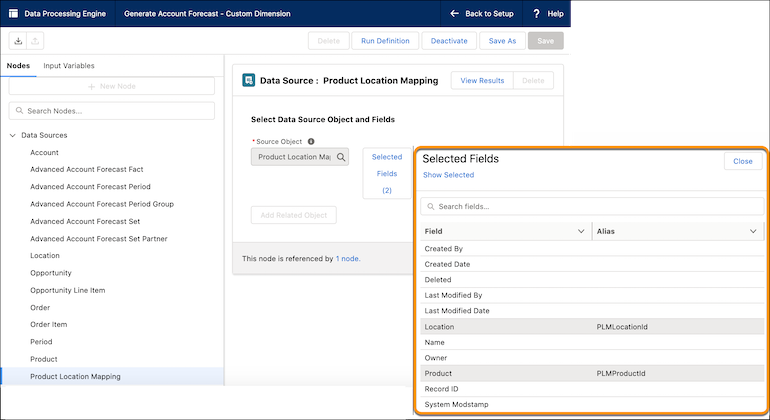
Add two data source nodes called Location and Product Location Mapping. For the Product
Location Mapping node, in the object, select the Location and Product fields and add an alias
for the two fields.
Field Name Alias Product PLMProductId Location PLMLocationId 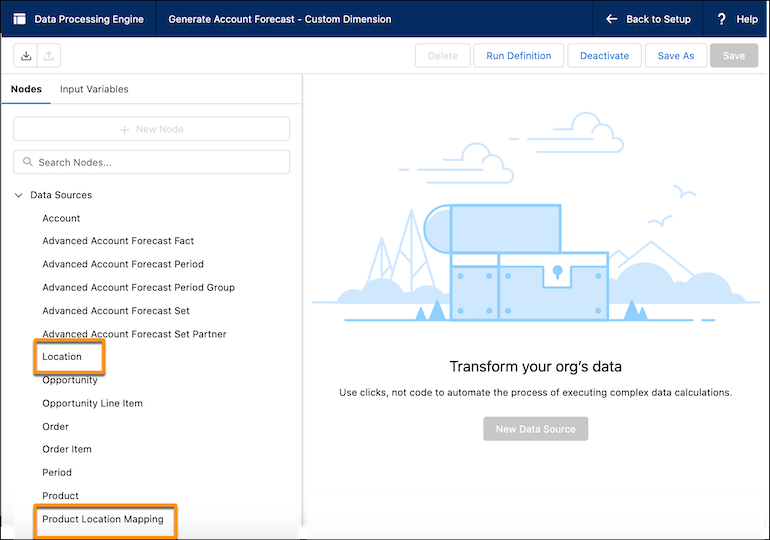
-
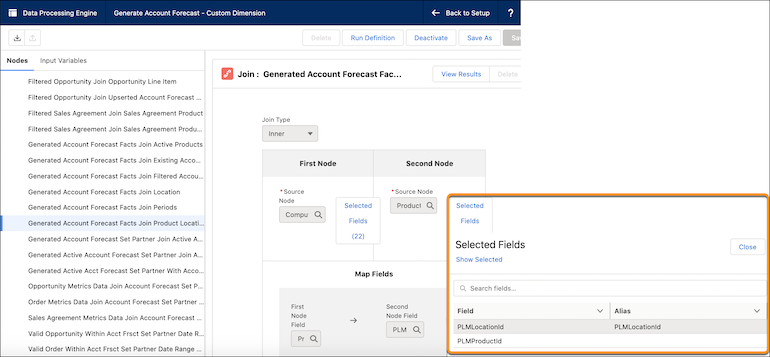
Add an Inner join called Generate Account Forecast Fact Join Product Location Mapping, with
the source node as Compute IsActive Attribute On Account Forecast Fact and target node as
Product Location Mapping. Map the product field of the source node (ProductId) to the target
node (PLMProductId).
-
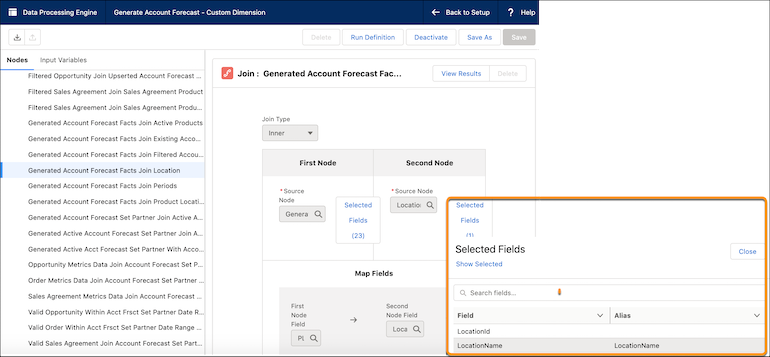
Add an inner join called Generated Account Forecast Fact Join Location with the source node
as Generate Account Forecast Fact Join Product Location Mapping and target node as Location.
Map the location fields: PLMLocationId to LocationId.
- Download the Custom Generate Account Forecast data processing engine definition file.
-
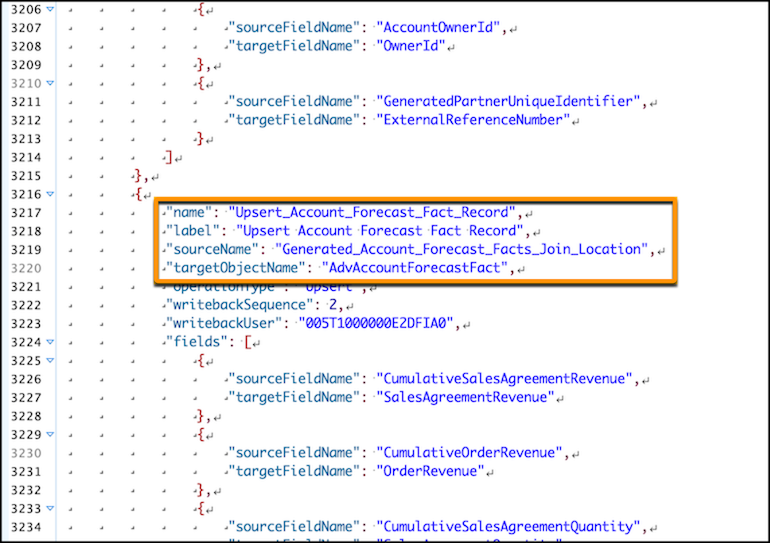
Open the file in a JSON editor, and then replace the API name of the source node for the
Upsert Account Forecast Fact Record writeback node by the API name of the Generated Account
Forecast Fact Join location node.
- Upload the modified JSON file to your org.
-
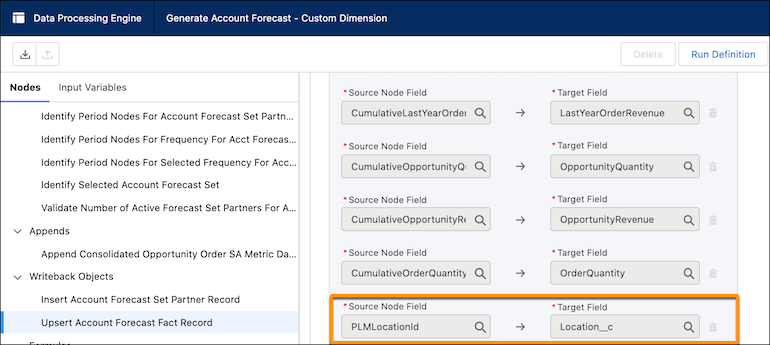
Update the Upsert Account Forecast Fact Record writeback node to include a source field
(PLMLocationId) and Target (Location_c), and then save the definition.