
Download the Application Approval SFDX metadata, and deploy them to your Salesforce org.
In order to deploy the metadata, you must download Visual Code Studio (VS Code), a free, open-source code editor.
- Download and install Visual Studio Code. See Visual Studio Code.
-
Install Salesforce Extension Pack in Visual Studio Code:
- Launch Visual Studio Code.
- Click the Extensions icon.
- Search for Salesforce Extension Pack and click Install.
-
Create a project in Visual Studio Code:
- Press Ctrl+Shift+P (Windows) or Cmd+Shift+P (macOS) to make the command palette appear.
- Type and select SFDX: Create Project with Manifest.
- Select Standard.
- Enter any project name, press enter.
- Select a location on your computer for the project files to go.
- Click Create Project.
-
Authenticate your target org:
-
Press Ctrl+Shift+P (Windows) or Cmd+Shift+P (macOS).
The command palette opens.
- Enter SFDX: Authorize an Org, and then select SFDX: Authorize an Org.
- To accept the default login URL, press Enter.
-
Enter an alias.
For example, enter Astro.A new Salesforce login window opens in a browser.
- Log in to your target org.
-
When you are asked to grant access to the connected app, click Allow, and then close the browser window.
The command-line terminal window shows a message when the authentication is successful.
-
Press Ctrl+Shift+P (Windows) or Cmd+Shift+P (macOS).
-
Download and extract the metadata file.
- Download this datapack to your local desktop: EUC_ProgramApplnApproval_Sfdx_Datapacks.zip.
- Create a ProgramApplnApproval_SFDX folder in your local desktop.
- Extract EUC_ProgramApplnApproval_Sfdx_Datapacks.zip to the ProgramApplnApproval_SFDX folder
-
In the folder, create the file sfdx-project.json which contains the following code:
{ "packageDirectories": [ { "path": "salesforce_sfdx", "default": true } ], "namespace": "", "sfdcLoginUrl": "https://login.salesforce.com", "sourceApiVersion": "59.0" } -
Move the package.xml file from salesforce_sfdx/main/default to the ProgramApplnApproval_SFDX folder.
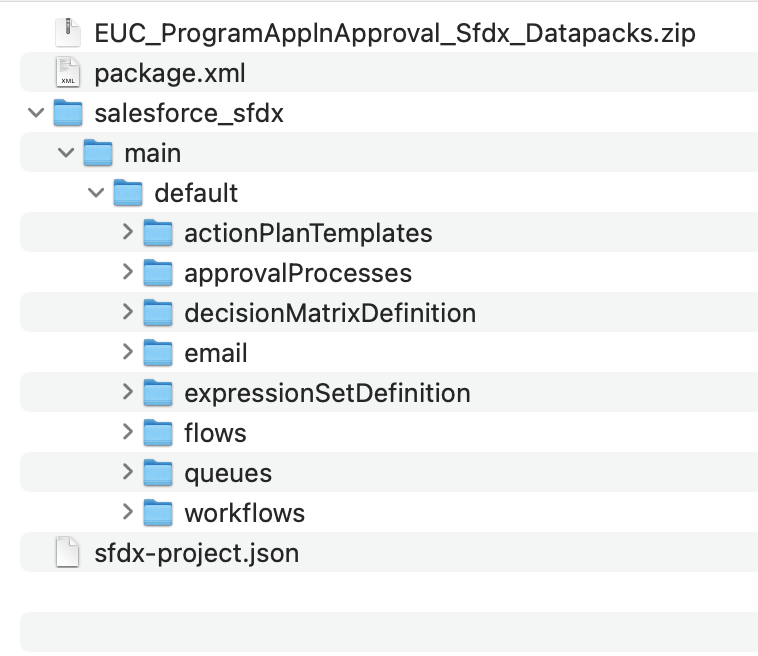
- Open ProgramApplnApproval_SFDX in Visual Studio Code.
-
Deploy components from to your target org.
-
In VSCode, in the left panel, right-click the salesforce-sfdx folder.
For Mac devices, CMD + click the salesforce-sfdx folder.
-
Click SFDX: Deploy Source to Org.
If deployment fails for any component, select the components that failed and deploy them individually.
-
In VSCode, in the left panel, right-click the salesforce-sfdx folder.