---
schema_version: "1"
id: 8d2f6da8f9bda9c896ce81e100d1f84649b2929c78beb7e883ff9ff90dfc3616
title: Set Up CMS Content Search in an LWR Site
collection: admin
version: current
locale: en-us
portal_url: https://docs.salesforce.com/admin/current/en-us/experience/264-0-0/networks_search_site.md
canonical_url: https://help.salesforce.com/s/articleView?id=experience.networks_search_site.htm&release=264.0.0&type=5
source_site: help.salesforce.com
content_type: documentation
content_hash: 2ee4aae54589a88316ac2d2e6106784734cdc8739f9ea57881e9452ae80cc273
description: In enhanced LWR sites, visitors can search for CMS content published from enhanced CMS workspaces. Visitors can also search for content within the Rich Content Editor and HTML Editor components, as well as within page title metadata. Use the Search Bar and Results Layout components to add the search functionality to your enhanced LWR site.
products:
- Experiences
release: "264"
---
# Set Up CMS Content Search in an LWR Site
In enhanced LWR sites, visitors can search for CMS content published from enhanced CMS workspaces. Visitors can also search for content within the Rich Content Editor and HTML Editor components, as well as within page title metadata. Use the Search Bar and Results Layout components to add the search functionality to your enhanced LWR site.
### Required Editions
Available in: Salesforce Classic and Lightning Experience
Available in: Enterprise, Performance, Unlimited, and Developer Editions
Be a member of the site AND Create and Set Up Experiences
OR
Be a member of the site AND an experience admin, publisher, or builder in that
site
Visitors can search only indexed content, so after you publish fresh content in your site or in the connected CMS workspace, rebuild the index. In Experience Builder, navigate to **Settings | Search**, and then click **Rebuild Index**.
CMS Content Search isn’t available for Government Cloud organizations.

Note Searches that contain partial keywords don’t return search results. However, if a user enters a misspelled word in the Search field, CMS Content Search attempts to correct the word and provides search results for records that contain the corrected words.
Search results can only be shown on a standard Search page, so to use the Results Layout component, you must first create the search page.
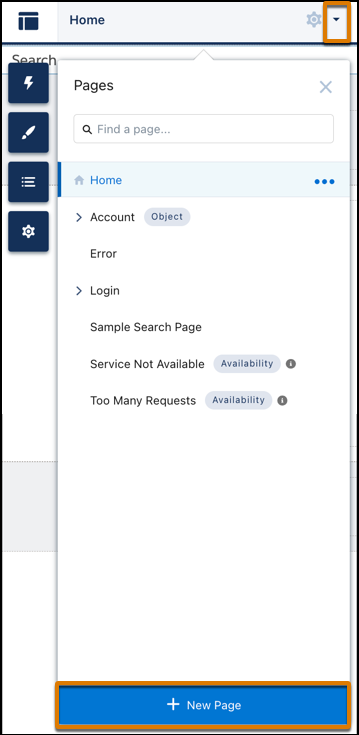
1. In Experience Builder, click the Pages menu on the top toolbar, and then click **New Page** at the bottom of the menu.
2. Select the **Standard Page** type.
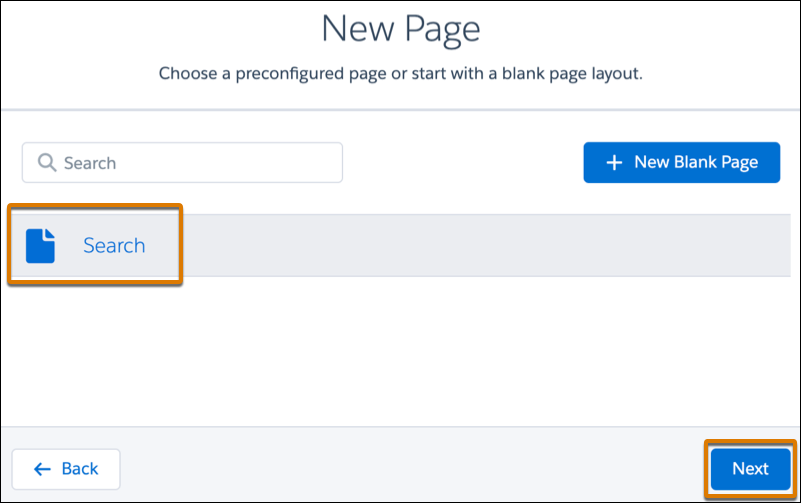
3. Select the preconfigured **Search** page and click **Next**.
4. Enter a name and URL for the page, and then click **Create**.
5. From the Components panel, drag the **Search Bar** component onto the header section of the page. When you add the component to the header section, CMS content search is available across all site pages.
6. To open the properties panel of the Results Layout component, drag the component from the Components panel onto the page, and click the component on the canvas.
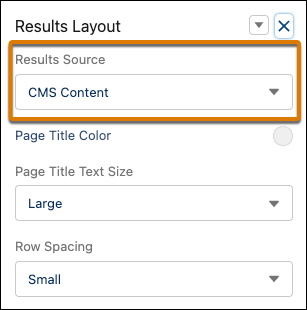
7. From the properties panel, make sure the **Results Source** field displays the **CMS Content** option.
8. Preview and publish your site.