---
schema_version: "1"
id: 5e0b66c40a24faa9a72cf48171e702bd9397671e808598efbff9ff6801555a15
title: Delete Assigned Badges
collection: admin
version: current
locale: en-us
portal_url: https://docs.salesforce.com/admin/current/en-us/experience/264-0-0/networks_recog_badges_delete_profile.md
canonical_url: https://help.salesforce.com/s/articleView?id=experience.networks_recog_badges_delete_profile.htm&release=264.0.0&type=5
source_site: help.salesforce.com
content_type: documentation
content_hash: db62493683b13038f75bc20083b6bb705a455445d4c7a0ce5ebd9c70544429dd
description: Sometimes badges are assigned to a member by mistake. If you gave the badge, you can delete it from the member’s profile page.
products:
  - Experiences
release: "264"
---
# Delete Assigned Badges

Sometimes badges are assigned to a member by mistake. If you gave the badge, you can delete it from the member’s profile page.

### Required Editions

<table class="slds-table slds-table_bordered slds-max-medium-table_stacked slds-m-bottom_small edition"><colgroup><col></colgroup><tbody><tr class=""><td class="slds-cell-wrap" style="vertical-align:top;">Available in: <strong>Enterprise</strong>, <strong>Professional</strong>, <strong>Unlimited</strong>, and <strong>Developer</strong> editions.</td></tr></tbody></table>

<table class="slds-table slds-table_bordered slds-max-medium-table_stacked slds-m-bottom_small permission">
        <colgroup>
          <col style="width:50%">
          <col style="width:50%">
        </colgroup>
        <thead class="slds-text-title_caps ">
          <tr class="">
            <th scope="colgroup" class="slds-cell-wrap" colspan="2" style="text-align:center;vertical-align:top;" id="d74191e64">User Permissions Needed</th>
          </tr>
        </thead>
        <tbody>
          <tr class="">
            <td data-label="User Permissions Needed" class="slds-cell-wrap" style="vertical-align:top;" headers="d74191e64 ">To manage your recognition badges:</td>

            <td class="slds-cell-wrap" style="vertical-align:top;" headers="d74191e64 ">
              <p>Create And Set Up Experiences</p>
              <p>AND</p>
              <p>Moderate Chatter</p>
              <p>OR</p>
              <p>Manage
                Experiences</p>
              <p>AND</p>
              <p style="margin-bottom:0;">Moderate Chatter</p>
            </td>

          </tr>
        </tbody>
      </table>

1. Open the profile page for the member who got the badge by mistake.
2. To open the Recognition Badge list view, click **View All** under Recognition.
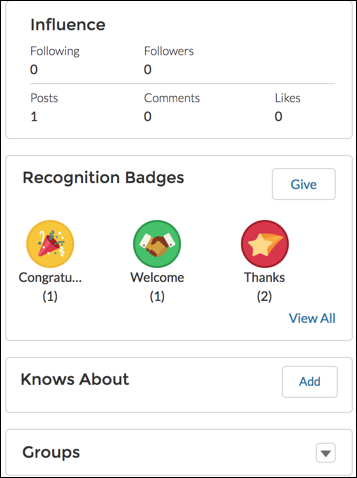
    
    ![Recognition Badges card on a User Profile page.](https://sf-zdocs-cdn-prod.zoominsoftware.com/tdta-experience-communities-264-0-0-production-enus/bf7df212-91a1-4fa3-a007-4d6f3e3b470b/communities/images/recog_badges_profile_card.png)
3. Locate the badge in the list and click the dropdown at the end of the row.
4. Click **Delete**.

    
    ![Badge list view with the Delete option at the end of the row.](https://sf-zdocs-cdn-prod.zoominsoftware.com/tdta-experience-communities-264-0-0-production-enus/bf7df212-91a1-4fa3-a007-4d6f3e3b470b/communities/images/recog_badges_delete_profile_badge.png)