---
schema_version: "1"
id: df27347fd2b63b218250ec06ddf2b444c245d5ce76312b5b5eb89e7d0d5590c2
title: Assign Screen-Responsive Property Values in Custom Components in Enhanced LWR Sites
collection: admin
version: current
locale: en-us
portal_url: https://docs.salesforce.com/admin/current/en-us/experience/264-0-0/networks_lwr_screen_responsive.md
canonical_url: https://help.salesforce.com/s/articleView?id=experience.networks_lwr_screen_responsive.htm&release=264.0.0&type=5
source_site: help.salesforce.com
content_type: documentation
content_hash: 7597aa7bf9009d587c41bc9cf6ec658f46140644a38cb98fd7301966abd4290a
description: Specify different values for desktop, mobile, and tablet displays for string or integer property types in custom Lightning web components in enhanced LWR sites. With screen-responsive properties, the component uses the correct property value based on the end user’s screen size.
products:
- Experiences
release: "264"
---
# Assign Screen-Responsive Property Values in Custom Components in Enhanced LWR Sites
Specify different values for desktop, mobile, and tablet displays for string or integer property types in custom Lightning web components in enhanced LWR sites. With screen-responsive properties, the component uses the correct property value based on the end user’s screen size.
### Required Editions
Available in: Salesforce Classic and Lightning Experience
Available in: Enterprise, Performance, Unlimited, and Developer Editions
Create and Set Up Experiences AND View Setup and Configuration AND be a member
of the site
OR
View Setup and Configuration AND be a member of the site AND have appropriate
role-based site access
Screen-responsive properties are available only when the component developer has programmatically declared those properties to be screen responsive.
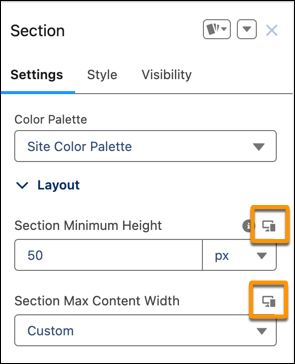
1. In Experience Builder, select the custom component.
In the component’s property panel, an icon indicates the properties that are screen responsive.
2. Specify the property value for the current screen size.
By default, smaller screen sizes inherit the property values that you specify for larger screen sizes.
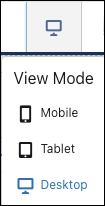
3. To specify a property value for a different screen size, use the menu in the navigation bar to select another view mode.
#### See Also
- [_LWR Sites for Experience Builder_: Make a Custom LWR Component Screen-Size Responsive](https://developer.salesforce.com/docs/atlas.en-us.exp_cloud_lwr.meta/exp_cloud_lwr/get_started_responsive_properties.htm)