---
schema_version: "1"
id: cba51415575efc65c93fa68c5ba61c4d1156483d9183e6cda741d3c9a8282584
title: Bind Data to CMS Content Pages in Your LWR Site
collection: admin
version: current
locale: en-us
portal_url: https://docs.salesforce.com/admin/current/en-us/experience/264-0-0/networks_data_binding_detail.md
canonical_url: https://help.salesforce.com/s/articleView?id=experience.networks_data_binding_detail.htm&release=264.0.0&type=5
source_site: help.salesforce.com
content_type: documentation
content_hash: 0a9cdc4b03c8cf854f492d00b2d25c3a9cd829fec7a42de2cd7691ee7573e7dd
description: Data-bound components used on CMS content pages automatically populate with content saved in Salesforce CMS. Map fields in the component property panel to fields in CMS content.
products:
- Experiences
release: "264"
---
# Bind Data to CMS Content Pages in Your LWR Site
Data-bound components used on CMS content pages automatically populate with content saved in Salesforce CMS. Map fields in the component property panel to fields in CMS content.
### Required Editions
Available in: Salesforce Classic and Lightning Experience
Available in: Enterprise, Performance, Unlimited, and Developer Editions
Be a member of the site AND Create and Set Up Experiences
OR
Be a member of the site AND an experience admin, publisher, or builder in that
site
1. In Experience Builder, navigate to a CMS content page such as News Detail or Document Detail and click **Components**.
2. Drag a component that supports data binding onto the page. In the component property panel, you already have content that’s inherited from the content pages.
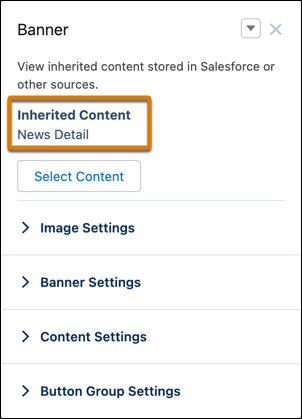
3. Click the component fields and map them to elements of your inherited CMS content in the component property panel. You can bind data from any field on the detail page, including custom fields. The content then populates automatically in the component.
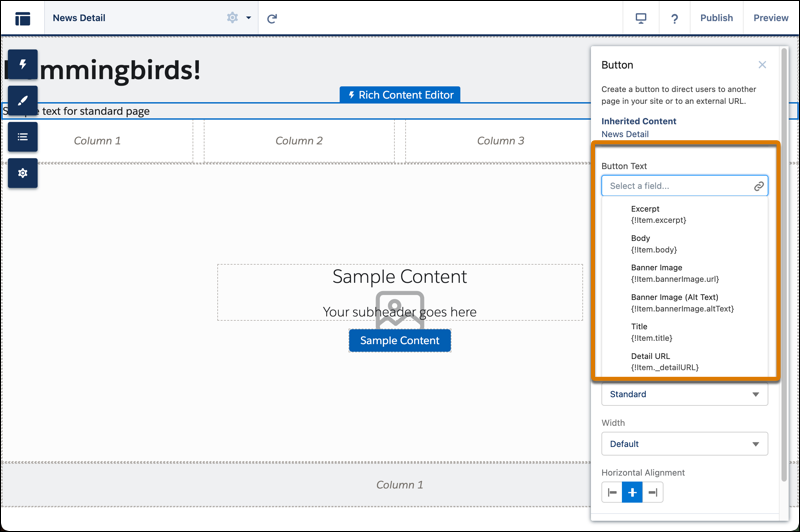
To use a component on a detail page without binding content, click the chain link icon next to the data source to unlock the content. Add your own content or paste in a valid URL in the field instead to link to static content.
4. Continue customizing how the content appears on the CMS content page in the component property panel.
See data binding in CRM records in action in the [Did You Know Series (English Only)](https://salesforce.vidyard.com/watch/SUwcxSKrE2tNUXeBqtNWFG).