---
schema_version: "1"
id: bbb8ef230433be0ada847295c680a04a319ff1d66f337b98bae29c05879d9827
title: Add Salesforce CMS Content to Your LWR Site with Data Binding
collection: admin
version: current
locale: en-us
portal_url: https://docs.salesforce.com/admin/current/en-us/experience/264-0-0/networks_data_binding.md
canonical_url: https://help.salesforce.com/s/articleView?id=experience.networks_data_binding.htm&release=264.0.0&type=5
source_site: help.salesforce.com
content_type: documentation
content_hash: ea7b5a974e7deb44363eeb415d02ca394ee0149215e3728d87f9c65e2b8208bc
description: Use data binding to populate your LWR site with Salesforce CMS content. Drop a component that supports data binding onto your site page and map it to content froma CMS workspace.
products:
- Experiences
release: "264"
---
# Add Salesforce CMS Content to Your LWR Site with Data Binding
Use data binding to populate your LWR site with Salesforce CMS content. Drop a component that supports data binding onto your site page and map it to content froma CMS workspace.
### Required Editions
Available in: Salesforce Classic and Lightning Experience
Available in: Enterprise, Performance, Unlimited, and Developer Editions
Create and Set Up Experiences AND View Setup and Configuration AND be a member
of the site
OR
View Setup and Configuration AND be a member of the site AND have appropriate
role-based site access
Before you can add content from a CMS workspace to your site, add the site as a channel to the workspace. Then make sure that the content you want to add is published in the CMS workspace.
These steps demonstrate how to add news content from a CMS workspace to a Card component. You can follow these same steps for other CMS content types or if you're using the Banner, Tile, Grid, and Overlap components, which also support data binding. Some of the details can differ depending on the component and the type of CMS content that you're working with.
1. In Experience Builder, click **Components**.
2. Drag a Card component onto the page.
3. In the component property panel, click **Select Content**.
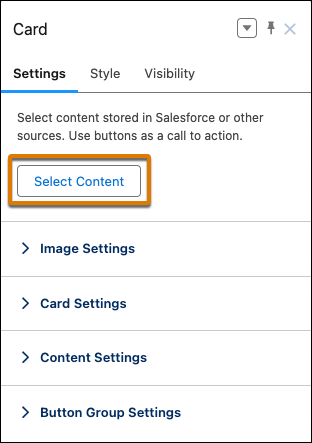
4. Select news content item that you want to add from the content selector, and then save your changes.
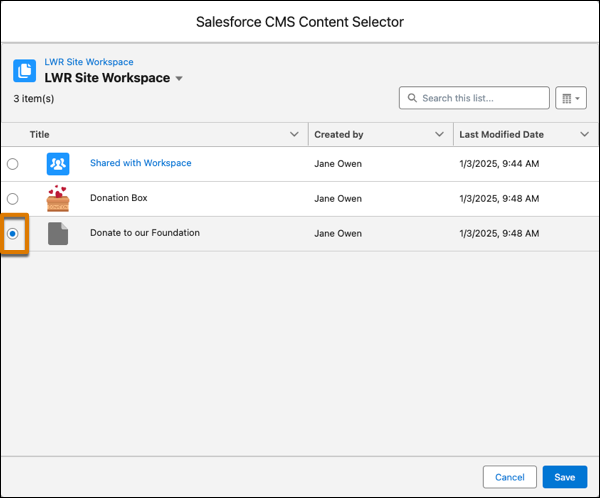
The news content item is now a data source for the card component. To populate the component with the news content, map elements of the content, such as the title, body, and banner image, to the components that are nested in the card.
5. To add the news title:
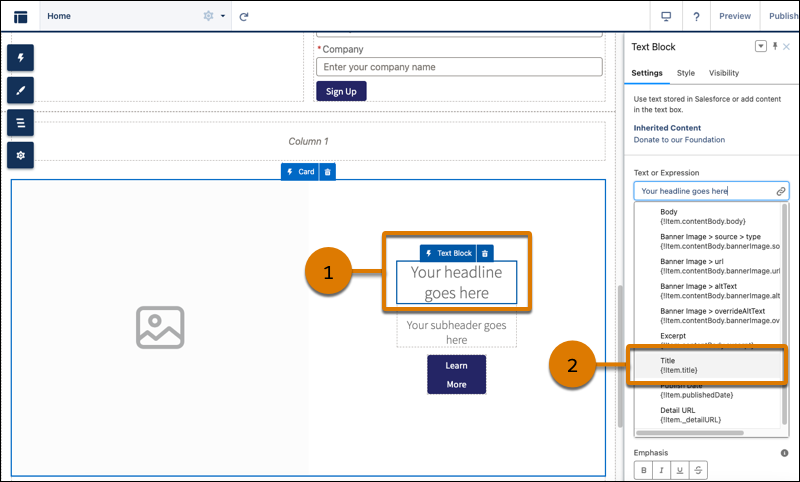
1. In the Card component, select the Text Block for the headline (1).
2. In the component property panel, from the Text or Expression field, select **Title** (2).
6. To add the body:
1. Select the Text Block component for the subheader.
2. In the component property panel, from the Text or Expression field, select **Body**.
7. To add the banner image:
1. Select the Card component.
2. In the component propery panel, go to Image Settings. From the Image URL or Expression field, select **Banner Image > url**.
If the news content doesn’t have a banner image, select a background image from CMS or add a different image URL to the Image URL or Expression field.
8. Continue to customize the card component and its nested components using the component property panel. You can customize the content layout, including component size, font size, image position, overlays, and more.
If the news content is later updated in the CMS workspace and republished, those updates appear on your site. Here are some considerations when using data binding components.
- If a component points to a site page that’s deleted, reconfigure the component to point to a different site page.
- If a component points to a list view or related list view whose API name is changed, reconfigure the component to point to a different list view or related listview.
- Although the Text Block, HTML Editor, Image, Video, and Button components don’t support direct data binding on the Home page, they’re data-bound when used on detail pages. And you can nest them in other data-bound components. On detail pages and as nested components, they inherit content from the data-bound component where they’re nested.
See data binding in a Banner component in the [Did You Know Series (English Only)](https://salesforce.vidyard.com/watch/SUwcxSKrE2tNUXeBqtNWFG).
#### See Also
- [Bind Data to CMS Content Pages in Your LWR Site](https://help.salesforce.com/s/articleView?id=experience.networks_data_binding_detail.htm&release=264.0.0&type=5 "Data-bound components used on CMS content pages automatically populate with content saved in Salesforce CMS. Map fields in the component property panel to fields in CMS content.")
- [Add an Image from Salesforce CMS to Your LWR Site](https://help.salesforce.com/s/articleView?id=experience.networks_data_binding_images.htm&release=264.0.0&type=5 "Add an image from Salesforce CMS to your site page or add to a component that's populated with CMS content.")
- [Nest Content Components in Your LWR Site](https://help.salesforce.com/s/articleView?id=experience.networks_data_binding_nesting.htm&release=264.0.0&type=5 "Nest content components within layout components on your LWR site to showcase more content from your Salesforce CMS. Create eye-catching content displays by nesting components that use data binding.")
- [Use a Grid Component to Show Enhanced CMS Collections and List Views in LWR Sites](https://help.salesforce.com/s/articleView?id=experience.networks_grid.htm&release=264.0.0&type=5 "The Grid component dynamically populates with data that’s saved in enhanced CMS collections and record list views. After you pick a data source, you add a content component within the grid to show the content that you want. The component provides data binding and pagination logic.")