---
schema_version: "1"
id: f83c5297dc2abb9065a0630ac92015e95213384a7335a24bae99fdb435248141
title: Customize Code for Lightning Components on Login Pages
collection: admin
version: current
locale: en-us
portal_url: https://docs.salesforce.com/admin/current/en-us/experience/264-0-0/networks_custom_login_self_reg_lightning.md
canonical_url: https://help.salesforce.com/s/articleView?id=experience.networks_custom_login_self_reg_lightning.htm&release=264.0.0&type=5
source_site: help.salesforce.com
content_type: documentation
content_hash: 04278daee1ce92be94887e751144429d7636d6247b590d508abb42337ea65710
description: To add custom logic to the Login pages in Experience Builder sites, customize the Lightning component for those pages.
products:
- Experiences
release: "264"
---
# Customize Code for Lightning Components on Login Pages
To add custom logic to the Login pages in Experience Builder sites, customize the Lightning component for those pages.
### Required Editions
Available in: both Salesforce Classic and Lightning Experience
Available in: Enterprise, Performance, Unlimited, and Developer Editions
User
Permissions Needed
To create and edit Lightning components:
Customize Application
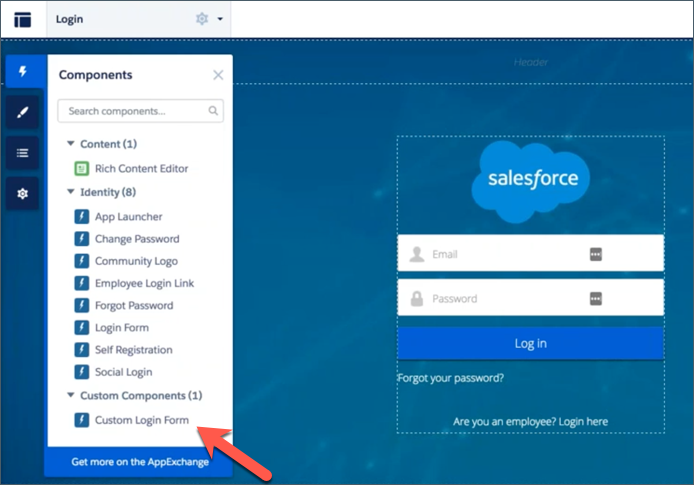
Each site has these default Login pages: Check Password, Forgot Password, Login, Login Error, and Register. And each Login page has a standard Lightning component that drives this functionality. If your company or site has any usability, security, or accessibility requirements that aren't supported by preconfigured login components, you can customize the login experience by creating custom components and adding code logic.
1. From Setup, in the Quick Find box, enter Lightning Components, and then select **Lightning Components**.
2. To customize a component, click the one that you want. For example, to customize the login experience, click loginForm.
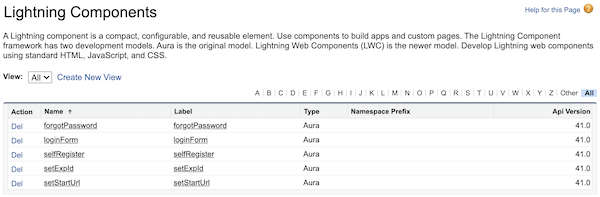
3. On the Lightning component detail page, click **Developer Console**.
4. In the Developer Console workspace, add `implements="forceCommunity:availableForAllPageTypes"` to the `` tag. Implementing the `forceCommunity:availableForAllPageTypes` interface exposes the component in Experience Builder.
5. Add custom code logic and save your changes as a new custom component.
6. Go back to Experience Builder in your site and bring up the Login page from the list of pages. The custom component you created appears on the list of components.